"PERI" = "EXCEL" (external device)
"BAUD" = "2400"/"4800"/"9600" (baud rate)
"PRT.M" = "KEY"/"STABLE" (printing model)
"PRT.F" = "PRT.F01" (printing format)
Enable the function of “Use Serial Keys” in the computer
Set Windows XP as a example:
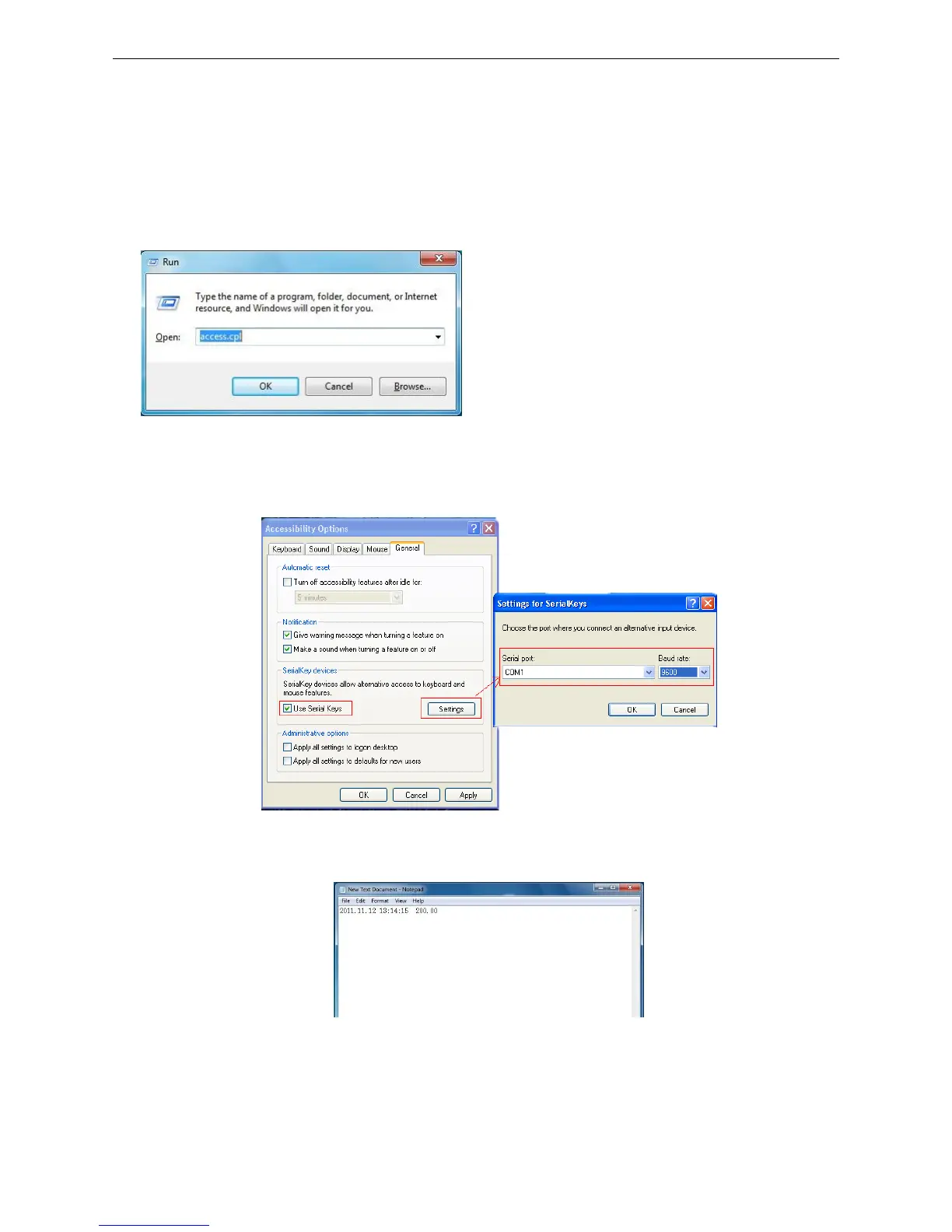
1. Press ―Start‖ ->"Run", and enter ―access.cpl‖ ->‖OK‖.
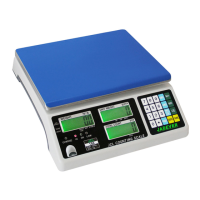
2. In the dialog box ‖Accessibility Options‖, enter General option, choose ―Use Serial Keys‖
and press ―Settings‖.
In the dialog box ‖Settings for SerialKeys‖ , set the corresponding Serial port and Baud
rate, which should be same as Baud rate in scale.
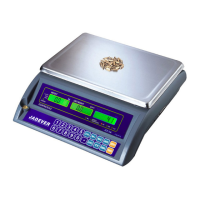
3. Test if Serial Keys works well.
Open a Text Document, and press the Print buotton on the scale. The Serial Keys works
well, if pc exports the weighing data to Text.
Export weighing data to Excel
1. Open Excel.
2. Press [Print], then Excel will show Date and Weighing data.


 To Next Page