EasyManua.ls Logo

Jadever JWL-7.5K - User Manual

Jadever JWL-7.5K
20 pages
Print Icon
To Next Page IconTo Next Page
Loading...
(II)
JWL 0
CONTENTS
Appendix 1: printing format (Optional)
Appendix 2Exporting data to PC in the form of EXCEL
1. Introduction………………………………….………………………………………………..
1
2. Precautions…………………………………….……………………………………………..
1
3. Before Using the Product
3-1 Unpacking and Checking……………………………………………………………………….
3-2 Installing Components ………………………………………..………………………………..
3-3 Leveling the Scale………………………………………………..……………………………..
1
1
1
4. Product Introduction
4-1 Specifications & General Features …………………………………...................................
4-2 Front Panel …….……………………………………………………………………………….
4-2-1 LCD display…………………………………………………………………………………
4-2-2 Keyboard………………………………………………………………………………………
4-3 Power Supply……………………………………………………………………………………
2
3
3
4
5
5. Function Setting and Description of Parameter Values
5-1 Function Setting ………………………………………………………………………………..
5-2 Description of Parameter Values…………………………………………………………..
5
6
6. Calibration……………………………………………………………………………………
8
7. Operation
7-1 weighing …………………………………………………………………………………………
7-2 manual tare &preset tare…………………………………………………………………........
9
10
7-3 check weighing………………………………………………………………………………….
7-4 Simple Counting…………………………………………………………………………………
7-5 Accumulation, Accumulation Display and Accumulation Clearing…………………………
7-6 Printer initialization by the indicator operation………………………………………………..
7-7 Input commands………………………………………………………………………………..
8. Serial Interface
8-1 Diagram………………………………………………………………………………………..
10
11
12
12
13
13
9. Troubleshooting and Error Message………………………………………………

14

Questions and Answers

  • K
    Katrina BennettAug 20, 2025
    What to do if Jadever JWL-7.5K Scales show wrong calibration weights?
    • E
      Edwin NewtonAug 20, 2025
      If your Jadever Scales display an error related to calibration weights, ensure that you are using the correct weights, matching the calibration value to the full load.
  • K
    katherine72Aug 22, 2025
    What to do if Jadever Scales show overload condition?
    • A
      Anna KingAug 22, 2025
      If your Jadever Scales indicate an overload condition, remove the weight from the pan that exceeds the scale's capacity.
  • D
    David SmithAug 25, 2025
    What to do if Jadever JWL-7.5K Scales exceed tare or pre-tare range?
    • D
      Denise ParkerAug 25, 2025
      If Jadever Scales exceed the tare or pre-tare range, ensure that the tare value is above zero and does not exceed the full load capacity.
  • J
    Joe TownsendAug 26, 2025
    What to do if Jadever JWL-7.5K Scales exceed the initial zero point?
    • J
      John RojasAug 26, 2025
      If your Jadever Scales exceed the initial zero point: 1. Check the scale pan for any foreign objects and remove them. 2. If the issue persists, it may indicate a load cell failure, requiring replacement or professional service.
  • G
    gregory84Aug 27, 2025
    How to fix EEPROM failure in Jadever Scales?
    • V
      Vanessa WoodsAug 27, 2025
      If you encounter an EEPROM failure with your Jadever Scales, re-solder the EEPROM.
  • J
    Jimmy Freeman MDAug 30, 2025
    What to do if the accumulated number of weighments exceeds the display range on Jadever Scales?
    • J
      josethompsonAug 30, 2025
      If the accumulated number of weighments exceeds the display range on your Jadever Scales, delete the excess weighments.
  • D
    Daniel HartSep 1, 2025
    What to do if Jadever Scales lower limit is higher than upper limit?
    • D
      darrylbeckerSep 1, 2025
      If the lower limit is higher than the upper limit on your Jadever Scales, re-enter the upper limit and lower limit settings.
  • G
    Glenda SinghSep 3, 2025
    What to do if Jadever Scales exceed the A/D resolution range?
    • J
      Jeffrey WilliamsSep 3, 2025
      If your Jadever Scales exceed the A/D resolution range: 1. Check for A/D failure and replace the A/D if necessary. 2. If the problem persists, it may indicate a load cell failure, requiring replacement or professional service.
  • H
    heather92Sep 5, 2025
    What to do if Jadever Accessories shows overload condition?
    • C
      Caitlin TrevinoSep 5, 2025
      If your Jadever Accessories display shows an overload condition, it means the weight on the scale pan is exceeding its capacity. Remove the excess weight from the pan to resolve this issue.
  • S
    samuelhorneSep 7, 2025
    Why does my Jadever Accessories exceed the initial zero point?
    • T
      Timothy AndersonSep 7, 2025
      If your Jadever Accessories exceeds the initial zero point, first check the scale pan for any foreign objects and remove them. If the problem persists, it may indicate a LOAD CELL failure, which requires replacement or professional service.

Summary

1. Introduction

2. Precautions

4. Product Introduction

4-1 Specifications & General Features

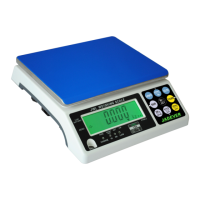
Technical specifications and general features of the JWL weighing indicator models.

4-2 Front Panel

Description and identification of components located on the front panel of the weighing indicator.

4-2 Display

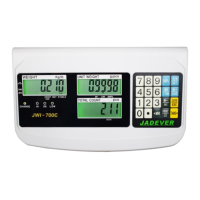
Details on the LCD display, including indicators, symbols, and their meanings.

4-3 Power Supply

Information on the power supply options, including AC adapter and rechargeable battery.

5. Function Setting and Description of Parameter Values

5-1 Function Setting

Procedure for entering and navigating the function setting menu.

5-2 Description of Parameter Values

Explanation of various parameter values and their settings within the function menu.

6. Calibration

7. Operation

7-1 Weighing

Basic procedure for performing weighing operations on the scale.

7-2 Manual Tare & Preset Tare

Instructions for performing manual tare and preset tare operations.

7-3 Check Weighing

Configuration and operation of the check weighing function, including limit settings.

7-4 Simple Counting

Procedure for using the simple counting function to count items.

7-5 Accumulation, Accumulation Display and Accumulation clear

How to use accumulation, display, and clear functions for weighing data.

7-6 Printer initialization by the indicator operation

Steps to initialize the printer through the indicator's operation menu.

7-7 Input commands

List of commands that can be input via computer for scale control.

8. Serial Interface

8-1 RS-232 Diagram

Diagram illustrating the RS-232 serial interface connections and pinouts.

9. Troubleshooting and Error Message

Appendix 1: printing format (Optional)

Appendix 2: Exporting data to PC in the form of EXCEL

Jadever JWL-7.5K Specifications

General IconGeneral
Capacity7.5 kg
Readability0.1g
Division1/75000
Auto Power OffYes
Overload ProtectionYes
Power SupplyAC adapter and rechargeable battery
DisplayLCD
Unitsg, lb, oz

Related product manuals