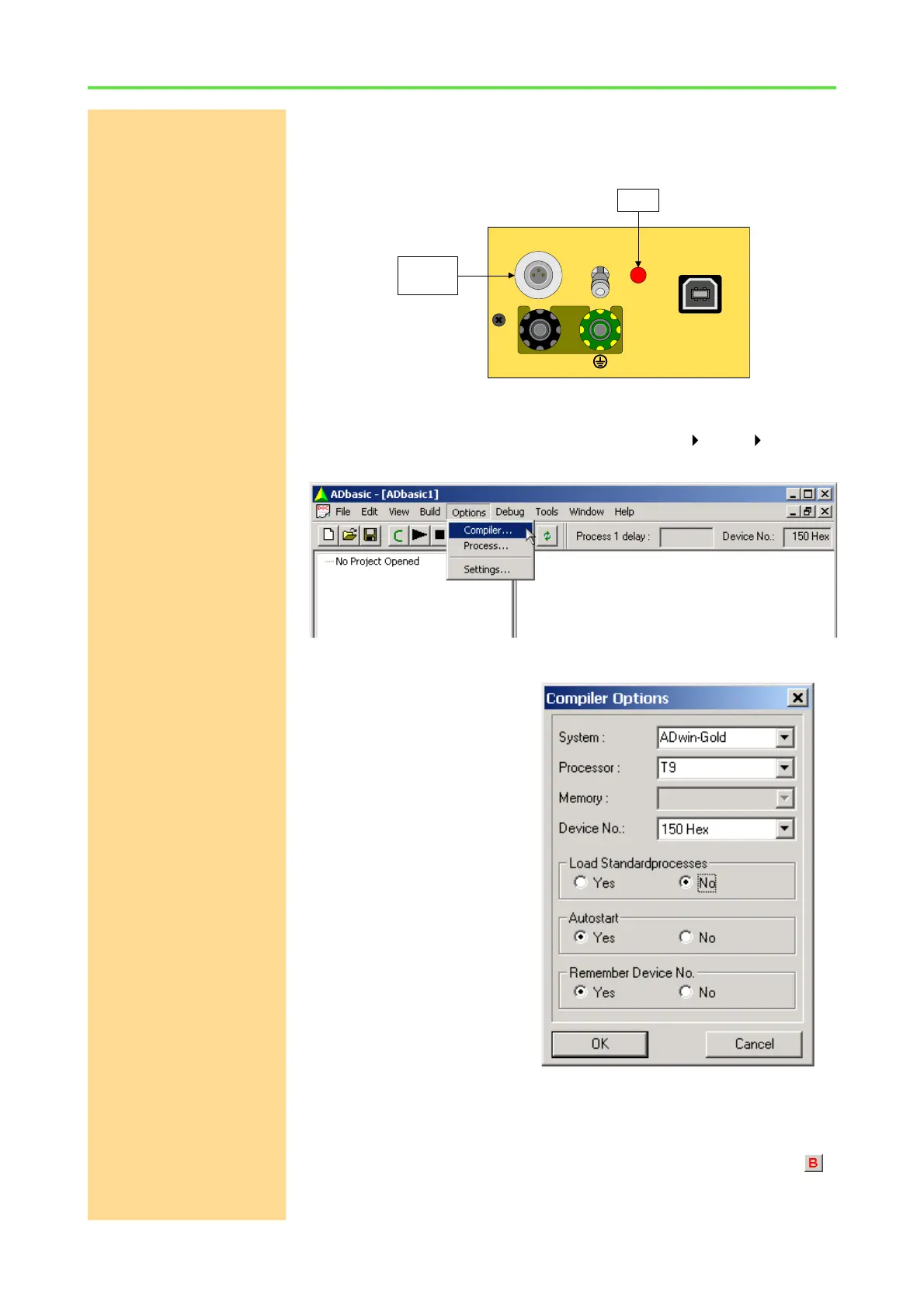
ADwin-Gold system with USB interface
ADwin
44 ADwin Installation, manual version 2.1, December 2005
adapter) or the red LED is blinking (with integrated USB-interface); if neither
LED is blinking, check the connections.
Checking the settings in ADbasic
Open ADbasic (in the Windows start menu: Programs ADwin ADbasic)
and check first the settings in the dialog window "Options\Compiler".
Set the options in the window: "Compiler Options" from top to bottom
Device No.
– System: Choose the option
"ADwin-Gold".
– Processor: The processor
type "T9" of the system.
– Memory: This option is not rel-
evant for this system.
– Device No.: Set to the
Device No. you have used in
the programm ADconfig.
The setting "None" in the
pull-down list is only neces-
sary in order to compile AD-
basic programs for test
purposes, when no ADwin
system is connected.
– Set the options "Load Stan-
dardprocesses",
"Autostart" and
"Remember Device No."
later, when working with ADbasic.
Confirm with "OK" in order to return to ADbasic. The driver installation and the
main settings in ADbasic are now finished.
Booting Start ADbasic and boot the ADwin system by clicking on the boot button .
POWER
GND
ADwin-
Gold
USB
LED
Power
Supply


 To Next Page