Wireless Network Connection XT3 User Manual
Janam Technologies LLC Version 1, March 2020 Wireless Network Connection 4—2
Connecting the Janam XT3 to a Wireless Local Area Network (WLAN)
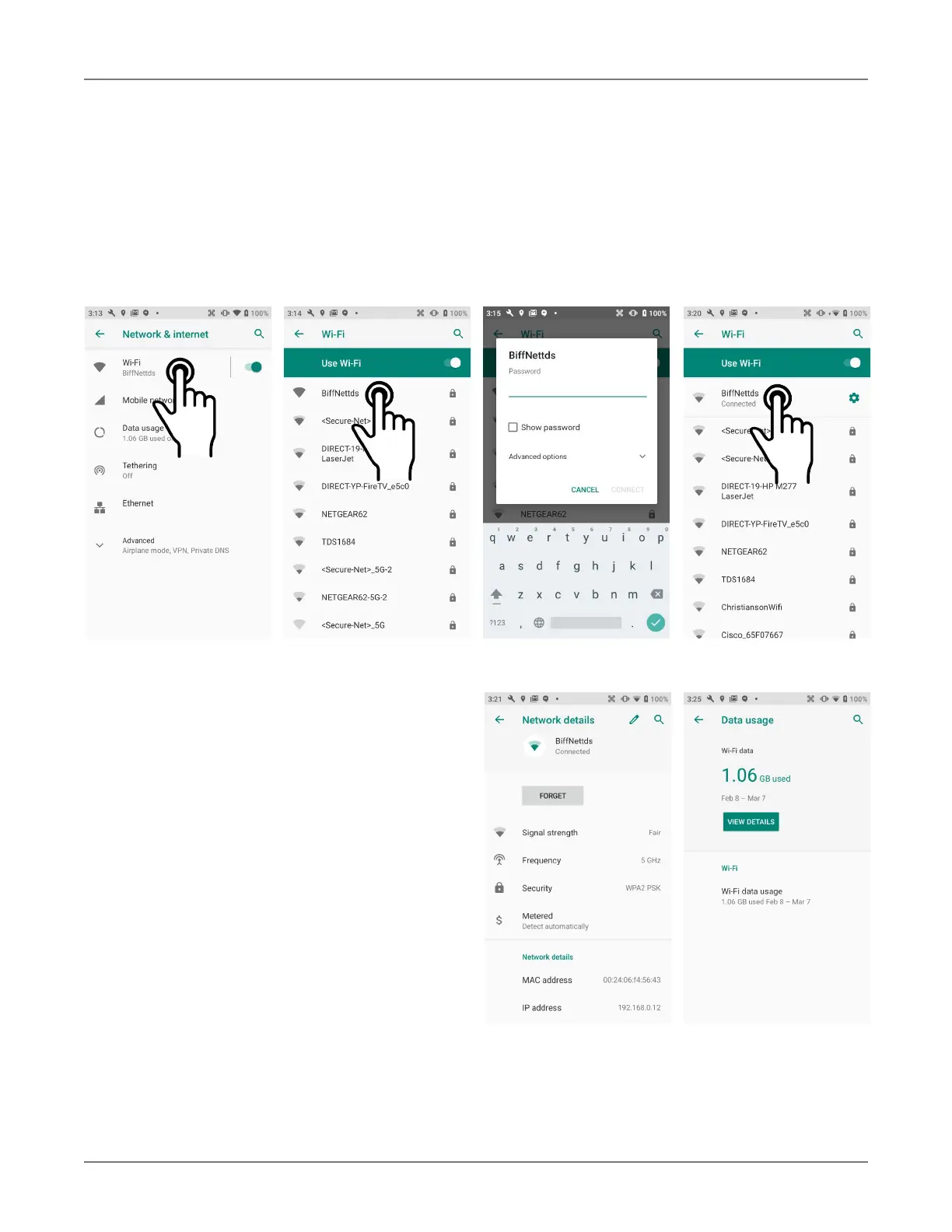
To initially connect the XT3 to a wireless local area network, go to Settings > Network & internet
> WLAN. Turn WLAN networking on. The XT2 will begin searching for available Wi-Fi networks.
After a few seconds it will list what it has found, including the approximate signal strength and
whether or not a network is secured by a password or not. Tap on your preferred network. Enter the
password. The connection will be established. Upon successful completion, the network link will show
up as Connected.
If you tap on the network you are connected to,
a window pops up that shows information about
the connection, including signal strength, link
speed, frequency, and the type of security. Here
you can also opt to forget this network, so that
next time you come within range of it, the XT3
will not automatically connect.
In Settings > Network & internet > Wi-Fi,
you may also tap on Data Usage to see how
much data you used in a given time span. Tap
View Details to see how much data was
consumer by each active app.


 To Next Page