Barcode Scanning XT3 User Manual
Janam Technologies LLC Version 1, March 2020 Barcode Scanning 9-6
Scan Wedge App
The XT3 also comes preloaded with the
Scan Wedge application. When active, Scan Wedge runs in
the background and can send scanned and decoded data directly into the currently active foreground
application. For example, with Scan Wedge active, the XT3 can be used to scan barcode data directly
into a Microsoft Word or Excel template, or any other app that accepts input data.
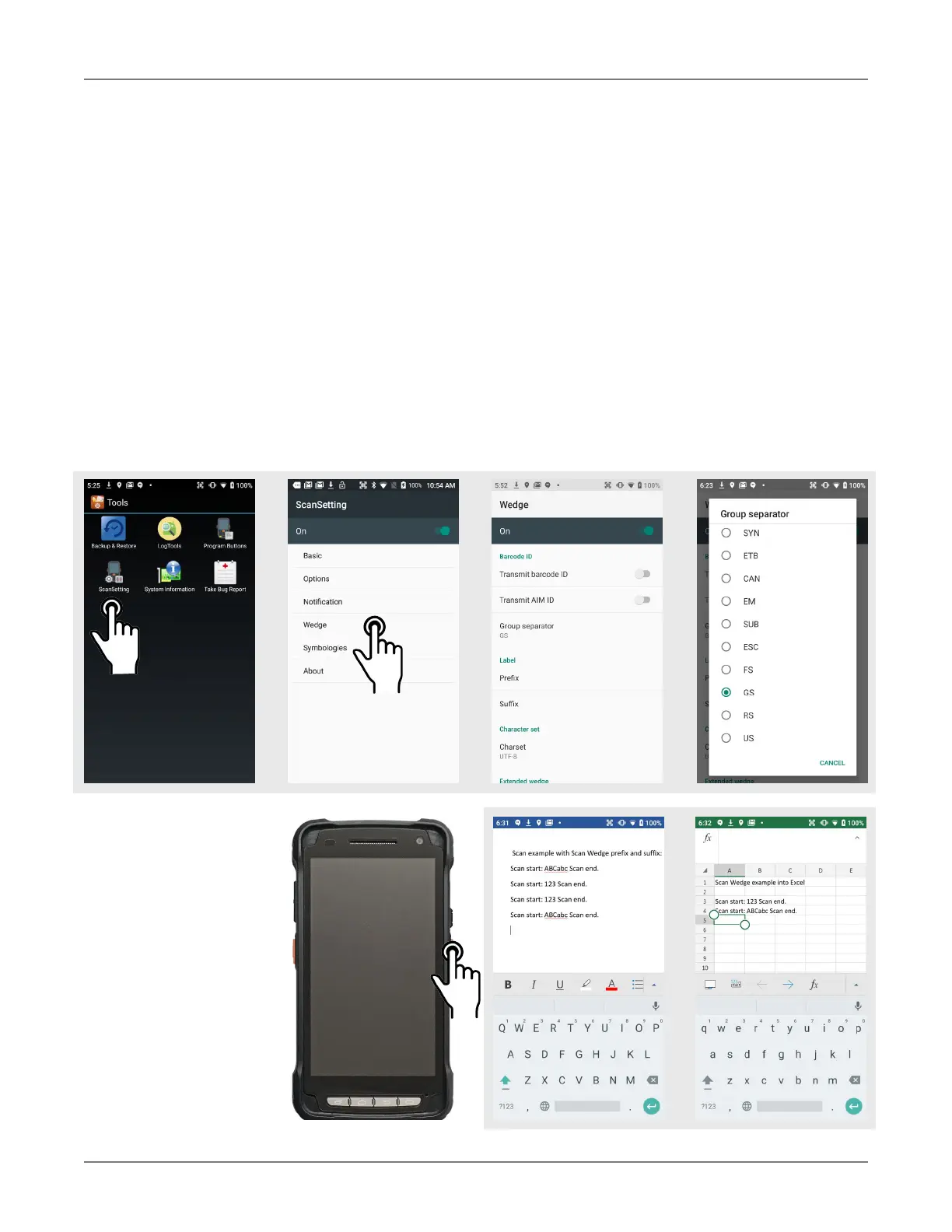
To activate Scan Wedge, go to Scan Settings and toggle the on/off switch to on. Under Basic you
can enable Auto Scan, set the Auto Scan Interval in intervals between 0.25 and 10 seconds, or
enable Continuous Scan. Under Wedge you can specify transmitting a barcode ID, an AIM ID,
as well as a Group Separator, a Prefix, a Suffix, and a Terminator. These can be used to add
some formatting to the scans, or bring them into a format suitable for subsequent processing. You
can also toggle Transmit Barcode ID on and off, and specify a Group Separator.
Enable extended wedge allows the user to create and apply scan styles that can include actions
and conditions. Contact your Janam representative for more information.
To the right are two ex-
amples of using Scan
Wedge to scan bar-
code data right into
any app that accepts
text input (including
Word or Excel files).


 To Next Page