EN
Pg 4 of 11
4329P OM | Part No: 950-0628-001 | Rev 1.0 20221201
© 2023 HARMAN International Industries. Incorporated All rights reserved.
5. Connecting to a Network
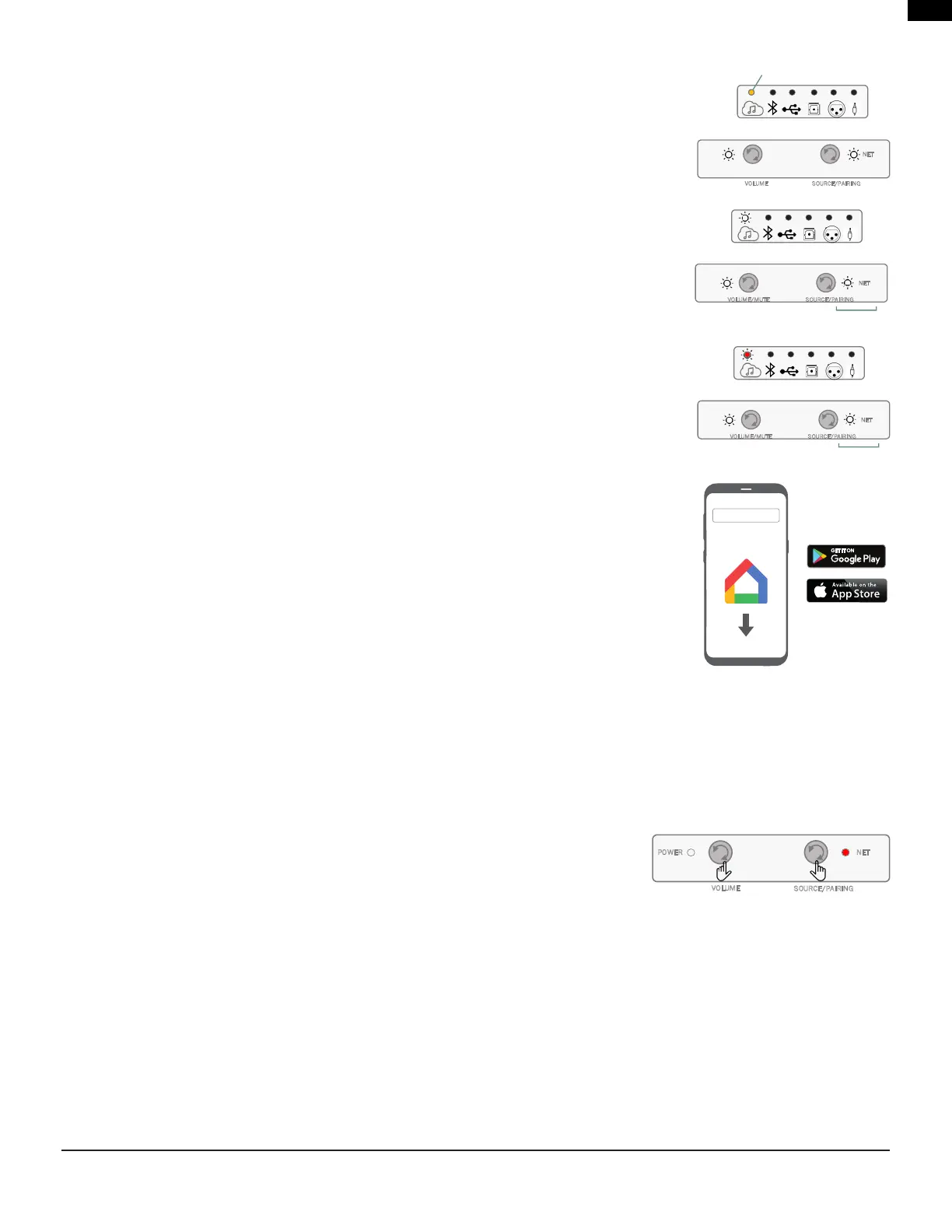
For a Wired Connection
ConnecttheEthernetportontherearpanelofthePrimaryspeakertotheportonyourrouterusing
aCAT5eorhighercable.Ifwirednetworkconnectionisdetected,theStreamingLEDwillturnsolid
AmbercolorforafewsecondsandtheNetLEDturnssolidWhitecolor.
Once the connection is established, the Streaming LED and Net LED will both illimuninate solid
White.
For a Wireless Connection
Aftertheintialboot-upprocessandwithnowiredethernetconnectiontothespeaker,the
StreamingLEDwillturnsolidRedcolorandtheNetLEDwillashWhitecoloruntilconnectedto
GoogleHomeorAirPlay.
Connecting to Google Home
1. Onyourmobiledevice,downloadandopentheGoogleHomeApp.
2. Follow Google Home instructions to add devices.
3. Follow the prompts for adding devices.
4. Once added, your 4329P system is ready for use.
NOTE:Werecommendgivingthespeakeracommonnamesothatitcanbeeasilyfoundfor
streaming later. If a name other than JBL4329P is selected during this step, write it down as it will be
what is used to connect to the unit when streaming or using Bluetooth.
Connecting Wirelessly via AirPlay
1. Select the wireless network settings on your iOS device.
2. GotoWi-Fisettingsonyourmoviledeviceandnavigateto"SetupNewAirplaySpeaker".
3. Selectthespeakercalled"4329P-XXXXXX(XXXXXXcorrespondstoaMACaddress)".
4. Selectthenetworkyouwantthe4329Ptoconnectandpress"Next".
5. Followtheon-screeninstructionstocompletethe4329PsetupasanAirPlayspeakersystem.
Disabling & Enabling Network / Bluetooth Connectivity
Network/BluetoothfunctionalitycanbeturnedOshoulditberequired.
Disabling Network / BT Connectivity
- On the front of the Primary Speaker, Press and
Hold the Volume and Source buttons on the front panel for >3 seconds. The NET LED will
turnRED.
Enabling Network / BT Connectivity
- Press and Hold the Volume and Source buttons on front panel for >3 seconds. The NET LED
will turn WHITE.
Note:
WhenNetwork/BluetoothisOthefollowingconditionsexist:
• SpeakercannotbeusedforNetworkorBluetoothstreamingwheninoroutofstandby.
• Remotecontrolisinactiveinoperationandduringstandby.
• WhenwakingupfromStandbymodeinNETOmode,allow@1minutetorestorefunctionality.
NET
VOLUME/MUTE SOURCE/PAIRING
Solid
Primary Speaker
NET
VOLUME/MUTE SOURCE/PAIRING
Flashing
Primary Speaker
NET
VOLUME
SOURCE/PAIRING
POWER
NET
VOLUME SOURCE/PAIRING
SOLID
Primary Speaker
'ŽŽŐůĞ,ŽŵĞ


 To Next Page