Download from jblquantum.com/engine to gain full access to features on your JBL Quantum headset –
from headset calibration to adjusting 3D audio to suit your hearing, from creating customized RGB
lighting effects to determining how the boom microphone side-tone works.
Software requirements
Platform: Windows 7 / Windows 10 (64 bit) only 500MB of free hard drive space for installation
TIP:
• QuantumSURROUND and DTS Headphone:X V2.0 available on Windows only.
Software installation required.
1. Connect the headset to your PC via 2.4G USB wireless connection (See “With 2.4G wireless
connection”).
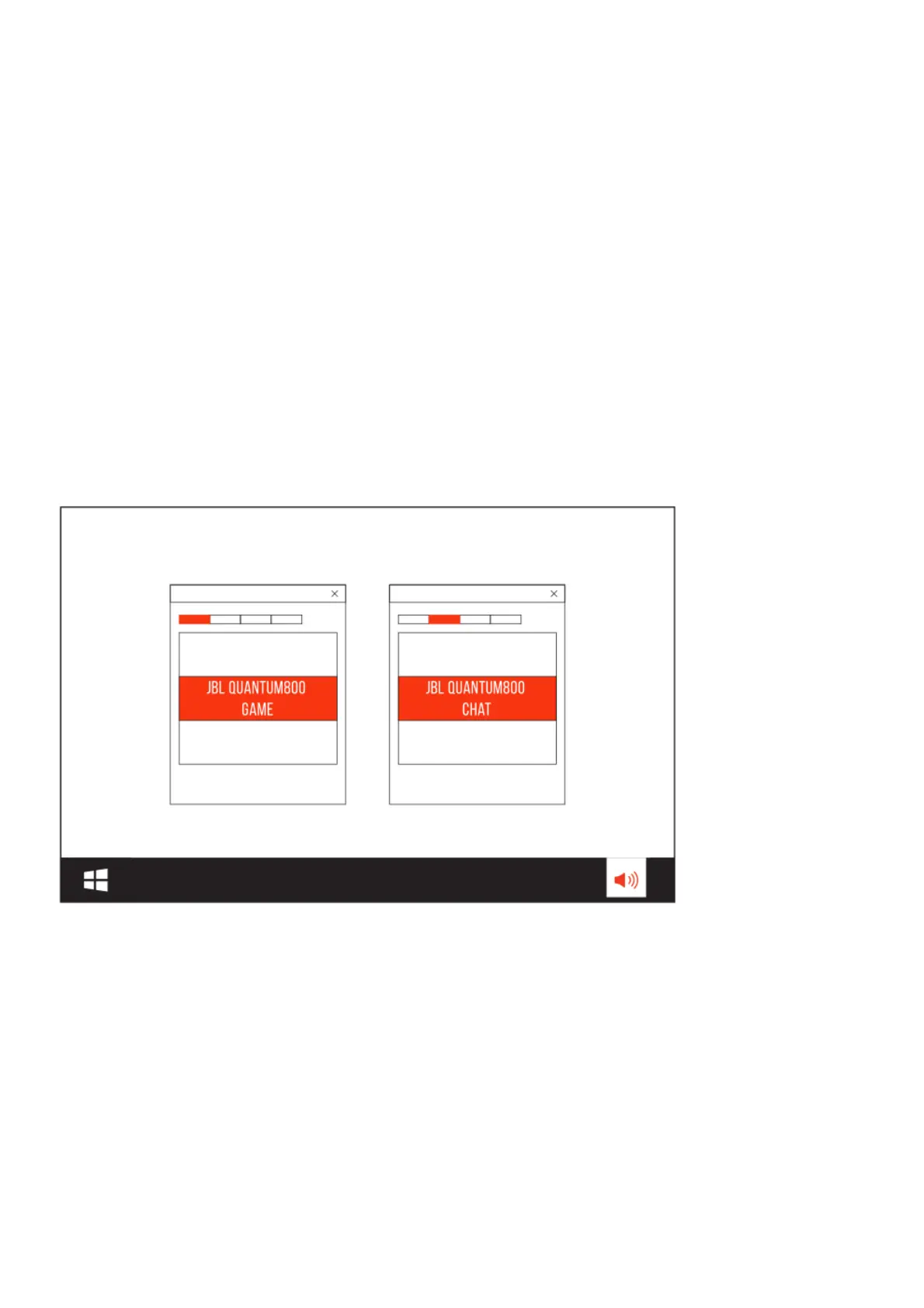
2. Go to “Sound Settings” -> “Sound Control Panel”.
3. Under “Playback” highlight “JBL QUANTUM800 GAME” and select “Set Default”-> “Default
Device”.
4. Highlight “JBL QUANTUM800 CHAT“ and select “Set Default” -> “Default Communication Device”.
5. Under “Recording” highlight “JBL QUANTUM800 CHAT” and select “Set Default” -> “Default
Device”.
6. In your chat application select “JBL QUANTUM800 CHAT” as the default audio device.
7. Follow the onscreen instructions to personalize your sound settings.
Using your headset
With 3.5mm audio connection



 To Next Page