14
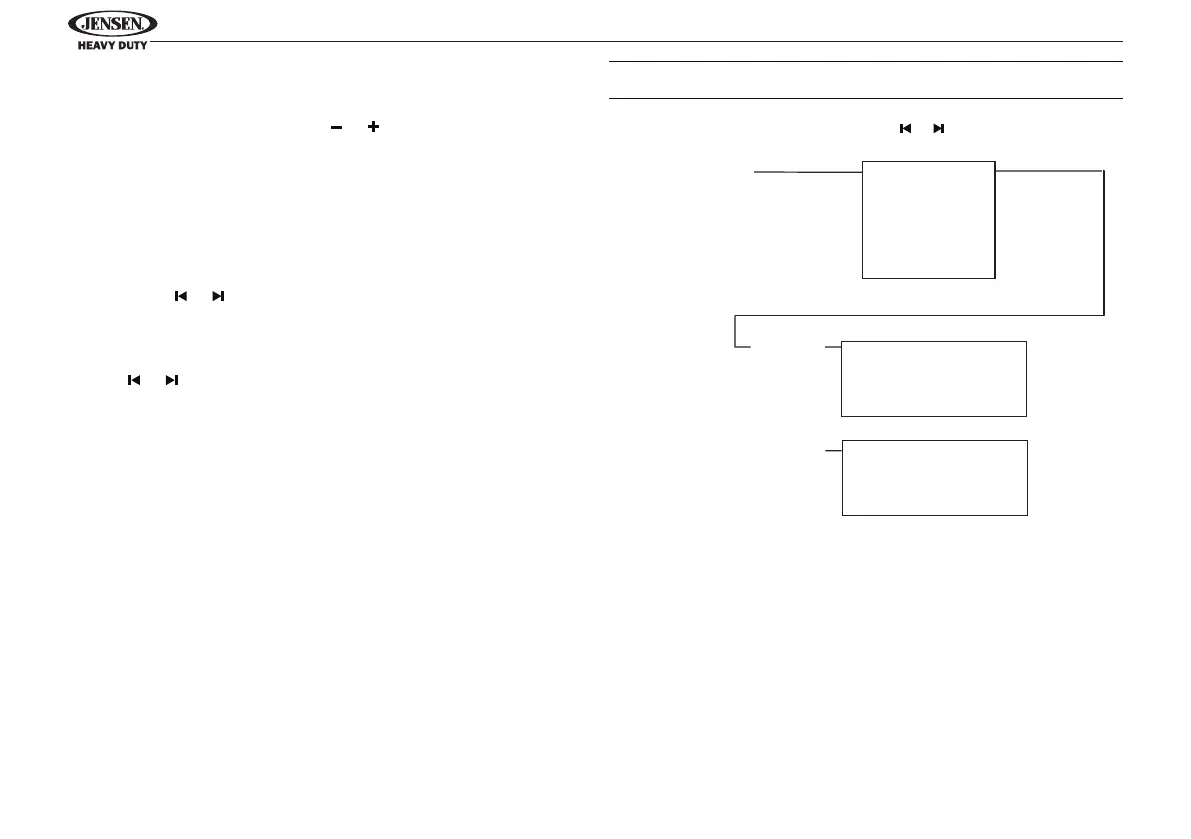
Use or to
Navigate the List
Press ENTER/TIMER Press ENTER/TIMER
Device 1
Device 2
Device 3
Device 4
Device 5
Lock/Unlock
Connect/Disconnect
Delete
Lock/Unlock
Connect/Disconnect
Delete
BT Device
Device 1
...
...
...
Device 5
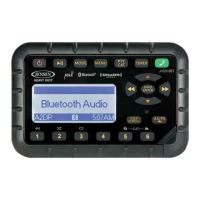
Bluetooth SETTINGS Menu options. Press ENTER/TIMER
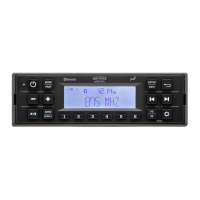
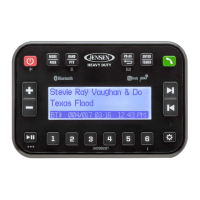
button (4) to enter BT Device List menu options.
• Call Auto Answer: Press the or buttons (19, 20) to turn
the Auto Answer function “On” or “O.”
• Call Volume: Press the ENTER/TIMER button repeatedly to
adjust the call volume from 0-40 (default volume is 30).
• BT Device List: Press the ENTER/TIMER buttons to view
a list of previously paired mobile phone device models.
Press the or buttons to navigate devices from the list.
You cannot delete a device that is actively connected.
Press the ENTER/TIMER button to select the device. Press
the or buttons to choose Lock/Unlock, Disconnect or
Delete for this device.
• LOCK/UNLOCK: The JHD62 can store up to 5 devices for
Bluetooth connection. The devices are stored in FIFO (First
in First Out) order. To prevent a device from being bumped
from the list when more than 5 devices are used, you must
lock the device. To lock/unlock a device, press the ENTER/
TIMER button to display/change the Locked or Unlocked
icon.
• DISCONNECT: To disconnect a paired device, press the
ENTER/TIMER button to temporarily remove the Bluetooth
link. The link can be re-established through your phone
menu by selecting the JHD62 for connection.
• DELETE: To delete a device from the list, press the ENTER/
TIMER button.
NOTE: Device must be disconnected to be deleted.
Pairing a Bluetooth Device
Before you begin, consult the owner’s manual for the
Bluetooth device you want to pair with the JHD62.
Bluetooth Quick Pair:
1. On your personal Bluetooth device, enter the Bluetooth
settings list. Make sure your device has Bluetooth turned
on and is searching for new devices.
2. Press and hold the MODE/PAIR button (2) for three
seconds to make the JHD62 available on your Bluetooth
device.


 To Next Page