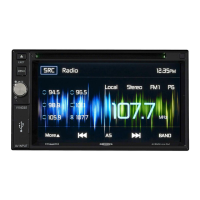
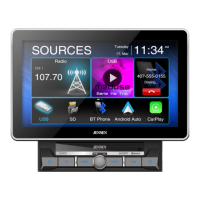
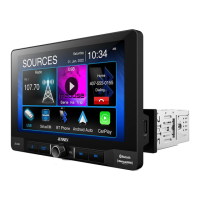
VX3020
Select
Audio Mode
When playing
VCDs,
the user
can
select
an
audio mode (R/L/Stereo).
1.
During playback, touch the
bottom
half
of
the screen
to
display menu on the
screen.
2.
Touch the Next icon
[}]to
display
the
2nd menu.
3.
Touch the Audio icon [
....
] repeatedly until the audio mode
is
selected.
Select Subtitle
Language
For
DVD
discs
that
contain
two
or more subtitle languages.
1.
During play, touch the screen
to
display menu on the screen.
2.
Touch the Next
icon[}]
to
di~ay
the
2nd menu.
3.
Touch the Language icon [
~]
repeatedly
to
select a language.
The
selected
language
is
displayed.
Change
Viewing
Angle
Some DVDs contain alternate scenes, such
as
scenes recorded from
different
camera angles.
For
such
DVDs,
you
can
select from the available alternate
scenes.
1.
During playback, touch the screen
to
display menu on the screen.
2.
Press
the Angle icon [
[f]
repeatedly on the remote control. The viewing angle
is
changed.
Video
Setup
Touch
the
Settings icon [
-:+~]
to
access video setup mode,
touch
Left
or
Right
direction icons
[111m]/[
1011]
to
set the desired effect.
You
may set the brightness,
contrast, and saturation
of
the video
output
from 1
to
20.
Playback Information
Touch
the
screen during playback
of
a
DVD
orVCD disc and the playback information
will be displayed on the
top
area
of
the
TFT.
ForDVD
CD-----.~
w-Eft
DVD
@--f
Title: 1/6
02:35+@;
Chapter: 2/9
I
0
Figure 14. DVD Information Display
1.
Disc type.
2.
Return
to
the main menu.
3.
DVD Title information.
"1
/6" indicates
that
this
DVD
has
6 titles and the
title
playing back
now
is
the first title.
4.
DVD Chapter information.
"2/9"
indicates
that
current
title
has
9 chapters and
the
chapter playing back
now
is
the
fifth
chapter.
5.
Time display.
27



 To Next Page