8
• When charging, keep your device near room temperature. Avoid placing device where
extreme temperatures are experienced.
• Never leave the CG890 in an unattended vehicle due to uncontrolled temperatures that
may be outside the desired temperatures for your device.
Connecting to Your CG890
Power On/Off your CG890
• Power On: Press and hold the power button on the backside of the device, then release the
button when the power indicator LED on the front side comes on.
• Power Off: Press and hold the power button on the backside of the device, then release the
button when all 4 LED indicators on the front side blinks once.
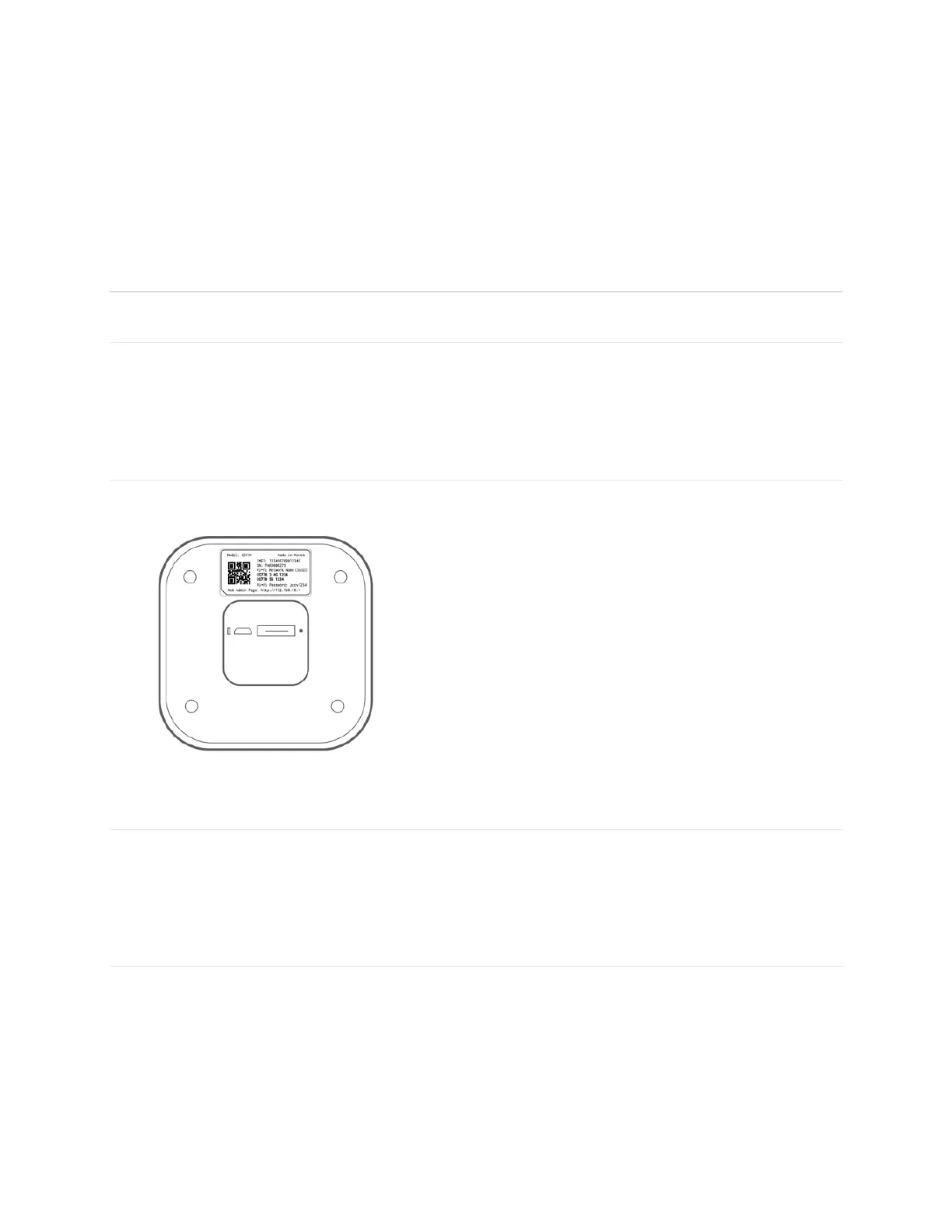
Wi-Fi Name (SSID) and Password
You can find your device default Wi-Fi Name (SSID) and Password on the device label located
on the bottom of the device.
Connecting to the Internet via Wi-Fi
1 Open the Wi-Fi application or controls on your computers or other Wi-Fi client devices that
you want to connect to your CG890. Then find your CG890’s Wi-Fi name.
2 Click Connect and enter the Password.
Connecting to the Internet via Ethernet
1 Connect an Ethernet Cable between CG890 Ethernet port (RJ45) and your computer or
other Ethernet capable devices you want to connect.
2 Devices will be automatically connected to the Internet.
NOTE: For the best performance, we recommend using CAT6 (or above) Ethernet cables.


 To Next Page