32
Overview
The following tips can help solve many common problems encountered while using the CG890.
First Steps
1 Make sure you are using your CG890 in the correct geographic region (within coverage).
2 Ensure that your wireless coverage extends to your current location by using the interactive
Wireless Carrier’s coverage map tool.
3 Ensure that you have an active service plan.
4 Restarting your computer and your CG890 device can resolve many issues.
Common Problems and Solutions
How do I perform Factory Reset?
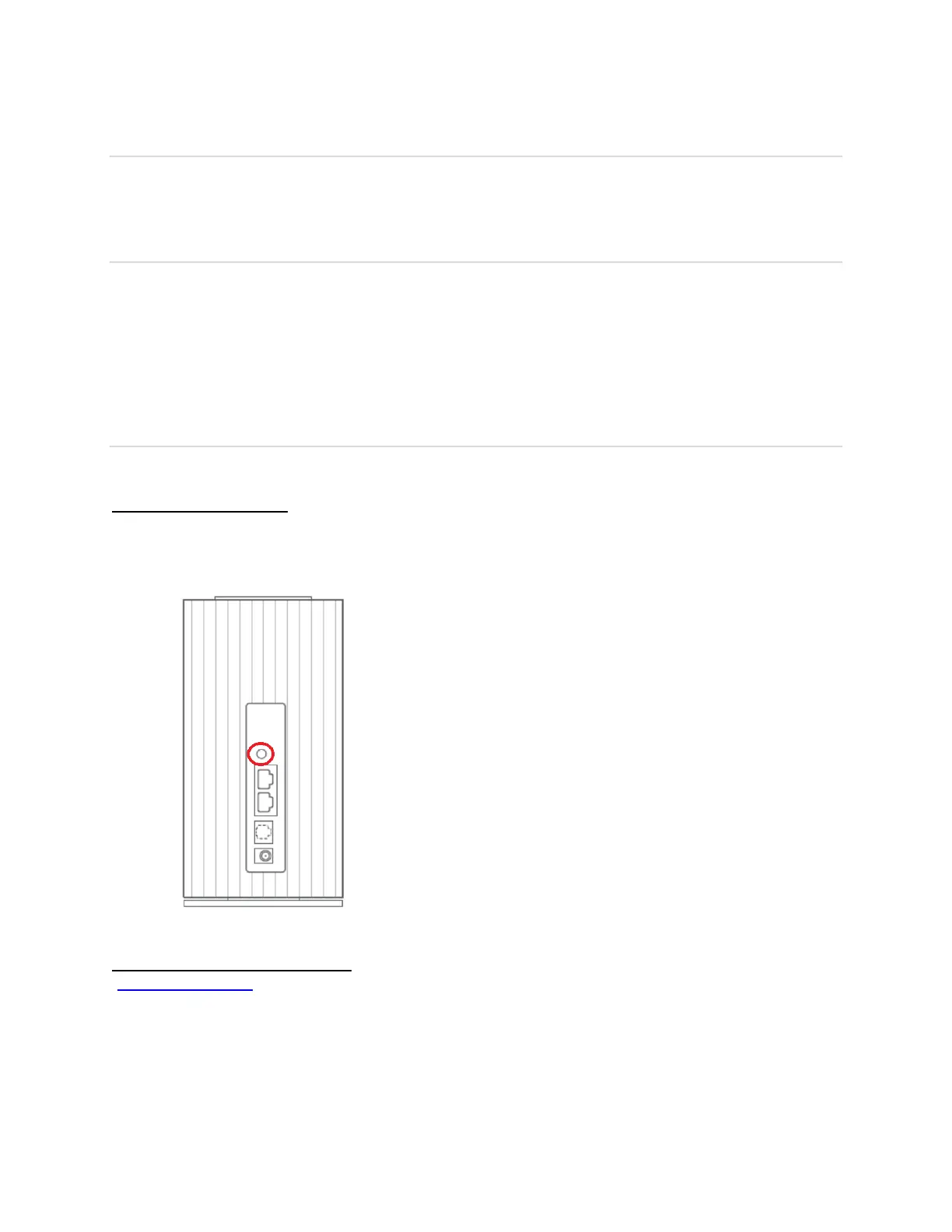
Using the power button: Locate the power button on the backside of the device. Press the
power button for about 10 seconds and release when the 4 LED indictors on the front side start
blinking. Press the button one more time to confirm. Then, your CG890 will perform the factory
reset and restart automatically.
Using Web Admin Home Page: Connect to your CG890, open Web Admin Home page
(http://router.home) and log in. Select Settings > Device > Backup and Restore and Click
Factory Reset.
Note: The CG890 router must be powered on when you perform factory reset. Factory reset will
remove all your personal settings and turn your router to the factory default settings.


 To Next Page