33
My CG890 got completely freeze and not responding. How do I perform hard reset?
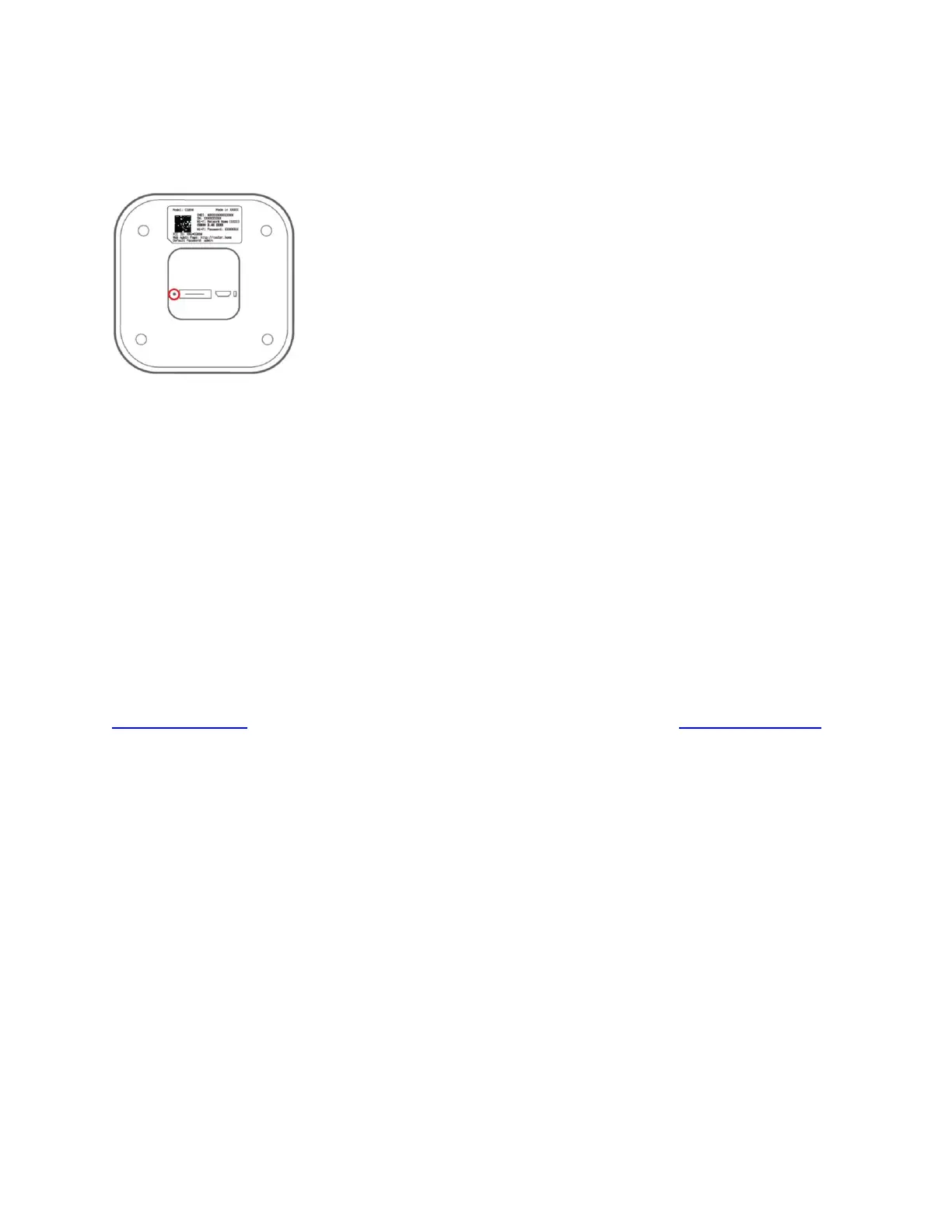
Locate the reset button (small hole) on the bottom of the device. Using a sharp object such as a
paper clip, press the reset button for more than 15 seconds and release. Then, your CG890 will
perform hard reset and restart automatically.
Note: Hard reset is for rare cases that your router freezes and is not responding for unexpected
errors. Hard reset just restarts your router and won’t change any device setting you have made
before.
I cannot connect to Wi-Fi after changing Wi-Fi password.
Your Wi-Fi client devices save the previously used Wi-Fi names associated with the passwords
used to access the Wi-Fi name. When you change the Wi-Fi password only and keep the same
Wi-Fi Name, the client devices try to connect to your CG890 using the Wi-Fi name and previous
Wi-Fi password saved, causing Wi-Fi authentication error. Try to forget the Wi-Fi credentials
saved in your client device and try again. It will prompt entering the new password.
I cannot access the Web Admin Home page, http://router.home
Ensure that Wi-Fi or Ethernet connection is established on your client device. Also, make
certain that you are entering the correct full address of the Web Admin Home page,
http://router.home correctly on your browser. If the problem still exists, try http://192.168.10.1.
If you changed the default gateway IP address from Web Admin Home > Settings >
Advanced Settings > LAN Settings before, you need to use the default gateway IP address
you changed to access the Web Admin Home page.
I cannot log into the Web Admin Home page, http://router.home
Ensure that you are entering the correct password to sign in. The default Web Admin Home
page login password is “admin” unless you have previously changed. If your browser has cache
memory or history login to same IP address, please clear the browser cache.
If you forgot the Web Admin Home page login password, perform factory reset by pressing the
reset button on the bottom of the device.


 To Next Page