
 Need help?
Do you have a question about the JideTech 94H2 and is the answer not in the manual?
Identifies the specific model of the 4 Port HDMI USB KVM Switch.
Lists the key features and capabilities of the 4 Port HDMI USB KVM Switch.
Describes the different methods available for switching between computers.
Step-by-step instructions for setting up audio output via HDMI.
Solutions for when the keyboard or mouse connected to the KVM switch fails.
Troubleshooting steps to resolve issues where no video output is displayed.
Addresses specific mouse click problems encountered on macOS systems.
Identifies the specific models for the 8/16 Port HDMI USB KVM Switch.
Lists the key features and capabilities of the 8/16 port KVM switch.
Describes the different methods available for switching between computers.
Details how to switch between computers using keyboard hotkeys.
Instructions on how to configure or change the default keyboard hotkeys.
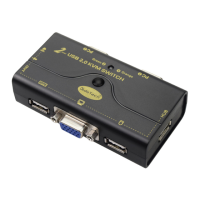
Identifies the specific models for the 2/4 Port VGA USB KVM Switch.
Lists the key features and capabilities of the 2/4 port VGA KVM switch.
Describes the different methods available for switching between computers.
Visual guide illustrating the connection setup for a 4-port configuration.
Addresses questions regarding the power supply for the KVM switch.
Clarifies the safety and functionality of connecting/disconnecting USB cables while powered on.
Confirms if the KVM switch retains keyboard settings across computer switches.
Explains the primary method for switching between connected computers.
Provides steps to resolve display issues, especially with laptops.
Offers solutions for when the keyboard and mouse do not function correctly.
Provides the company name and contact details for support.
Lists the official website, email, phone, and social media for customer support.
The JideTech USB KVM Switch is a versatile device designed to manage multiple computers from a single console, offering various models to suit different connectivity needs, including HDMI and VGA KVM switches. This user manual covers five models: 21UA, 41UA, 94H2, 9138H, and 9116H, ensuring users can find relevant information for their specific product.
The 4-Port HDMI USB KVM Switch (Model 94H2) allows one USB console to control up to four HDMI-interface computers, DVRs, or NVRs. It supports superior video quality up to 4K (HDTV) / 4096×2160 at 60Hz, making it suitable for high-resolution displays. The switch is multiplatform compatible, supporting Windows 10/7/2000/XP/Vista, Linux, and Mac operating systems. It offers plug-and-play functionality, simplifying setup, and supports HDCP and auto EDID without emulation. A notable feature is its auto-detection capability: if one computer is powered off, the switch can automatically switch to the next powered-on computer. This feature is off by default and can be enabled by following specific instructions in the manual. The device also includes a memory function to retain settings in case of power-down and supports independent mouse and keyboard switching, even without a USB signal input, allowing for flexible control. An Auto Scan Mode is available for monitoring all connected computers, DVRs, or NVRs, and the switch is equipped with a USB 2.0 Hub for additional peripheral connectivity.
The 94H2 offers multiple switching modes for convenience.
Ctrl key. For example, to switch to a specific port (e.g., port 1), users would double-click the right Ctrl key followed by 1 and then Enter. The hot-key can be customized to Num Lock or Scroll Lock if the default Ctrl key conflicts with other applications.The hot-key operations extend beyond simple port switching, offering advanced control over the KVM switch's functions:
Ctrl + N + Enter allows switching to a chosen device, where N is the port ID (1, 2, 3, or 4).Ctrl + S + Enter toggles the auto-scan function on or off. Alternatively, the scan button on the front panel can be used.Ctrl + S + N + Enter allows setting the scan interval from 8 to 999 seconds (default is 8 seconds).Ctrl + B + Enter toggles the beeping sound on or off.Ctrl + T + Enter toggles the detection function on or off (default is off).The hot-key operations also include maintenance and troubleshooting functions:
Ctrl + R + Enter resets the KVM system to resolve keyboard and mouse freeze issues.Ctrl + F1 + Enter addresses mouse usability problems when HP notebooks enter BIOS.Ctrl + F2 + Enter resolves mouse or keyboard usability issues on Mac systems.Ctrl + Z + Enter fixes mouse usability problems in Raspberry Pi systems.Ctrl + TAB + Enter restores the hotkey to its default setting (right Ctrl).Ctrl + ESC + ESC + ESC + Enter resets the KVM switch to factory settings to resolve keyboard and mouse problems.The device provides clear LED indicators for operational status:
The manual provides instructions for configuring sound output through the KVM switch, specifically for HDMI and 3.5mm interfaces.
The FAQ section addresses common issues:
Ctrl + F2 + Enter should restore normal functionality.The 8/16 Port HDMI USB KVM Switch (Models 9138H/9116H) is designed for managing a larger number of HDMI-interface computers, offering similar features to the 4-port model but with expanded capacity. It supports one USB console controlling 8 or 16 HDMI computers. It is fully compliant with HDMI 1.4a, HDCP, and EDID, and supports Dolby True HD and DTS HD Master Audio. Video quality is supported up to 3840x2160 at 30Hz, including various resolutions like 480i, 480p, 720p, 1080i, and 1080p (HDTV). It is multiplatform compatible (Windows 10/7/2000/XP/Vista, Linux, and Mac) and offers plug-and-play functionality.
Ctrl + 1/2/3/4...16 + Enter allows switching to any of the 8 or 16 ports.The default hot-key is the right Ctrl key, which can be changed to Num Lock or Scroll Lock if conflicts arise. The hot-key change procedure is identical to the 4-port model.
The hot-key operations for the 8/16 port models are largely the same as the 4-port model, including functions for switching ports, toggling auto-scan, setting scan intervals, controlling beeping sounds, managing detection functions, resetting the KVM system, addressing mouse/keyboard issues on different OS, restoring hotkeys, and resetting factory settings. The only difference is the extended range of port IDs (1 to 16) for switching.
N refers to the computer's Port ID number (1, 2, 3, 4 for 4-port; 1 to 16 for 8/16-port) or a number from 8 to 999 for scan interval settings.The LED indicators are identical to the 4-port model: orange lightning for the current operating port, green hotkey lightning, and SCAN lightning for auto-scan mode.
The 2/4 Port VGA USB KVM Switch (Models 21UA/41UA) is designed for managing computers with VGA interfaces. It supports 2 or 4 VGA KVM ports and is multiplatform compatible with Windows 98SE/ME/2000/XP/2003 Server/Vista, Linux, or Mac OS. It supports a maximum resolution of 2048x1536. This model includes an Audio Speaker and microphone Switch, allowing users to share audio peripherals. A work signal light indicates the currently selected LED address. It supports USB 2.0 and allows connecting a USB Hub for sharing USB peripheral devices. A key advantage of this model is that it does not require an external power adapter, drawing power from the USB connection.
The connection process is straightforward:
The FAQ section addresses common issues for VGA KVM switches:
JideTech offers customer support through its official website, email, phone, WhatsApp, Skype, and Facebook for any questions or assistance.
 General
| PoE Standard | IEEE 802.3af/at |
|---|---|
| Total PoE Power Budget | 120W |
| Maximum PoE Power Per Port | 30W |
| MAC Address Table | 8K |
| VLAN | 4K |
| Operating Temperature | 0°C to 40°C |

 To Next Page
