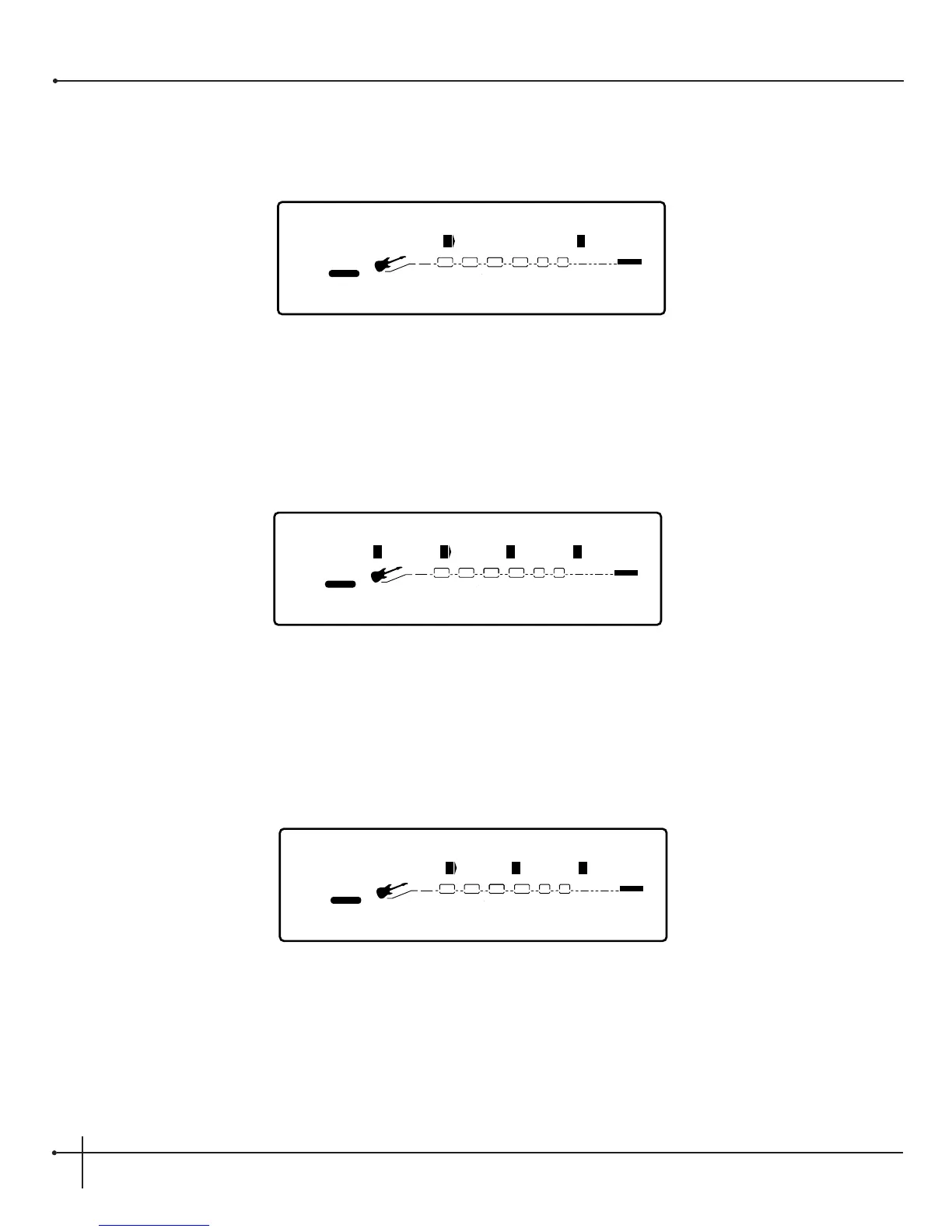
2. Now use the <Preset/Effect> wheel and scroll to the Amplifier type module. Once you are there, the display will appear something like
this:
3. Using the <2> knob will allow you to select any one of the amplifier models within the Millennium and the <4> knob will select either
the A or B channel. This will make the selected channel active for editing
4. Once the amplifier model and channel have been selected, use the <Page> knob to move to page 2 of the amplifier model edit menu.
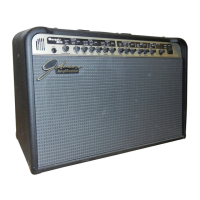
Page 2 lets you adjust the gain and preset levels of channel A or B. The active channel (A or B) appears in upper case letters and will
appear something like this :
Note: To toggle between the active A or B channel, simply press the <Channel> button. This is essential for editing because when the A or
B channel is active you can make all EQ, gain and preset level modifications using either the <1>, <2>, <3> and <4> buttons, or
you can use the <Gain>, <EQ>, or <Level> knobs to make any adjustments.
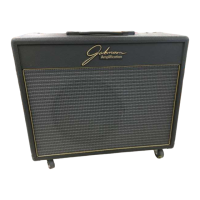
5. Once the adjustments are made to the gain and levels of amplifier models and channels, use the <Page> knob and turn to page 3
(Channel A) and 4 (Channel B) of the amplifier model editing section to make any EQ adjustments. The display will appear like this:


 To Next Page