Setting up an LFO
To set up an LFO that is linked to an effect parameter, the procedure is as follows:
1. Enter the Assign mode by pressing the <Assign> button.
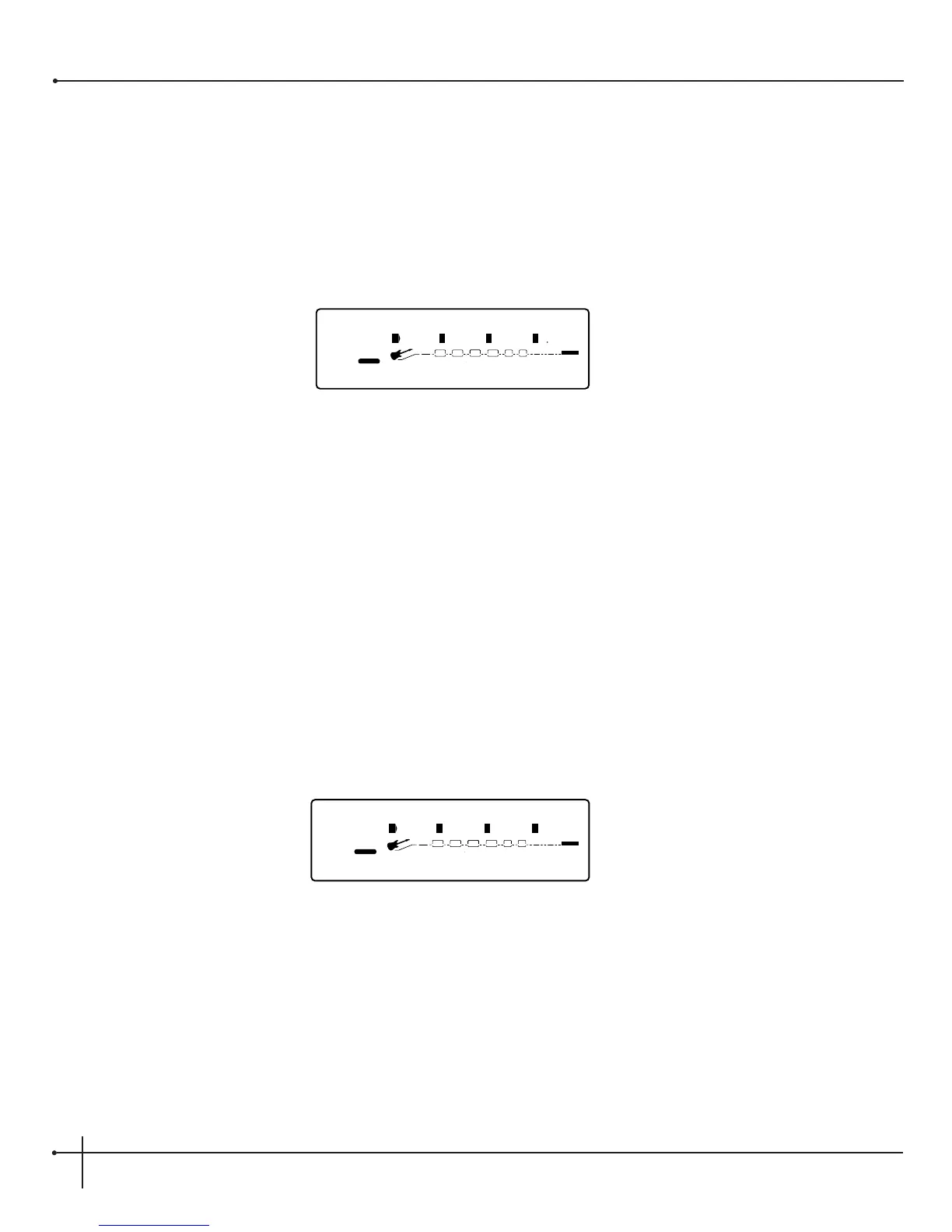
2. Use the <Page> knob to scroll to the LFO page. The display looks something like:
3. You can use the <1> knob to select which of the two LFOs you want to adjust.
4. Use the <2> knob to turn the LFO on or off.
5. Use the <3> knob to change the selected LFO's waveform. You can select either SINe, TRIangle, SPecial1 or SPecial2.
6. Use the <4> knob to adjust the speed of the LFO cycle.
Any parameters assigned to the LFOs will now follow the modulating waveform of the LFO you have selected.
Setting up a Dynamic Modifier
1. Enter Assign mode by pressing the <Assign> button.
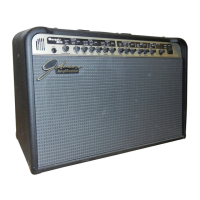
2. Use the <Page> knob to scroll to the first of two Dyn pages. The display looks something like:
3. You can use the <1> knob to select which of the two Dyns you want to adjust.
4. Use the <2> knob to turn the Dyn on or off.
5. Use the <3> knob to set the threshold above which dynamic modification of the parameter begins.
6. Use the <4> knob to set the point at which maximum parameter modification occurs.
7. Use the <Page> knob to scroll to the next Dyn page.


 To Next Page