EasyManua.ls Logo

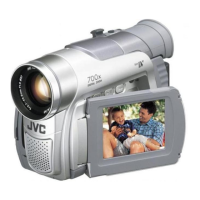
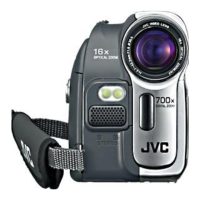
JVC GR-DA30AA - User Manual

JVC GR-DA30AA
40 pages
Print Icon
To Next Page IconTo Next Page
Loading...
LYT1783-001A
EN
ENGLISH
INSTRUCTIONS
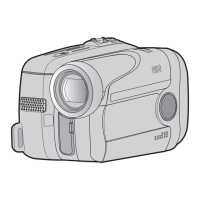
DIGITAL VIDEO CAMERA
GR-DA30AA
Dear Customer,
Thank you for purchasing this
digital video camera. Before use,
please read the safety informa-
tion and precautions contained
in pages 2 – 4 to ensure safe
use of this product.
GR-DA30AA_EN.indb 1GR-DA30AA_EN.indb 1 7/9/2007 12:03:10 PM7/9/2007 12:03:10 PM

Questions and Answers

  • J
    Julia DiazAug 12, 2025
    Why JVC GR-DA30AA has no power?
    • B
      Brooke SweeneyAug 12, 2025
      If your JVC Camcorder isn't powering on, it could be due to a few reasons: * The AC adapter might not be securely connected, so ensure it's properly plugged in. * The battery pack might not be firmly attached; try detaching and reattaching it. * The battery could be dead; replace it with a fully charged one.
  • C
    Christine MooreAug 16, 2025
    Why POWER/CHARGE lamp on JVC Camcorder does not light during charging?
    • E
      eric58Aug 16, 2025
      If the POWER/CHARGE lamp on your JVC Camcorder doesn't light during charging: * Charging might be difficult in extremely high or low temperatures. It's best to charge in temperatures between 10°C and 35°C to protect the battery. * The battery pack might not be firmly attached. Detach and re-attach it firmly.
  • R
    Robert FreyAug 20, 2025
    How to fix JVC GR-DA30AA Camcorder focus that does not adjust automatically?
    • A
      Ann BakerAug 20, 2025
      If the focus on your JVC Camcorder isn't adjusting automatically, check the following: * Ensure that the focus is set to Auto mode. * The lens may be dirty or covered with condensation. Clean the lens and check the focus again.
  • J
    Jasmine PowersAug 23, 2025
    What to do if recording cannot be performed on JVC GR-DA30AA Camcorder?
    • T
      Terry AndradeAug 23, 2025
      If you're unable to record with your JVC Camcorder, consider these potential causes: * The tape's erase protection tab may be set to “SAVE”. Set it to “REC”. * “TAPE END” may appear, indicating the need to replace the cassette with a new one. * The cassette holder cover might be open; ensure it is closed.
  • C
    Christopher AlvarezAug 27, 2025
    What to do if the tape is moving but there is no picture on JVC GR-DA30AA Camcorder?
    • L
      Linda BeanAug 27, 2025
      If the tape is moving but there's no picture on your JVC Camcorder, it could be due to these reasons: * Your TV might have AV input terminals but isn't set to its VIDEO mode. Set the TV to the correct mode for video playback. * The cassette holder cover might be open. Close the cassette holder cover.
  • B
    Brooke MontoyaAug 30, 2025
    Why do images on my JVC Camcorder LCD monitor appear dark or whitish?
    • B
      Bernard LandryAug 31, 2025
      If images on your JVC Camcorder's LCD monitor appear dark or whitish, especially in low temperatures, it could be due to the characteristics of the LCD monitor itself, which isn't a malfunction. Adjust the brightness and angle of the LCD monitor.
  • R
    Randy McmillanSep 3, 2025
    Why the image looks like the shutter speed is too slow on JVC Camcorder?
    • B
      Bryan RodriguezSep 3, 2025
      When shooting in the dark, the unit becomes highly sensitive to light when “GAIN UP” is set to “AUTO”. If you want the lighting to look more natural, set “GAIN UP” to “AGC” or “OFF”.
  • S
    Sharon BoydSep 7, 2025
    Why data battery status does not appear on JVC GR-DA30AA Camcorder?
    • A
      Amanda FloresSep 7, 2025
      If the data battery status isn't appearing on your JVC Camcorder, it could be because: * The AC Adapter is connected to the camcorder. Disconnect the AC adapter. * The camcorder turned off automatically. Turn the camcorder off, then on again.

JVC GR-DA30AA Specifications

General IconGeneral
TypeCamcorder
Camcorder Media TypeMini DV
Optical Zoom10 x
Image SensorCCD
Video Resolution720 x 576
Image StabilizerElectronic
Focus AdjustmentAutomatic, Manual
Shooting ModesDigital Photo Mode
White BalanceAutomatic, Presets
Display TypeLCD
Still Image Resolution640 x 480
Optical Sensor Size1/4"
LCD Screen Size2.5 inch
White Balance PresetsIndoor, Outdoor
MicrophoneBuilt-in
Connector TypeComposite video/audio output
Included AccessoriesAC adapter
LCD ScreenColor LCD
ViewfinderColor
Video Recording FormatDV
InterfaceUSB

Related product manuals