11
Auto Adjust Image
This function provides the user with optimal display settings.
• When the user connects the monitor for the rst time, this function automatically
adjusts the display to optimal settings for individual input signals.
• When you encounter problems such as blurry screen, blurred letters, screen icker
or tilted screen while using the device or after changing screen resolution, press the
E button to improve resolution.
Customizing Settings
Adjustment Settings
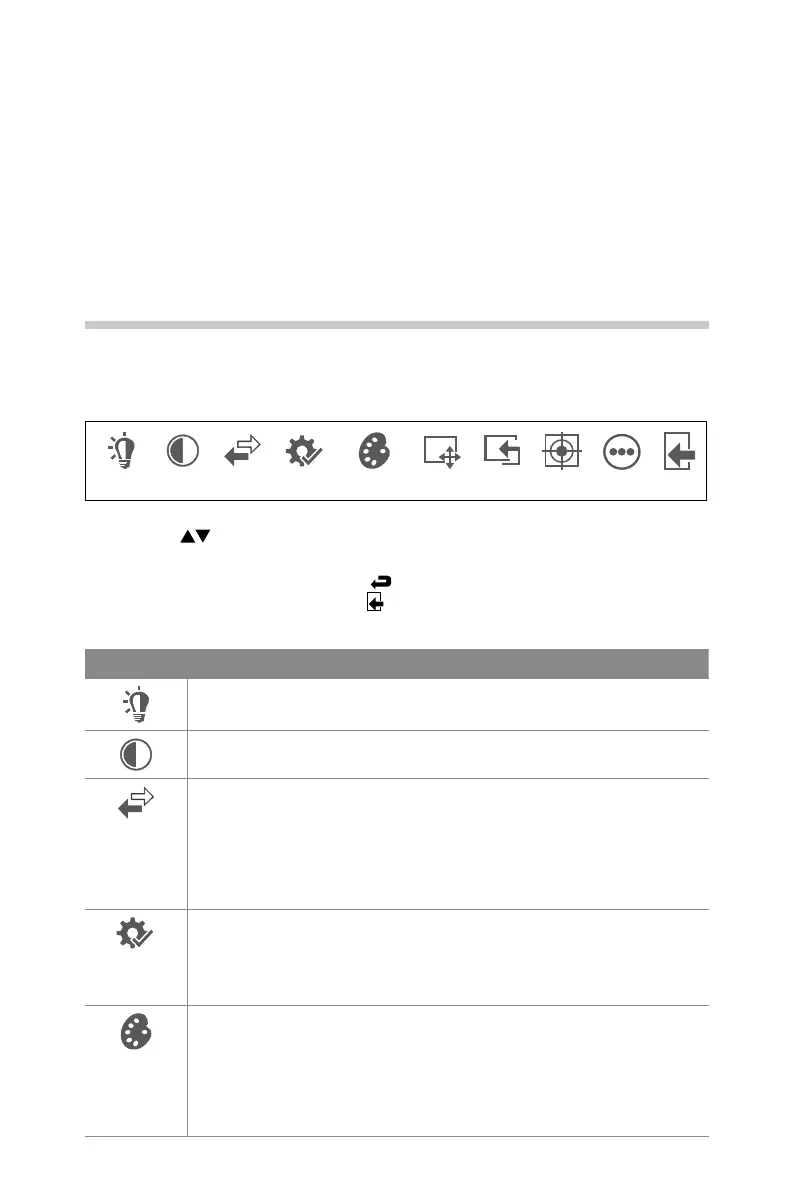
Press the M button to display the OSD main menu.
Brightness Contrast DCR Mode Colour Temp. Aspect Input Adjust Other Exit
1. Press the buttons to navigate the OSD menus or adjust the system settings to
your preference. Finally press the E button to conrm.
2. If you want to exit the menus, select
from the menu or press the M button to
return to the upper menu. Or select
from the menu to leaving the main menu.
Each option is described below.
Function Description
Increases or decreases the amount of white in the picture.
Adjusts the dierence between light and dark levels in the picture.
Select ON or OFF to enable or disable a DCR (Dynamic Contrast Ratio).
Dynamic Contrast Ratio also called contrast ratio. With a wider range
between black and white. A monitor is capable of deeper, richer colours
with more visible details in shadows and highlight. When DCR turns
ON, you will get a better contrast.
When DCR is set to ON, setting of brightness and contrast will disable.
Select among picture mode: Standard / Movie / FPS (First-person
shotter game) / RTS (Real-time strategy game) / Eye Saver.
Eye Saver is optimized your viewing comfort by smartly reducing blue
light emissions.
Select among colour temperature: Cool / Warm / User.
Adjusts the colour components independently to achieve a warm or
cool colour. (for User mode)
R: Adjust red color temperature
G: Adjust green color temperature
B: Adjust blue color temperature


 To Next Page