WWW.KAARTA.COM 16
The LED status indicator ring around the scanner’s Scan button changes
colors during the boot sequence, from solid red, to solid white, to a white
slow blink. After cycling through the boot sequence, the Scan button
should settle to a blue or ready state. See Scan Button LED Status on
page 11 for the full list of the button’s status indications.
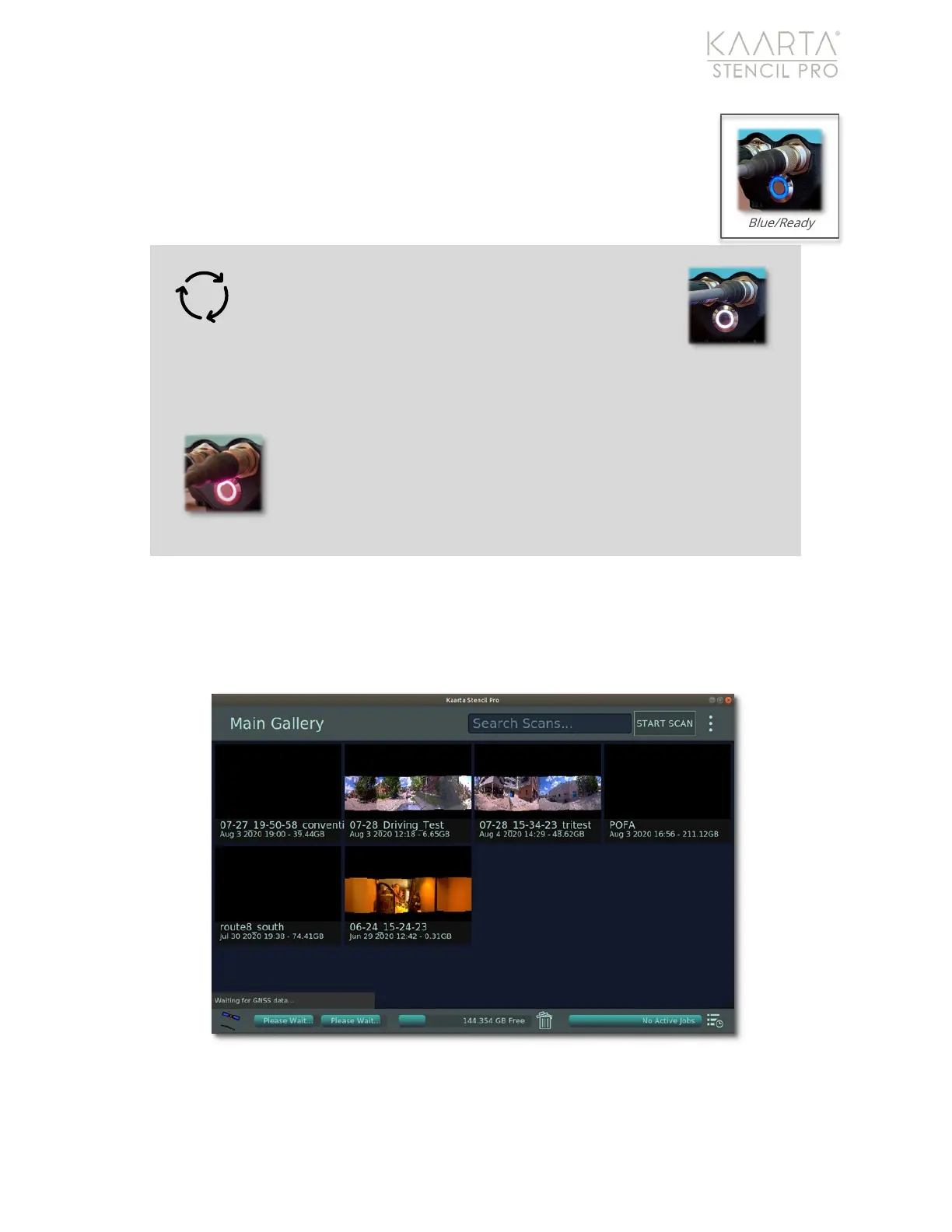
Once the device boots, the Stencil Pro UI automatically opens and displays on the iPad
(Figure 2). For more information about the Stencil Pro UI, see Main Gallery on page 17.
You are now ready to start collecting data to capture your scene. See the following
chapter, Stencil Pro Operation for complete scanning instruction.
Figure 2: Stencil Pro UI
Warning: If the Scan Button’s LED status stays
white (or turns white during scanning) the Stencil
Pro software and/or the internal computer is
having trouble powering up. Power cycle the
scanner by unplugging the power connection from the
controller.
If the LED status turns pink and begins to fast blink, then
communication between the scanner and controller has been
interrupted. Check the data connections between the
controller and scanner, making sure cables are firmly plugged
into their respective connector(s).


 To Next Page