WWW.KAARTA.COM 33
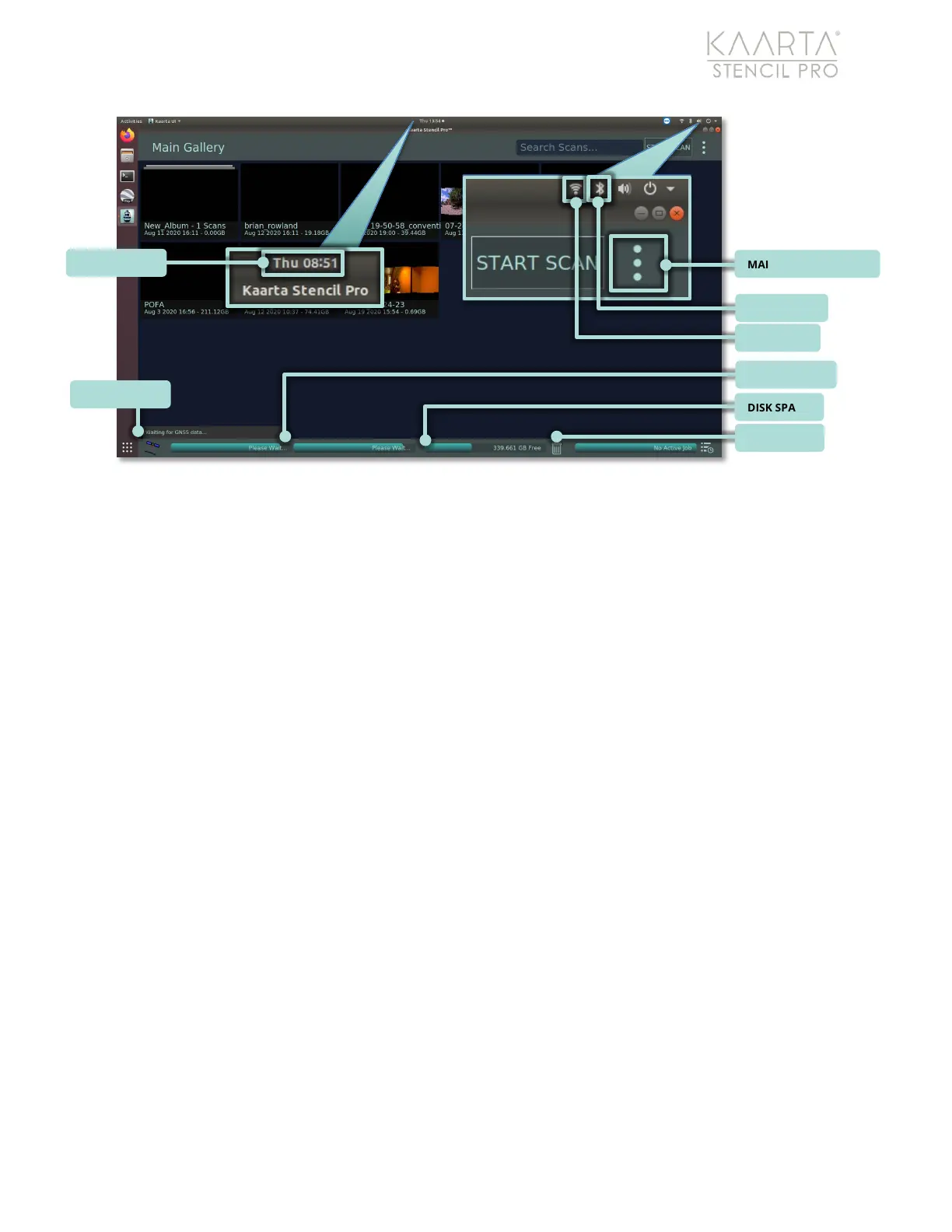
Figure 19: System Information shown from Main Gallery screen.
Trash Bin
The Trash Bin is temporary storage for files that you have deleted, but not yet
permanently erased from Stencil Pro. You can select All contents of the bin, permanently
Delete one or more files from the system, Restore files to the Main Gallery, or Empty the
contents of the trash bin. Click the back arrow in the upper left to return to the Main
Gallery.
Disk Space
The bar in the lower middle of the UI is the disk space used/remaining and is indicated as
a teal and gray bar, where teal is the amount used, and gray is the amount available.
Stencil Pro ships with a 1TB Solid State Drive (SSD). A warning is displayed in the UI if the
remaining space is less than 15% of the total available space.
In general, 1 minute of
scanning produces roughly 1GB of scan data, including a pointcloud preview, raw data,
and pano camera images.
We recommend that you empty the hard drive throughout the
day or upload your raw data to Kaarta Cloud to conserve space. See Kaarta Cloud on page
53 for information about uploading to and processing on the online platform.
To free up space, you can delete scan data through the UI or manually delete scan folders
from the recordings folder in the desktop. If you manually delete, remember to empty the
trash to restore the disk space. If you continue scanning with low disk space, Stencil Pro
will automatically stop scanning to prevent completely filling the disk. This is because with
no free space the Ubuntu operating system may fail to boot, rendering the device
inoperable.


 To Next Page