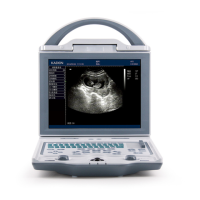
Full Digital Mechanical Sector Scanning Ultrasonic Diagnostic Instruments (Vet) User’s Manual V2.14
6.4.5 M Mode
1. In real-time mode, press key to enter M mode;
2. Change of M speed: Press key to enter main-menu and press direction keys to move cursor
to “M Speed” and then press direction keys to select the four kinds of scan speed.
3. In real-time mode, press key to exit M mode.
6.5 Image Quality Adjustment
6.5.1 Brightness and Contrast Adjustment
In the startup default status, press key to quit the current using status of direction keys, press
direction keys , the adjustment bars of brightness and contrast will be displayed on the screen, adjust
them according to actual need. Press direction key to increase brightness and contrast, direction key to
decrease them; press direction keys to select brightness or contrast adjustment.
Note: If direction keys cannot be adjusted when adjust brightness or contrast in normal
operation mode, must be exit current operating condition of direction keys.
6.5.2 Total Gain Adjustment
In real-time mode, press key to enter main-menu and press direction keys to move cursor to
“Gain” in the display area. Press direction key to increase image total gain and direction key to reduce
total gain so as to control the total gain of the entire image.
6.5.3 Near Field Gain Adjustment
In real-time mode, press key to enter main-menu and press direction keys to move cursor to
“Near” in the display area. Press direction key to increase near field gain and direction key to reduce
near field gain so as to control the gain in near field region.
6.5.4 Far Field Gain Adjustment
In real-time mode, press key to enter main-menu and press direction keys to move cursor to
“Far” in the display area. Press direction key to increase far field gain and direction key to reduce far
field gain so as to control the gain in far field region.
6.5.5 Dynamic Range Adjustment
In real-time mode, press key to enter main-menu and press direction keys to move cursor to
“Dyn” in the display area. Press direction key to increase the value of dynamic range and direction
key to decrease the value of dynamic range so as to control the dynamic range of the entire image.
6.5.6 Frequency Adjustment (Frequency conversion)
In real-time mode, press key to enter main-menu and press direction keys to move cursor to
“Freq.” in the display area. Press direction keys to achieve frequency conversion.
6.5.7 Frame Correlation Adjustment
In real-time mode, press key to enter main-menu and press direction keys to move cursor to
“Frame Avg” in the display area. Press direction keys to achieve four levels of frame correlation.
6.5.8 Image Processing Adjustment
In real-time mode, press key to enter main-menu and press direction keys to move cursor to
“IP” in the display area and then press direction keys to obtain corrected image. System default is 2.
6.6 Image Control
6.6.1 Magnification Selection
In real-time mode, press key to enter main-menu and move cursor to “Zoom” and then press
direction keys to choose five kinds of magnification.


 To Next Page