6 7
English
English
By Wireless Connection
Before proceeding, please ensure you have the following:
• A Wi-Fi enabled Mac/ PC.
• KEF Wireless Easy Setup Wizard (available at www.kef.com).
• Name and password of your home Wi-Fi network.
1. Run the KEF Wireless Easy Setup Wizard and select your language of choice.
2. Click “First time setup” and follow the on-screen instructions to complete the setup process.
Wireless Network Set-Up
A few more steps are needed before you can start wireless streaming.
You can setup a connection between X300A Wireless and your home Wi-Fi network by either wireless
connection or wired connection. For wireless connection, please download KEF Wireless Easy Setup Wizard
(available at www.kef.com).
* X300A Wireless will remember the last home Wi-Fi network it was connected to. Every time the system
restarts, it will automatically search and connect to that network.
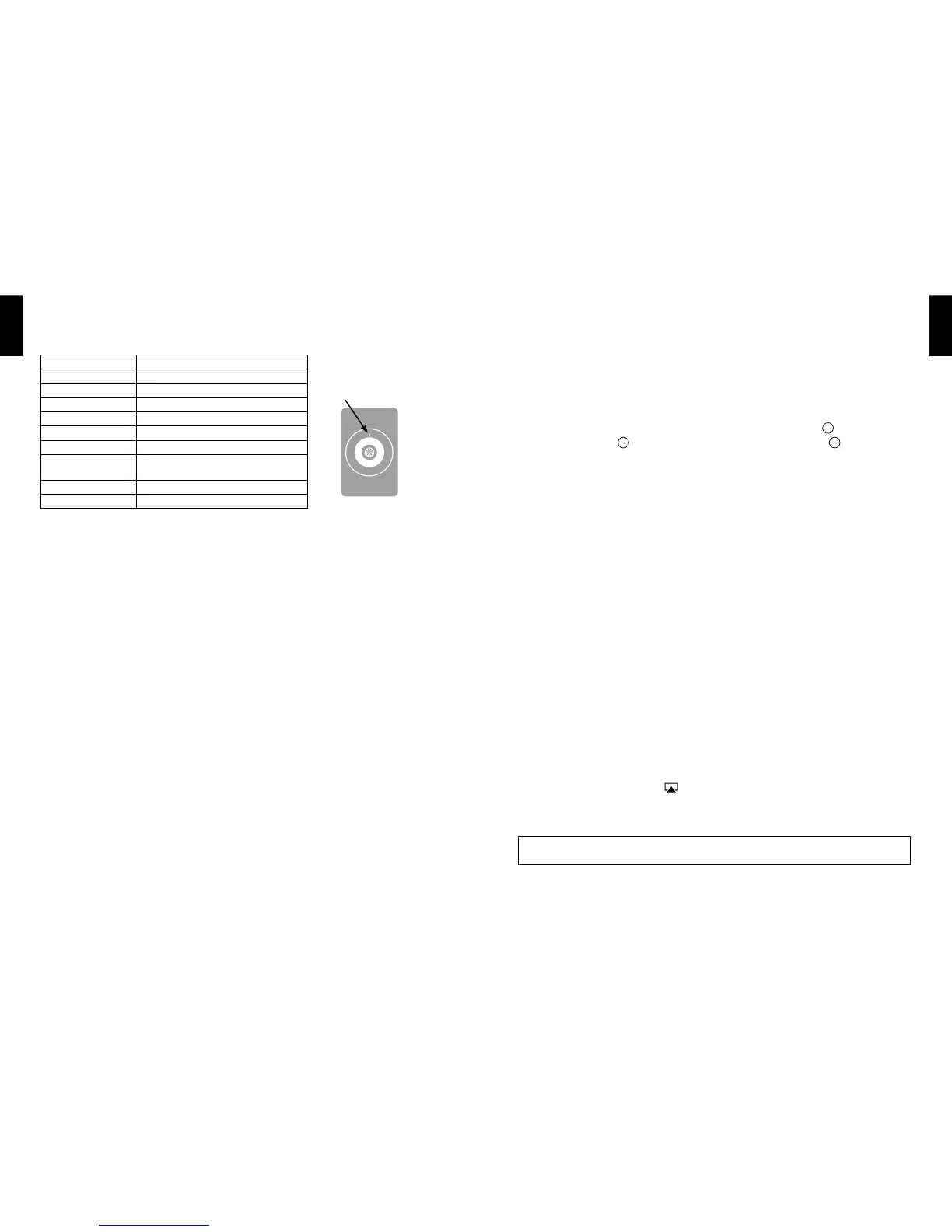
Status Indicator
Light Indicator System Status
Blue/ Amber blinking Wireless setup mode
Blue, slow blinking Network connecting
Blue, solid Network connected
Amber, slow blinking Firmware Upgrade
Amber, solid Network problem
Amber, fast blinking Critical rmware error
Blue, fast blinking
Connection problem between the Left and
Right speakers
Red, blinking System fault
Red, solid Switch off
Light Indicator
By Wired Connection
Before proceeding, please ensure you have the following:
• A Mac/ PC with Ethernet port.
• Name and password of your home Wi-Fi network.
1. Disconnect all network connections of your Mac/ PC.
2. Connect the Ethernet cable to the Ethernet port of your Mac/PC and LAN port
9
of X300A Wireless.
3. Power up each speaker
1
and turn on the system by pressing the standby button
3
.
Indicator light will ash blue.
4. Indicator light will turn to solid blue once the network connection is established.
This process may take up to 2 minutes.
5. Run the internet browser on your computer, enter the URL http://169.254.112.202
6. a) (Optional) Rename your speaker.
b) Select the home Wi-Fi network you are going to connect to and input the password.
Click “Save” and remove the LAN cable.
7. Speaker will restart. Blue light will ash and become solid again when the setup is completed.
Change Wireless Congurations
You can always rename your X300A Wireless speaker, change the home Wi-Fi network connection and check
network congurations.
1 Repeat the above steps to enter the KEF Wireless Easy Setup Wizard.
2. Select your language of choice, click “Change settings” and follow the on-screen instructions.
Streaming with AirPlay
Stream Music from iOS device (iPhone/ iPad/ iPod touch) / Mac
1. Make sure your iOS device/ Mac and X300A Wireless are connected to the same home Wi-Fi network.
2. Power up each speaker and connect the USB cable between Left and Right speaker.
3. Press the standby button. Wireless network is ready once the indicator light turns solid blue.
4. Open iTunes, select the AirPlay icon
.
5. Select “KEF X300A Wireless” on the AirPlay menu.
6. Play and enjoy your music.
Caution!
Volume can only be adjusted on source device. Please ensure your source volume
is set to low before you start streaming and adjust to volume of your liking.


 To Next Page