8 9
English
English
Streaming with DLNA (Android device)
Stream Music from Android device
1. Make sure your Android device and X300A Wireless are connected to the same home Wi-Fi network.
2. Power up each speaker and connect the USB cable between Left and Right speaker.
3. Press the standby button. Wireless network is ready once the indicator light turns solid blue.
4. Download and install the KEF Digital Media Control app (available at Google Play Store
and www.kef.com).
5. Run the app. Choose “KEF X300A Wireless” as your speaker.
6. a) Select the Android device you would like to stream music from as the server or
b) Select your own Android device as the server.
7. Once the server is connected, you will see your music library stored in your Android device.
8. Tap on any music le you would like to play, they will be streamed to X300A Wireless directly.
9. If you have renewed music contents in the Android device, tap the
icon and select “Update Server”.
10. End the app by taping the
icon and “Exit”.
Streaming with DLNA (PC)
Setup Media Sharing in Windows Media Player 12
1. Run Windows Media Player 12.
2. Click “Stream” and “Turn on home media streaming”. “Turn on home media streaming” would not be
available on the Stream menu if streaming is already turned on. In this case, please skip to step 5.
3. On the “Media streaming options” page, click “Turn on media streaming”. If you are prompted for an
administrator password or conrmation, type the password or provide conrmation.
4. Click “OK”.
5. Click “Stream”, select “Allow remote control of my Player” and “Automatically allow devices to play my
media”.
6. Your Windows Media Player is ready to be the media sharing server and be discovered by KEF Digital
Media Control app.
* You can setup other media sharing software on your PC as server. For details, please refer to the instructions
of your media sharing software.
Caution!
Volume can only be adjusted on source device. Please ensure your source volume
is set to low before you start streaming and adjust to volume of your liking.
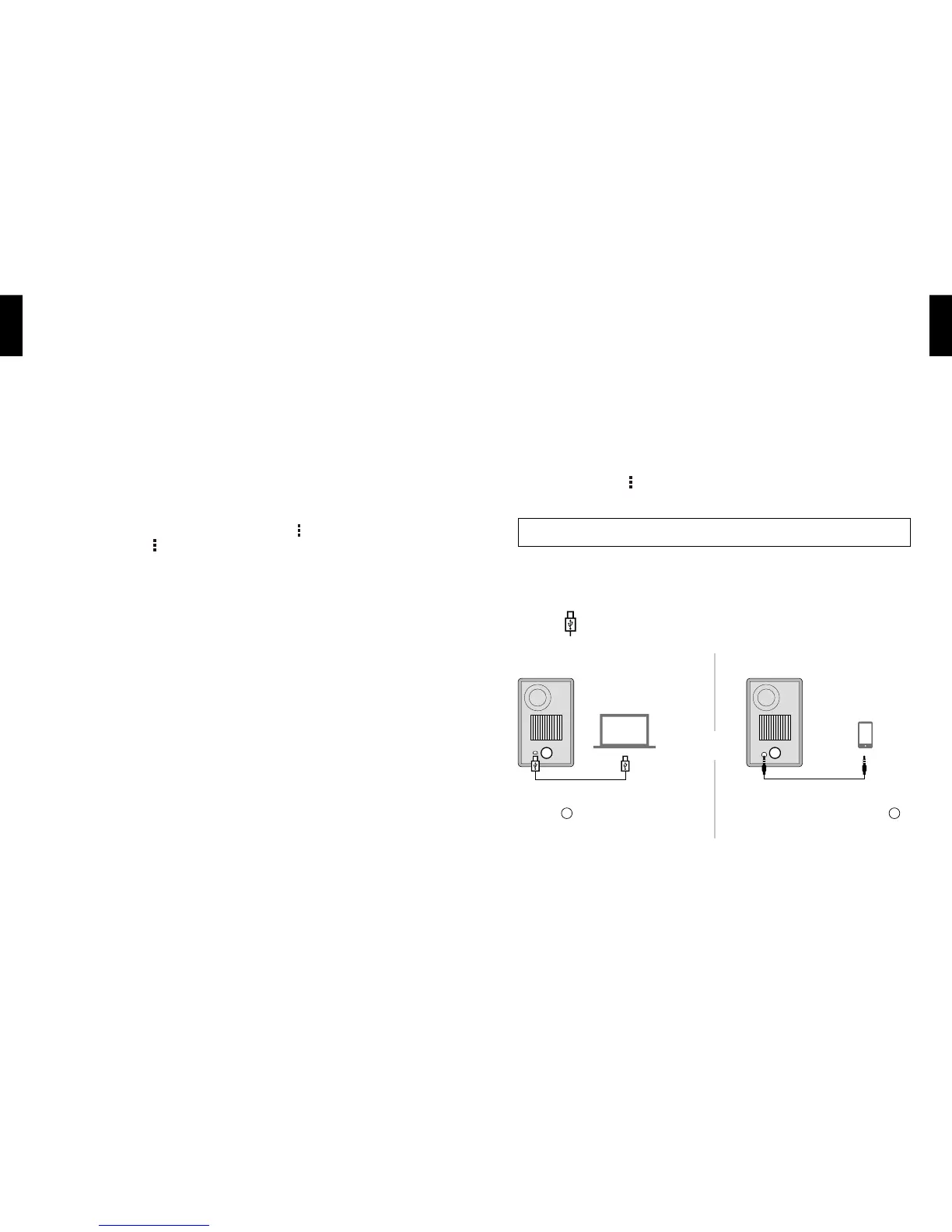
USB / AUX Playback
Or
USB IN
1a. Connect the USB cable between the Left
speaker
4
and your computer.
L
4
AUX IN
1b. Connect a 3.5mm stereo cable (not
included) between the Left speaker
5
and your music player, smartphone or
other analogue device.
L
5
Connect
Stream Music from PC
1. Make sure your PC, Android device and X300A Wireless are connected to the same home Wi-Fi
network.
2. Power up each speaker and connect the USB cable between Left and Right speaker.
3. Press the standby button. Wireless network is ready once the indicator light turns solid blue.
4. Download and install the KEF Digital Media Control app (available at Google Play Store
and www.kef.com).
5. Run the app, choose “KEF X300A Wireless” as your speaker and your PC as server.
6. Once the server is connected, you will see the music library stored in your PC.
7. Tap on any music le you would like to play, they will be streamed to X300A Wireless directly.
8. End the app by taping the
icon and “Exit”.


 To Next Page