To Next Page
J
julia72Sep 23, 2025
What does “CHECK DEVICE” mean on my Kenwood KDC-BT558U?
- KKristina KellerSep 23, 2025
Check the Pandora application on your device.

What does “CHECK DEVICE” mean on my Kenwood KDC-BT558U?
Check the Pandora application on your device.
Why can't I pair my device with my Kenwood KDC-BT558U Car Receiver?
If pairing cannot be made with your Kenwood Car Receiver, ensure that you have entered the same PIN code on both the unit and the Bluetooth device. If problems persist, delete pairing information from both the unit and the Bluetooth device, then perform pairing again.
What does “DEVICE FULL” mean on my Kenwood KDC-BT558U?
If your Kenwood Car Receiver displays “DEVICE FULL”, retry after deleting an unnecessary device.
Why is my Kenwood KDC-BT558U Car Receiver not detecting Bluetooth devices?
If no Bluetooth device is detected by your Kenwood Car Receiver, search from the Bluetooth device again, or reset the unit.
Why can't I hear any sound from my Kenwood KDC-BT558U?
If your Kenwood Car Receiver isn't producing any sound, try the following: * Adjust the volume to a suitable level. * Inspect the cords and connections to ensure they are properly linked. * Clean the connectors to remove any dirt or corrosion.
How to fix echo or noise on Kenwood KDC-BT558U Car Receiver?
If echo or noise occurs with your Kenwood Car Receiver, adjust the microphone unit’s position and check the [ECHO CANCEL] setting.
Why are the correct characters not displayed on my Kenwood Car Receiver?
If the correct characters are not displayed on your Kenwood Car Receiver (e.g., album name), note that this unit can only display uppercase letters, numbers, and a limited number of symbols.
What to do if “SUBSCRIPTION UPDATED – PRESS ENTER TO CONTINUE” appears on my Kenwood Car Receiver?
If the message “SUBSCRIPTION UPDATED – PRESS ENTER TO CONTINUE” appears on your Kenwood Car Receiver, press the volume knob to continue.
What does “TOC ERROR” mean on my Kenwood Car Receiver?
If your Kenwood Car Receiver displays “TOC ERROR”, ensure the disc is clean and properly inserted.
What to do if “READ ERROR” appears on my Kenwood Car Receiver?
If your Kenwood Car Receiver displays “READ ERROR”, copy the files and folders onto the USB device again. If the issue persists, reset the USB device or try using a different USB device.
General safety instructions and warnings for operating the unit and handling components.
Instructions for cleaning the unit, its connectors, and handling discs properly.
Overview and function of the unit's faceplate buttons and display.
Guide to using the included remote control for various functions.
Procedures for resetting unit presets and replacing the remote control battery.
Steps to turn off the demonstration mode on the unit.
Instructions for setting the unit's internal clock time.
Guide to configuring initial settings like audio, display, tuner, and system options.
How to search for radio stations manually or automatically and store presets.
Using the remote control to directly access radio stations by frequency.
Adjusting settings like mono, Traffic Information, and Program Type search.
Procedures for starting playback from CD, USB, or iPod sources.
How to select tracks, files, and folders for playback from different media.
Advanced methods for selecting tracks or files from lists and by name.
Options for changing the active USB drive when multiple are connected.
Connecting and using an external audio device via the AUX input.
Setting up and operating Pandora internet radio through the unit.
Connecting and listening to iHeartRadio internet radio stations.
Procedures for searching, skipping cities, and deleting stations.
Connecting the SiriusXM tuner and activating the subscription.
Procedures for selecting channels, bands, and using direct access tuning.
How to use the replay function for live SiriusXM broadcasts.
Utilizing stored channels for quick access and replay.
Managing channel locks, pass codes, and default settings.
Connecting the microphone and understanding supported Bluetooth profiles.
Steps to pair a Bluetooth device and perform a connectivity test.
Adjusting microphone gain, noise reduction, and echo cancellation for calls.
Using voice commands and receiving text message notifications.
General operations within Bluetooth mode, including call history and phone book access.
Procedures for searching and selecting contacts by name or number.
How to store, recall, and make calls from memory.
Procedures for deleting contacts and managing Bluetooth device settings.
Managing phonebook transfer, PIN codes, reconnection, and pairing settings.
Streaming Pandora, iHeartRadio, and operating Bluetooth audio players.
Selecting preset EQs, Drive EQ, and customizing sound modes.
Adjusting bass, treble, mid levels, and subwoofer output settings.
Configuring high-pass filters, fader, balance, and subwoofer phase.
Adjusting volume offsets for sources and using sound reconstruction.
Adjusting display colors, dimmer, and brightness levels.
Configuring text scrolling options for display information.
Information on playable audio files, discs, USB devices, and iPod/iPhone compatibility.
Details on KENWOOD Music Editor, Pandora, and iHeartRadio services.
Specifics on iHeartRadio functionality and Bluetooth device compatibility.
Resolving problems with sound, unit power, display, and radio reception.
Troubleshooting "NA FILE", "NO DISC", "TOC ERROR", and disc ejection problems.
Resolving issues related to USB devices, file playback order, and display.
Addressing errors and problems specific to Pandora and iHeartRadio applications.
Troubleshooting SiriusXM channel lock, subscription, antenna, and tuner issues.
Resolving Bluetooth connection, pairing, call quality, and voice recognition problems.
Important safety warnings and cautions before and during installation.
Steps for installing the unit in-dash and removing it from the vehicle.
Explains how to connect the unit's wires for power, speakers, and accessories.
Lists the components included with the unit for installation.
Detailed technical specifications for the radio tuner and CD player.
Technical details for USB connectivity and Bluetooth module.
Specifications for audio output power, impedance, and general audio performance.
Technical specifications for the auxiliary input and general operating parameters.
FCC, IC, COFETEL compliance, radiation limits, and important cautions.
Safety warnings, FCC compliance, and radio frequency exposure guidelines.
Information on iPod/iPhone, Pandora, iHeartRadio, and Bluetooth device compatibility and trademarks.
Instructions for environmentally responsible disposal of the product and batteries.
Specific warranty terms and conditions for units purchased through U.S. military exchanges.
Details on what is covered and not covered by the warranty, and its duration.
List of Kenwood authorized service centers for the military market.
Specific warranty coverage and procedures applicable within the United States.
Specific warranty coverage and procedures applicable within Canada.
Specific warranty coverage and procedures applicable within Brazil.
 General
| Type | Car Receiver |
|---|---|
| Brand | Kenwood |
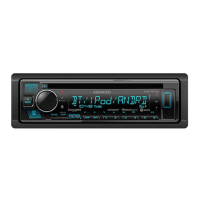
| Model | KDC-BT558U |
| DIN Size | Single DIN |
| Preamp RCA Outputs | 3 Pairs |
| Subwoofer Preamp RCA Output | Yes |
| Preamp Voltage | 4 Volts |
| Display Type | LCD |
| Display Color | White |
| Button Color | Variable Color |
| CEA-2006 Compliant | Yes |
| Bluetooth Compatibility | Yes |
| USB Input | Yes |
| AUX Input | Yes |
| MP3 Playback | Yes |
| WMA Playback | Yes |
| WAV Playback | Yes |
| FLAC Playback | Yes |
| Radio Tuner | AM/FM |
| HD Radio | No |
| Steering Wheel Control Compatible | Yes |
| Remote Control | Yes |
| CD Player | Yes |
| Built-in Microphone | Yes |
| Faceplate Security | Detachable |
| Peak Power Output | 50 Watts x 4 |
| RMS Power Output | 22 watts x 4 channels |
| Bluetooth Profiles Supported | A2DP, AVRCP |