EasyManua.ls Logo

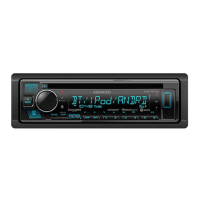
Kenwood KDC-BT560U - User Manual

Kenwood KDC-BT560U
76 pages
Print Icon
To Next Page IconTo Next Page
Loading...
Data Size: B6L (182 mm x 128 mm)
Book Size: B6L (182 mm x 128 mm)
B5A-3847-00 (MN)© 2021 JVCKENWOOD Corporation
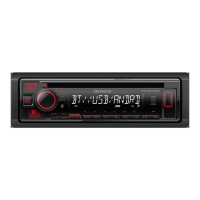
KDC-BT660U
KDC-BT560U
KDC-360UI
CD-RECEIVER
INSTRUCTION MANUAL
JS_KWD_KDC_BT660U_MN_C.indd 1JS_KWD_KDC_BT660U_MN_C.indd 1 5/2/2021 2:40:01 PM5/2/2021 2:40:01 PM

Questions and Answers

  • B
    bscottAug 20, 2025
    How to fix Kenwood KDC-BT560U Bluetooth pairing issues?
    • B
      brandtkatherineAug 20, 2025
      If you're having trouble pairing your Kenwood Car Receiver with a Bluetooth device, ensure you've entered the same PIN code on both devices. If that doesn't work, delete the pairing information from both the receiver and the Bluetooth device, and then try the pairing process again.
  • Z
    zachary66Aug 22, 2025
    How to connect Bluetooth if Kenwood KDC-BT560U does not detect device?
    • M
      monicamorganAug 22, 2025
      If your Kenwood Car Receiver isn't detecting a Bluetooth device, try searching from the Bluetooth device again. If that doesn't work, reset the unit.
  • H
    Holly GutierrezAug 25, 2025
    What does “MEMORY FULL” mean on Kenwood KDC-BT560U Car Receiver?
    • W
      William CooperAug 25, 2025
      If your Kenwood Car Receiver displays “MEMORY FULL”, it means you have reached the maximum storage limit of your iPod/iPhone.
  • B
    Bryan GoodmanAug 26, 2025
    What to do if Kenwood KDC-BT560U Car Receiver source does not change to USB?
    • K
      Kathryn CarterAug 26, 2025
      If the source does not change to USB when you connect a USB device while listening to another source on your Kenwood Car Receiver, it may be because the USB port is drawing more power than the design limit. Turn the power off, unplug the USB device, and then turn the power back on before reattaching the USB device. If the problem persists, turn the power off and on again, or reset the unit before trying another USB device.
  • L
    lopezgregoryAug 27, 2025
    What to do if my iPod/iPhone doesn't work with Kenwood KDC-BT560U?
    • T
      Tyler MuellerAug 27, 2025
      If your iPod/iPhone isn't turning on or working with your Kenwood Car Receiver, first check the connection between the unit and your iPod/iPhone. If the connection is good, try disconnecting and resetting your iPod/iPhone using a hard reset.
  • H
    Holly BallAug 29, 2025
    Why does my Kenwood KDC-BT560U Car Receiver say “NO DEVICE”?
    • M
      mark80Aug 29, 2025
      If your Kenwood Car Receiver displays “NO DEVICE”, connect a device (USB/iPod/iPhone) and then change the source to USB or iPod USB again.
  • B
    Brian HallAug 31, 2025
    Why is the phone sound quality poor on my Kenwood KDC-BT560U Car Receiver?
    • J
      Jamie HallAug 31, 2025
      If the phone sound quality is poor on your Kenwood Car Receiver, try reducing the distance between the unit and the Bluetooth device. Additionally, move the car to a location with better signal reception.
  • T
    Tammy BarrettSep 2, 2025
    What does “UNSUPPORTED DEVICE” mean on my Kenwood KDC-BT560U?
    • C
      Christopher RobbinsSep 2, 2025
      If your Kenwood Car Receiver displays “UNSUPPORTED DEVICE”, check whether the connected USB device is compatible with this unit and ensure the file systems are in supported formats. Also, try reattaching the USB device.
  • T
    Terri RiveraSep 4, 2025
    What does “iPod ERROR” mean on my Kenwood KDC-BT560U Car Receiver and how to fix it?
    • J
      Jesse PenaSep 4, 2025
      If your Kenwood Car Receiver displays “iPod ERROR”, try reconnecting the iPod. If the error persists, reset the iPod.
  • S
    Shane NicholsonSep 6, 2025
    How to stop echo during phone calls on Kenwood KDC-BT560U?
    • A
      Andrea Kirby MDSep 6, 2025
      If you hear echo or noise during a phone conversation on your Kenwood Car Receiver, adjust the microphone unit’s position. You may also check the [ECHO CANCEL] setting.

Summary

Before Use

IMPORTANT

General safety and usage instructions for the product.

Basics

Faceplate

Overview of the unit's front panel controls and indicators.

Getting Started

Select the display language, acknowledge the crossover type and cancel the demonstration

Initial setup for language, crossover type, and demonstration mode.

Getting Started

Set the clock and date

Steps to configure the unit's clock and date settings.

Radio

Search for a station

Methods to find radio stations via scanning.

CD;USB;iPod

Connect a USB device

Guide for connecting a USB storage device.

Connect an iPod;iPhone

Steps to connect Apple devices via USB.

Basic operations

Core functions for CD, USB, and iPod playback control.

CD;USB;iPod

Select a file to play

Selecting specific audio files from lists or folders.

AUX

Start listening

How to play audio from an auxiliary device via the 3.5mm jack.

KENWOOD Remote Application

Settings to use KENWOOD Remote application

Configuration steps required to use the remote app.

Bluetooth

Bluetooth - Connection

Steps to connect Bluetooth devices to the unit.

Pair and connect a Bluetooth device for the first time

Initial pairing procedure for connecting a Bluetooth device.

Bluetooth - Audio

Listening to music and audio via Bluetooth connection.

Auto Pairing (for KDC-BT660 U)

Automatic Bluetooth pairing method via USB connection.

Bluetooth - Mobile phone

Using Bluetooth for mobile phone functions like calls.

Connect the microphone

Diagram showing the correct microphone connection.

Receive a call

How to handle incoming phone calls.

Select a file from a folder;list

Browsing and selecting audio files from lists or folders.

Listen to iPod;iPhone via Bluetooth

Playing Apple device audio via Bluetooth connection.

Bluetooth

To

Operations and controls during phone calls.

Make the setting for answering a call

Configuring automatic call answering features.

Improve the voice quality

Adjusting microphone gain and echo cancellation for better call quality.

Make a call

Procedures for making phone calls via Bluetooth.

[PHONE BOOK]

Managing contacts and making calls from the phonebook.

Bluetooth

Make a call using voice recognition

Hands-free voice dialing instructions.

Store a contact in memory

Saving phone numbers for quick access via number buttons.

Make a call to a registered number

Calling stored contacts using preset number buttons.

[INITIALIZE]

Resetting all Bluetooth settings to their default values.

Bluetooth test mode

Checking Bluetooth profile compatibility between devices.

Audio Settings

[EASY EQ]

Simple equalizer adjustments for sound tuning.

[MANUAL EQ]

Detailed manual equalizer settings for sound customization.

[PRESET EQ]

Selecting pre-defined equalizer presets for music genres.

Audio Settings

Determining the delay time automatically

Automatic calculation of speaker delay times based on position.

Display Settings

Installation;Connection

Basic procedure

Step-by-step guide for installing the unit.

WARNING

Critical safety warnings for installation procedures.

CAUTION

Precautions to take during unit installation.

Installation;Connection

Installing the unit (in-dash mounting)

Process for installing the unit into a dashboard.

Installation;Connection

Wiring connection

Diagram showing electrical connections for unit installation.

IMPORTANT

Notes on using a custom wiring harness and professional installation.

References

Playable files

Supported audio file formats for discs and USB devices.

About iPod;iPhone

Compatibility information for Apple devices.

Troubleshooting

CD;USB;iPod

Further troubleshooting for CD, USB, and iPod playback issues.

Radio

Troubleshooting radio reception and playback problems.

Bluetooth

Troubleshooting common Bluetooth connection and audio problems.

Specifications

Tuner

Technical specifications for the radio tuner.

Bluetooth

Technical specifications for Bluetooth connectivity and profiles.

CD player

Technical specifications for the CD playback mechanism.

Audio

Technical specifications for audio output and power.

General

General technical specifications of the unit.

USB

Technical specifications related to USB connectivity.

Kenwood KDC-BT560U Specifications

General IconGeneral
Display TypeLCD
Audio Formats SupportedMP3, WMA, AAC, WAV, FLAC
Subwoofer ControlYes
CD PlaybackNo
Remote ControlYes
BluetoothYes
Max Power Output50 Watts x 4 Channels
RMS Power Output22 Watts x 4 Channels
Preamp Outputs3 (Front, Rear, Subwoofer)
TunerAM/FM
Steering Wheel ControlYes (Adapter Required)
Equalizer13-Band Graphic Equalizer

Related product manuals