Page 8
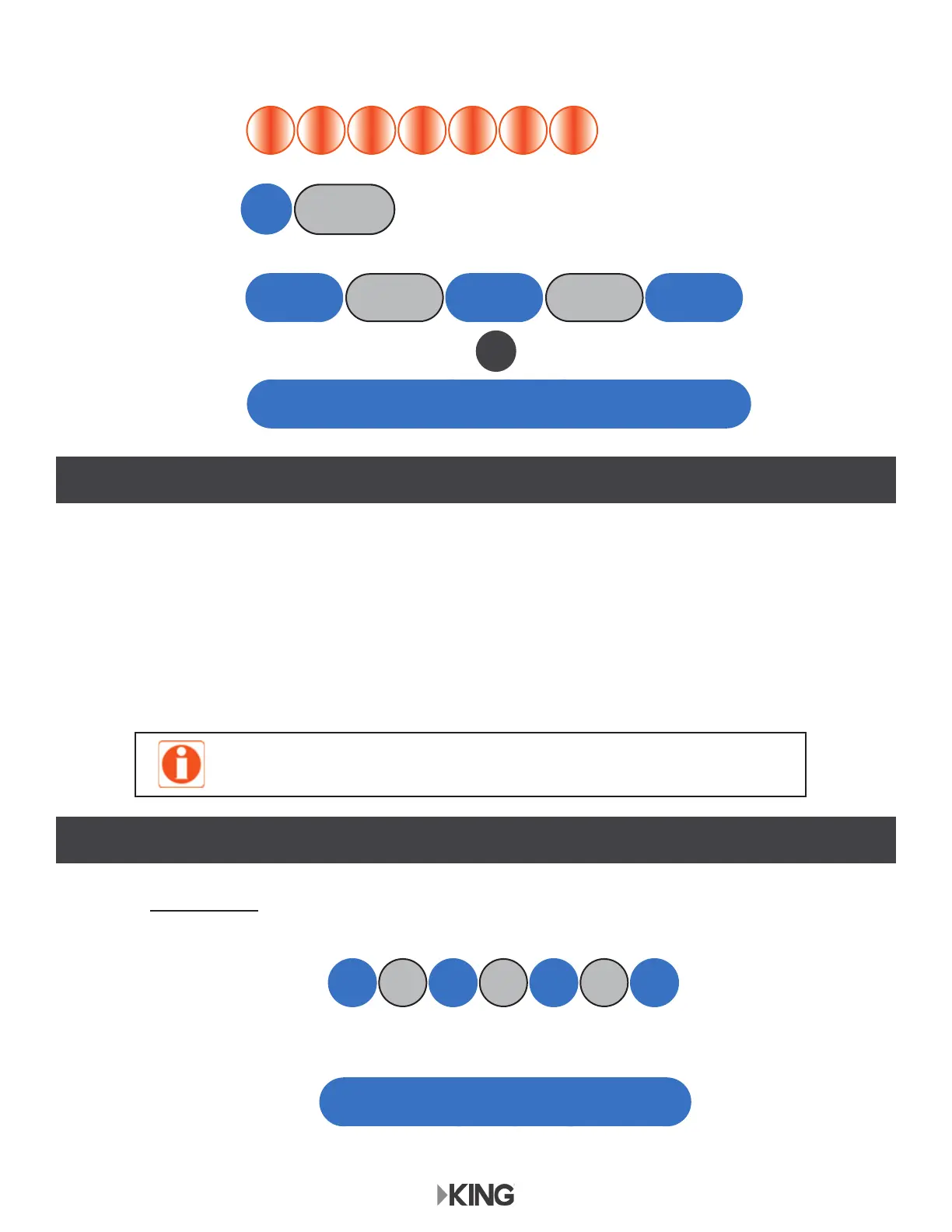
After making connections, the power inserter will boot up as follows:
Power Up
Current Mode
Ready to Scan
Pulsates orange for about 10 seconds.
&XUUHQWPRGHVHWWLQJÀDVKHVRQHWLPH
2QHEOXHÀDVKLVWKHIDFWRU\GHIDXOWVHWWLQJ',5(&79ZLWKDODUPGLVDEOHG
Repeats...
Steady blue
OR OR OR OR OR OR OR
BLUE
BLUE BLUE BLUEOFF OFF
BL
OFF
OR
CONFIGURE RECEIVER
SCAN FOR SATELLITES
Make sure your TV is on the correct input from your receiver.
If your receiver screen does not appear on your TV, check TV input by pressing Source/Input button
on your TV or TV’s remote.
&RQ¿JXUH\RXUUHFHLYHUDVIROORZV
• Switch Type: Multi-switch • Dish Type: 3-LNB (18”x20”) or 18x20” Triple-sat LNB
Make this one-time setting in the receiver’s satellite setup menu.
Press and immediately release the power inserter button to start a scan.
7KH/('ZLOOÀDVKEOXHGXULQJWKHVFDQ
When scan is complete and satellites are found, the LED will turn steady blue.
Watch TV. Enjoy!
BLUE
OFFOFFBL BL BL BLOFF


 To Next Page