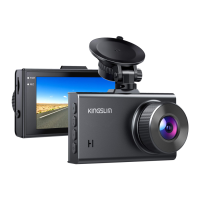
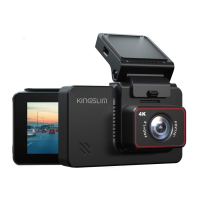
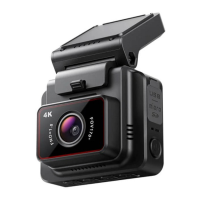
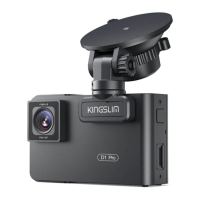
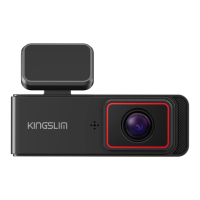
Need help?
Do you have a question about the KingSlim D6 and is the answer not in the manual?
Before turning on the camera, insert a Class 10 U3 or above memory card. Format it before use.
Plug in the camera to turn it on automatically and proceed with initial setup.
The dash cam turns on and records automatically when power is received.
Customize camera settings to enhance user experience and get the maximum benefit.
Set the correct date and time based on your location via the camera's system settings.
Learn how to hide the power cable inside your car's dash board via a provided video link.
Transfer videos by inserting the memory card or connecting via USB data cable.
Connect the dash cam to your smartphone directly using the built-in Wi-Fi feature.
Insert a Class 10 or above memory card (up to 256GB) into the dash cam.
Insert the dash cam bracket into its corresponding slot on the device.
Install the suction cup mount by removing the film and securing it to the bracket slot.
Clean windshield, apply sticker, attach dash cam with adhesive tape for mounting.
The camera turns on automatically when receiving power and off when power is disconnected.
Details the buttons and their functions in the camera's preview interface.
Explains the functions of buttons in the camera's main interface.
Choose video resolution options like 4K+2K, 4K+1080P, or 2K+1080P+2K.
Manually select the time zone for accurate time display on the dash cam.
Recommends Class 10 or above memory cards up to 256GB; format before use.
Instructions for inserting the memory card into the camera when it is turned off.
Guide on how to format the memory card using the dash cam's settings before use.
Steps to safely remove the memory card by pushing its edge inward until it clicks.
Access the playback album directly on the dash cam to view recorded videos.
Download the Kingslim app to play back videos on your smartphone.
Connect your smartphone to the dash cam's Wi-Fi, then open the Kingslim app to add the device.
Tap "Add Recorder", enter preview interface, and select "Video set" to watch videos via the app.
Tap "Select" and then the download icon to save videos to your smartphone's photo album.
Connect the camera via USB to transfer data or select "Mass Storage" on the camera.
Use VLC Media Player or the Kingslim GPS Player for viewing 4K videos and GPS data.
Select video resolution options: 4K+2K, 4K+1080P, or 2K+1080P+2K.
Configure loop recording settings for continuous recording, overwriting old files.
Options for displaying multiple camera views like Front, Inside, Rear, or combinations.
Turn Wide Dynamic Range (WDR) mode on or off for improved video quality.
Enable or disable audio recording for videos.
Turn the beep sound on or off for system notifications.
Add or remove a date stamp on photos and videos.
Configure G-Sensor sensitivity for impact detection and locked recording.
Turn the IR Cut mode on or off to adjust image quality.
Set the display screen to turn off automatically after a specified time.
Enable or disable time display when the screen saver is active.
Turn the Wi-Fi mode on or off for connectivity.
Manually set the date and time on the dash cam.
Choose between 12-hour or 24-hour time display modes.
Select the user interface language from available options.
Configure parking mode to automatically record upon impact.
Select the AC frequency (50 Hz or 60 Hz) to avoid flickering.
Set reminders for driver fatigue based on driving duration.
Manually select the time zone for accurate time display.
Track and display driving speed in KM/H or MPH.
Option to format the memory card through the camera's settings.
Restore the camera to its original factory default settings.
Check the current software version of the camera for support.
Troubleshoot issues with the dash cam automatically turning on or off.
Steps to diagnose and resolve issues where the dash cam fails to power on.
Address problems where the dash cam cannot be turned off manually or automatically.
Troubleshoot issues related to the dash cam not retaining its charge.
Resolve problems with the dash cam not saving time settings.
Solutions for the dash cam overheating during operation or in hot weather.
Handle "Slow Card" errors or prompts to format the memory card.
Troubleshoot issues with the camera's Wi-Fi connection to a smartphone.
Steps to resolve issues when connecting the dash cam to the Kingslim app.
 General
| LCD touch screen | 2-inch IPS |
|---|---|
| Anti flicker | 50 Hz / 60 Hz |
| Video resolution | 4K+2K (Front+Rear), 4K+1080P (Front+Interior) |
| Photo resolution | 12M |
| Lens aperture | F/1.8 |
| Video format | MP4 |
| GPS | Included |
| Wifi | Built-in |
| Memory card | Above Class10 U3 speed, max up to 256GB |
| G-sensor | Built-in 3-Axis |
| Loop recording | Support-seamless recording |
| Parking Mode | Support |
| Y/M/D D/M/Y M/D/Y | Support |
| 24 hours/12 hours | Support |
| Mic/Speaker | Built-in Micro Phone & Speaker |
| Mini USB Function | 1. Storage 2. Charging |
| Auto Power ON/OFF | Support |
| Power Interface | 5V/1.5A |
| Battery | Built-in li-ion 250 mAH battery |
| Operation Temperature | -4°F (-20°C) ~ 140°F (60°C) |

 To Next Page