BAC-19xxxx FlexStat Application Guide 8 AG200824A
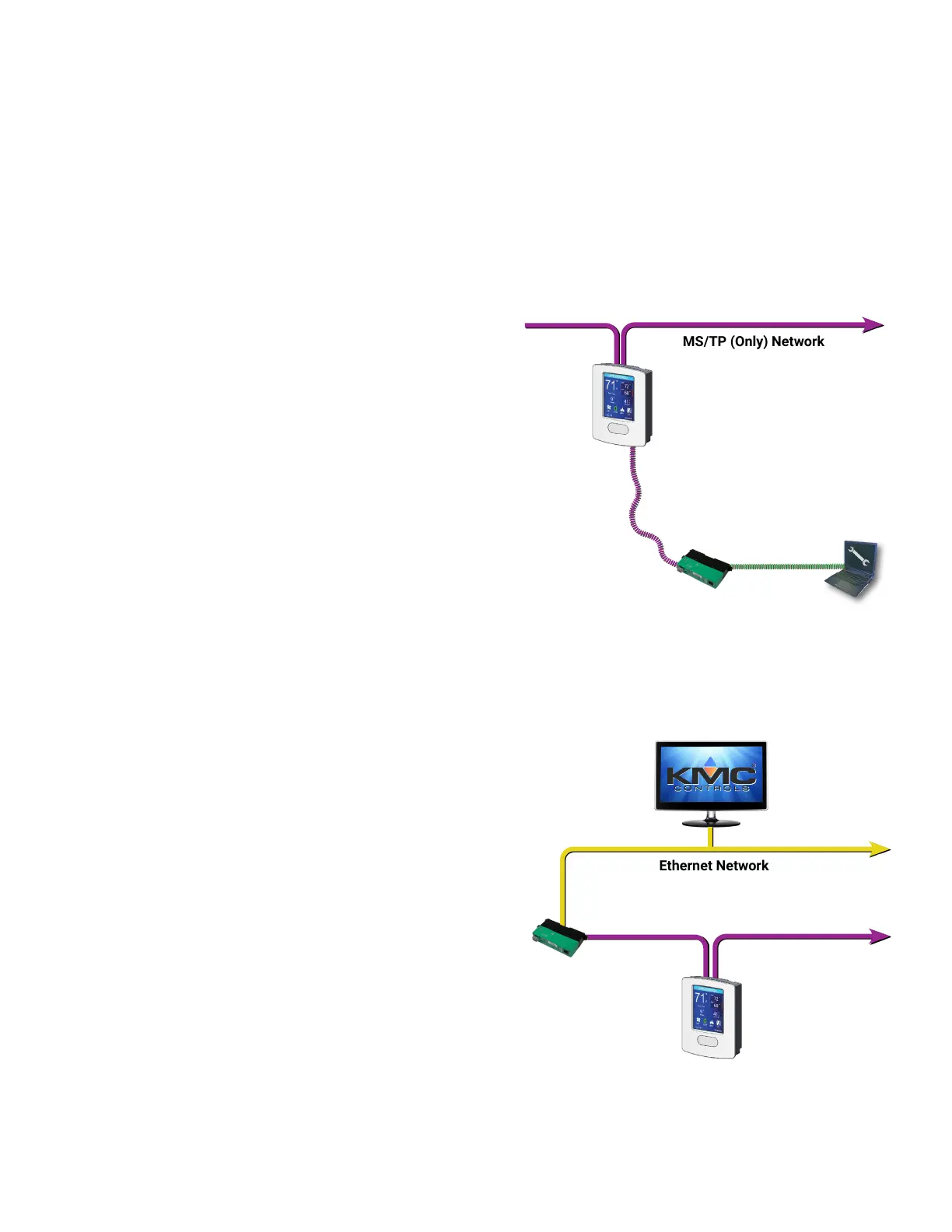
MS/TP (Only) Network
Temporary MS/TP Network Access Through Data Port
BAC-5051E
Router
(Service Tool)
Data Port
Cable (from
HPO-5551
Router Tech
Cable Kit)
USB Cable
(from HPO-5551
Router Tech
Cable Kit)
Data Port
BAC-19xxxxC
MS/TP Model
KMC
Connect
Permanent MS/TP Network Access Through Router
MS/TP Network
Ethernet Network
BAC-19xxxxC
MS/TP Model
BAC-5051E
Router
(Permanent
Installation)
KMC
Controls
Software
MS/TP Conguration via Software
For MS/TP models to communicate with KMC
software, a router (e.g., BAC-5051E) is required.
See the software and router product information
for more details.
After discovery of the FlexStat in the software,
change the MS/TP conguration as desired, restart
the device, and rediscover the network.
E. Select Ethernet and enter the necessary
Port ID, Network Number, and NIC.
F. Click OK and OK.
NOTE: Port ID and Network Numbers cannot
duplicate those of another port in
BACstac. It may be easier to temporarily
change an existing IP port to Ethernet.
2. Under Network Manager In KMC Connect or
TotalControl, right-click BACnet and select Find
Devices... or Regenerate All Networks....
3. Right-click the FlexStat device object, and se-
lect Congure Device....
4. Under General Properties, enter the desired
Device Instance.
5. Under IP Conguration Properties, select
Comm Type: BACnet IP.
6. Enter the desired IP Address, Default Gateway,
and Subnet Mask.
7. Select BACnet IP Mode: Normal or Foreign
Device.
NOTE: FlexStats can be used with a BBMD (as
a Foreign Device) but not as a BBMD.
8. Click Save Changes.
9. Click Refresh.
10. Verify that the settings are valid.
• If IP Conguration Good is True then
proceed.
• If IP Conguration Good is False, check IP
Conguration Status for possible causes.
11. Under IP Conguration Command, select Commit.
12. Click Save Changes at the top.
13. Restart the FlexStat.
14. If necessary, change the BACstac port from
Ethernet back to IP.
NOTE: For more details, see the software Help
system.


 To Next Page