EasyManua.ls Logo

Kodak i30 / i40 - User Manual

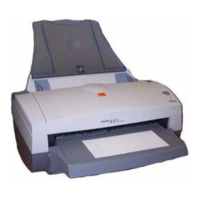
Kodak i30 / i40
84 pages
Print Icon
To Next Page IconTo Next Page
Loading...
i30 / i40 Scanners
Users
Guide
A-61512

Table of Contents

Questions and Answers

  • L
    Laura WolfeJul 30, 2025
    Why is the USB connection not working on my Kodak i30 / i40?
    • F
      Franklin DayJul 30, 2025
      If you are experiencing USB connection issues with your Kodak Scanner, it may be because your operating system supports USB 2.0, but a USB 1.1 port was detected. If your PC lacks a USB 2.0 port, install a USB 2.0 accessory card. If a USB 2.0 port or card is installed but not recognized, try installing or updating the drivers for that card.
  • N
    Nicole SmithAug 4, 2025
    Why is my Kodak Scanner not scanning or feeding documents?
    • B
      Billy StuartAug 5, 2025
      If your Kodak Scanner isn't scanning or feeding documents, ensure the power cord is securely plugged into both the scanner and the wall outlet. Check that the power supply's green LED is lit and the power switch is on. Verify the wall outlet isn't defective and that the PC was restarted after software installation. Also, confirm the document(s) are making contact with the feed rollers, and if feeding a small document, ensure it passes over the left-edge sensor.
  • R
    Ryan BlairAug 11, 2025
    What to do if documents are jamming in my Kodak i30 / i40?
    • D
      Diane GilbertAug 11, 2025
      If documents are jamming or multiple documents are feeding in your Kodak Scanner, make sure the input tray and side guides are adjusted to the width of your documents, and the output tray is adjusted for the length. Ensure all documents meet the size, weight, and type specifications. Also, ensure that the scanner is clean and the feed module is installed properly and securely. If you are feeding a small document, be sure that the document passes over the left-edge sensor.
  • K
    kimberly32Aug 16, 2025
    Why are my Kodak i30 / i40 images distorted?
    • R
      Ryan BruceAug 16, 2025
      Distorted images may occur if you add documents to the feeder while scanning is in progress. The feeder holds up to 50 documents in the input tray, and adding documents during scanning can cause distortion.
  • J
    Jared PattonAug 22, 2025
    How do I fix black background bleed-through on my Kodak i30 / i40 images?
    • R
      Rebecca GallagherAug 23, 2025
      When scanning translucent documents, black bleed-through may appear on the image. To minimize this, adjust the Contrast value or select Fixed Processing to improve the image.

Summary

Safety, Compliance, and Environmental Information

Scanner Installation and Setup

Getting Started and System Requirements

Guide to unboxing the scanner, checking contents, and understanding system requirements.

Installing Scanner Hardware and Software

Step-by-step instructions for assembling the scanner and installing the Kodak driver software.

Verifying USB Port Functionality

Procedure to check for a functional USB port using the scanner's verification tool.

Initial Setup and Application Installation

Turning on the scanner, finalizing driver setup, and installing additional application software.

Scanner Operation and Configuration

Image Processing and Advanced Settings

Maintenance and Troubleshooting

Troubleshooting Common Scanner Issues

Diagnosing and resolving problems like indicator lights, jams, and general scanner malfunctions.

Kodak i30 / i40 Specifications

General IconGeneral
TypeDocument Scanner
ConnectivityUSB 2.0
Automatic Document Feeder Capacity50 sheets
Color Depth24-bit
Grayscale Depth8-bit
InterfaceUSB 2.0
Duplex ScanningYes
Scan Speed (Color, 200 dpi)30 ppm / 60 ipm
Scan Speed (Black & White)30 ppm / 60 ipm
Scan Speed (Color)30 ppm / 60 ipm
Operating System CompatibilityWindows
Supported Document Sizes8.5 x 14 in. (21.6 x 35.6 cm)

Related product manuals