EasyManua.ls Logo

Kodak i4200 - User Manual

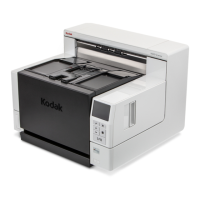
Kodak i4200
60 pages
Print Icon
To Next Page IconTo Next Page
Loading...
Users Guide
Eastman Kodak Company
343 State Street
Rochester, NY 14650 U.S.A.
© Kodak, 2010. All rights reserved.
TM: Kodak
6J7319A
CYAN
MAGENTA YELLOW BLACKCYAN
8.5 x 11Folded
GUIDE COVER-KODAK SCANNERS
FONTS
Whitney K Family
SIZE
P/N SWATCHES
FILE FORMAT
DESIGN/IMPLEMENTATION
DATE
02.09.10
6J7319A
DE MEYER
4 COLOR PROCESS
ARTWORK NAME
PRINTING INFORMATION
0000-000
ECO
LANGUAGES
ILLUSTRATOR CS3
EN
i4000 Series Scanners
A-61651
6J7319
User’s Guide on Installation CD
Guides de l'utilisateur sur le CD d'installation
Benutzerhandbücher auf der Installations-CD
Guida dell’utente sul CD di installazione
Gas de usuario incluidas en el CD de instalacn
Guias do usrio no CD de instalação
Gebruikershandleidingen op installatie-cd
Kurulum CD'sindeki Kullanım Kılavuzla
Uživatels pøíruèka na instalaèním disku CD

Table of Contents

Other manuals for Kodak i4200

Questions and Answers

  • V
    Victoria StantonAug 17, 2025
    What to do if my Kodak i4200 Scanner will not scan or feed documents?
    • W
      Wendy LeeAug 17, 2025
      If your Kodak scanner won't scan or feed documents, check that the power cord is plugged in and the power is on, with the green LED lit. Ensure the scanner cover is completely closed and that documents contact the feed module, covering the paper present sensor. Make sure the last document doesn't have black in the sensor area. Verify documents meet size, weight, and type specifications. For thicker documents, toggle the gap release switch. Inspect the feed module and separation roller for wear, replacing if necessary. Power cycling the scanner may also help.
  • M
    makayladavisAug 20, 2025
    What to do if my Kodak i4200 Scanner is multifeeding documents?
    • K
      kristina79Aug 20, 2025
      To prevent multifeeding on your Kodak scanner, make sure the leading edges of all batched documents are centered in the feeder to contact the feed rollers. Ensure the feed module and separation roller are clean and not worn. Feed documents with unusual textures manually, and ensure the gap release toggle switch is not pushed in.
  • S
    Samantha WilsonAug 23, 2025
    What to do if my Kodak i4200 displays '0' and is not communicating with the PC?
    • T
      Terri HillAug 23, 2025
      If '0' is displayed on your Kodak scanner indicating it's not communicating with the PC: * Check the USB cable to ensure it's working and securely plugged into both the PC and scanner. * Ensure the software is loaded. * Verify the PC recognizes the scanner by going to Start>Settings>Control Panel>Administrative Tools>Computer Management, selecting Device Manager, and checking if the Kodak i4200 or i4600 Scanner is listed under Imaging Devices. If not, click Action>Scan for hardware changes.
  • J
    Jose NewmanAug 26, 2025
    What to do if long documents are not feeding or jamming in my Kodak i4200?
    • L
      Lisa MeyerAug 26, 2025
      If documents 35.6 cm (14 in.) or longer are not feeding or are jamming in your Kodak scanner, make sure the input elevator and output tray extenders are pulled out to support long documents.
  • M
    Melissa LinAug 27, 2025
    Why is my Kodak i4200 Scanner running slow?
    • A
      Anita TuckerAug 27, 2025
      If your Kodak scanner is running slowly, the PC may not meet the minimum requirements. Some image processing functions, a high resolution (dpi) setting, or virus software scanning TIFF or JPEG files can reduce scanner speed. Ensure you are scanning to a local drive.
  • V
    vfergusonAug 30, 2025
    How to fix documents being skewed during scanning on my Kodak i4200 Scanner?
    • A
      aaron51Aug 30, 2025
      To correct skewed documents during scanning with your Kodak scanner, ensure the input elevator side guides are adjusted to fit the documents and that documents are fed perpendicular to the feed module. Remove all staples and paper clips. Also, make sure the feed module, separation roller, and drive rollers are clean, and the scanner cover is firmly closed.
  • K
    kmccannSep 1, 2025
    How to improve image quality on my Kodak i4200 Scanner?
    • M
      Megan AvilaSep 1, 2025
      If the image quality of your Kodak scanner is poor or has decreased, make sure that the scanner and imaging guides are clean.
  • W
    williamsdavidSep 4, 2025
    Why does my Kodak i4200 pause excessively during scanning?
    • D
      Dawn FergusonSep 4, 2025
      If your Kodak scanner pauses excessively during scanning, ensure the host computer meets the minimum scanning requirements and there is enough free space on the hard disk drive. Close all other applications and use a USB 2.0 connection. You can also try changing the scanning options (compression, etc.) in your scanning application.
  • R
    rthompsonSep 6, 2025
    How to remove vertical lines on images from my Kodak Scanner?
    • J
      Jennifer AyalaSep 6, 2025
      If vertical lines appear on images from your Kodak scanner: * Clean the imaging guides. * Enable the Streak Filter option or increase its aggressiveness.
  • S
    Steven BrownSep 9, 2025
    How to remove roller marks or streaks on documents after scanning with my Kodak i4200 Scanner?
    • G
      garymorganSep 9, 2025
      If roller marks or streaks appear on documents after scanning with your Kodak scanner, clean the feed module, separation roller, and tires.

Summary

Safety Information

User Precautions

Guidelines for safe operation, setup, and handling of the scanner.

Scanner Overview and Components

Installation Procedures

Installing the Scanner

Provides steps for initial scanner setup and placement.

Installing Kodak Driver Software

Instructions for installing the scanner software on Windows.

Connecting Power and USB Cables

Steps for connecting power and USB cables for operation.

Turning Scanner On and Off

Procedure for powering up and powering down the scanner.

Scanning Operations

Document Printing Features

Document Printing Troubleshooting

Common printing issues and their solutions.

Maintenance and Replacement

Replacement Procedures

Procedures for replacing worn or damaged scanner parts.

Troubleshooting Scanner Issues

Problem Solving Guide

A chart of common problems and their possible solutions.

Indicator Lights and Error Codes

Explains the meaning of scanner indicator lights and error codes.

Software Upgrades and Service Contact

Guidance on updating software and contacting service.

Contacting Kodak for Support

Kodak i4200 Specifications

General IconGeneral
Film scanningNo
Color scanningYes
Input color depth- bit
Maximum scan size210 x 297 mm
ADF scan speed (b/w, A4)100 ppm
Optical scanning resolution600 x 600 DPI
Duplex ADF scan speed (b/w, A4)200 ipm
Scanner type-
Product colorBlack, Grey
Sensor typeCCD
Scan driversISIS, TWAIN, WIA
Scan file formatsPDF, RTF, TIFF, TXT
Maximum duty cycle30000 pages per month
Scanning noise level32 dB
Daily duty cycle (max)- pages
Standard input capacity100 sheets
Auto document feeder (ADF) input capacity500 sheets
USB version2.0
Standard interfacesUSB 2.0
Compatible operating systemsWindows XP SP 2 Windows Vista SP 1 (32-bit) Windows Vista x64 Windows 7 (32 & 64 bit)
Bundled softwareKodak’s Smart Touch Feature KODAK Capture Desktop
Input voltage100-240 V
AC input frequency50 - 60 Hz
Power consumption (off)0.5 W
Power consumption (standby)3 W
Power consumption (typical)85 W
Operating temperature (T-T)10 - 35 °C
Operating relative humidity (H-H)10 - 85 %
Sustainability certificatesENERGY STAR
IlluminationLED
Auto Document Feeder (ADF) media weight45 - 200 g/m²
Weight and Dimensions IconWeight and Dimensions
Depth467.3 mm
Width459.7 mm
Height347.9 mm
Weight34000 g

Related product manuals