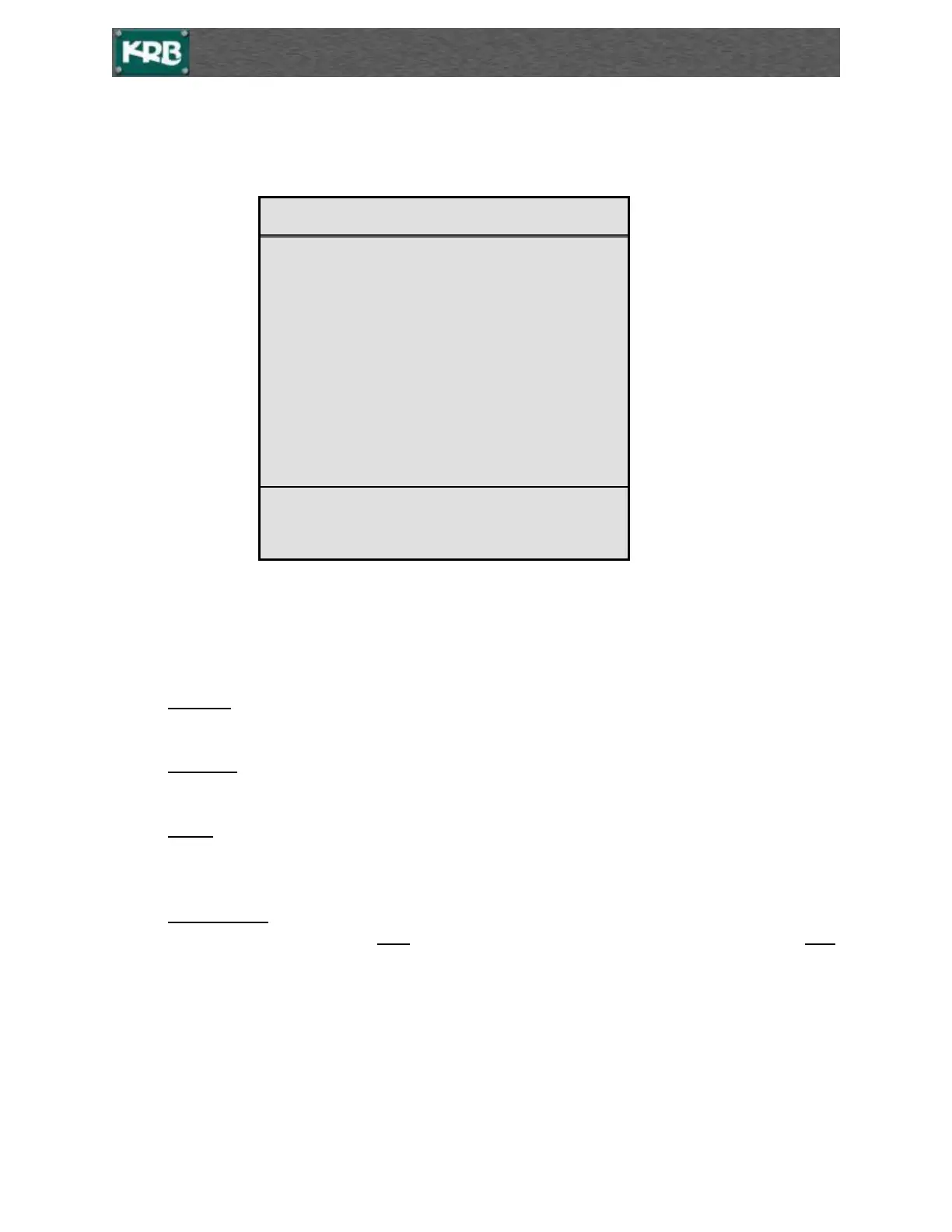
Controller Configuration Screen
*Press ESC to return to Main Operation screen.*
This is the “CONTROLLER CONFIGURATION” screen. This screen allows you to change the
configuration of the controller. Press the “TAB” key or the “BAK” key to select different options.
1. Contrast Press + or – to change the screen appearance darker or lighter.
2. Backlight Press – to turn off the backlight and + to turn it back on.
3. Metric Press + to change the controller to read in metric meters (yes) and – to change it to read in
feet and inches (no).
4. Position Lead This is used to adjust motor drift during positioning. When the bend roll has
automatically positioned, if the POS on the main screen differs from the called for count set to REF,
adjust the Position Lead to compensate for the mechanical drift.
CONTROLLER CONFIGURATION
>>> : Contrast :
Backlight………………. Yes
Key press Beep…………Yes
Metric………………….. No
Position Lead……………..2
TAB & BAK to select, + / - to change



 To Next Page