MAL-OPS-0969 Version 2.2 9
5. Data Storage
5.1 SD Card
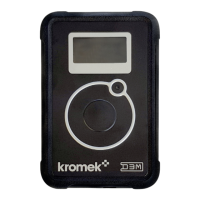
The D3M is fitted with an SD card for storage of spectra. To save data to the SD card,
the central button should be pressed and held for three seconds. The screen will
begin to fill with white bars when the button is pressed and should be released when
the third bar fills the screen. This bar has an SD card icon. Releasing the button at this
time ensures that the device will begin to save readings to the internal SD card. This
is indicated by a small SD icon at the top of the screen.
To ensure that the device is no longer saving data to the SD card, the central button
can be pressed for three seconds. Again, the button should be released when the
third white bar fills the screen. The SD card icon will no longer be in place at the top
of the screen.
The data is retrieved from the SD card using Kromek’s own CIRIS software. Full
information on how CIRIS can be used can be found in the separate CIRIS User Guide.
The D3M should be connected to the computer via USB and CIRIS should be opened.
Navigate to the configuration page on CIRIS and scroll to the SD card section near the
bottom. Ensure that the SD card is logged off from the D3M and click “Read SD
Card”. A warning will then appear on the screen stating that reading the data from
the SD card will remove all information from the D3M. If a total transferral of data
from the detector to the computer is desired, then click “OK”. Select the data set and
click “Save File”, meaning that the data will be saved onto the PC in the ANSI
standard N42.42 format. Click “Clear SD Card” to clear all data from the SD card.
5.2 USB Transfer
The D3M detector can be connected to a computer or other device using the
provided USB cable. Data files can be transferred directly in this manner using
Kromek’s own CIRIS software.


 To Next Page