Display setting
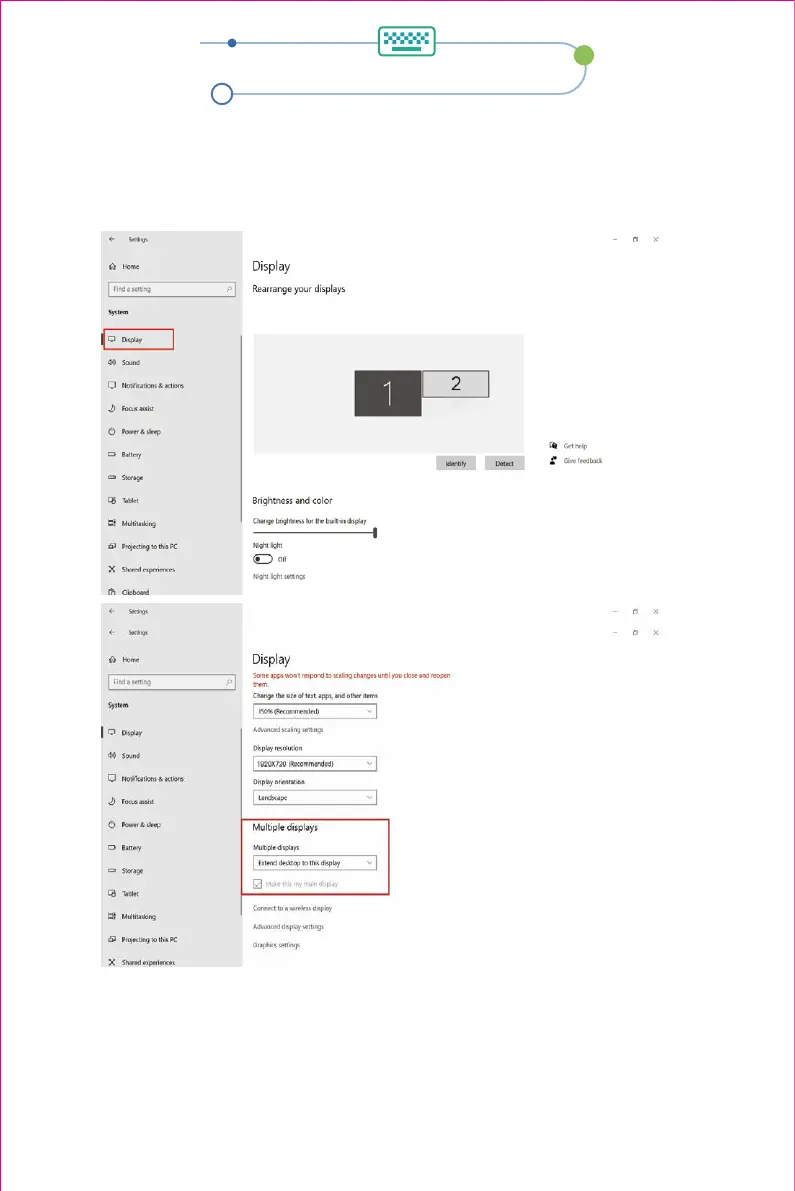
1.2 The user can now rearrange the multiple displays orientation by clicking and dragging the items in
the "Rearrange your display" section. Scrolling down towards the bottom of the page will also allow
the user to further configure the displays to either extend the desktop interface or to duplicate the main screen.
1.Windows 10 / Windows 11 Display Settings and Configuration
1.1 Right-click a blank area of the desktop. In the pop-up dialog box, select "Display Settings".
Left click "Display Settings" to open the dialog settings box as shown:
Night light can help you get to sleep
Note:1. Please set the display orientation to vertical flip when using the product with a support stand in
portrait mode.
2. If the resolution when starting up the product is not 1920*720P, please unplug and re-insert the data
cable.
7


 To Next Page