Phone Basics 15
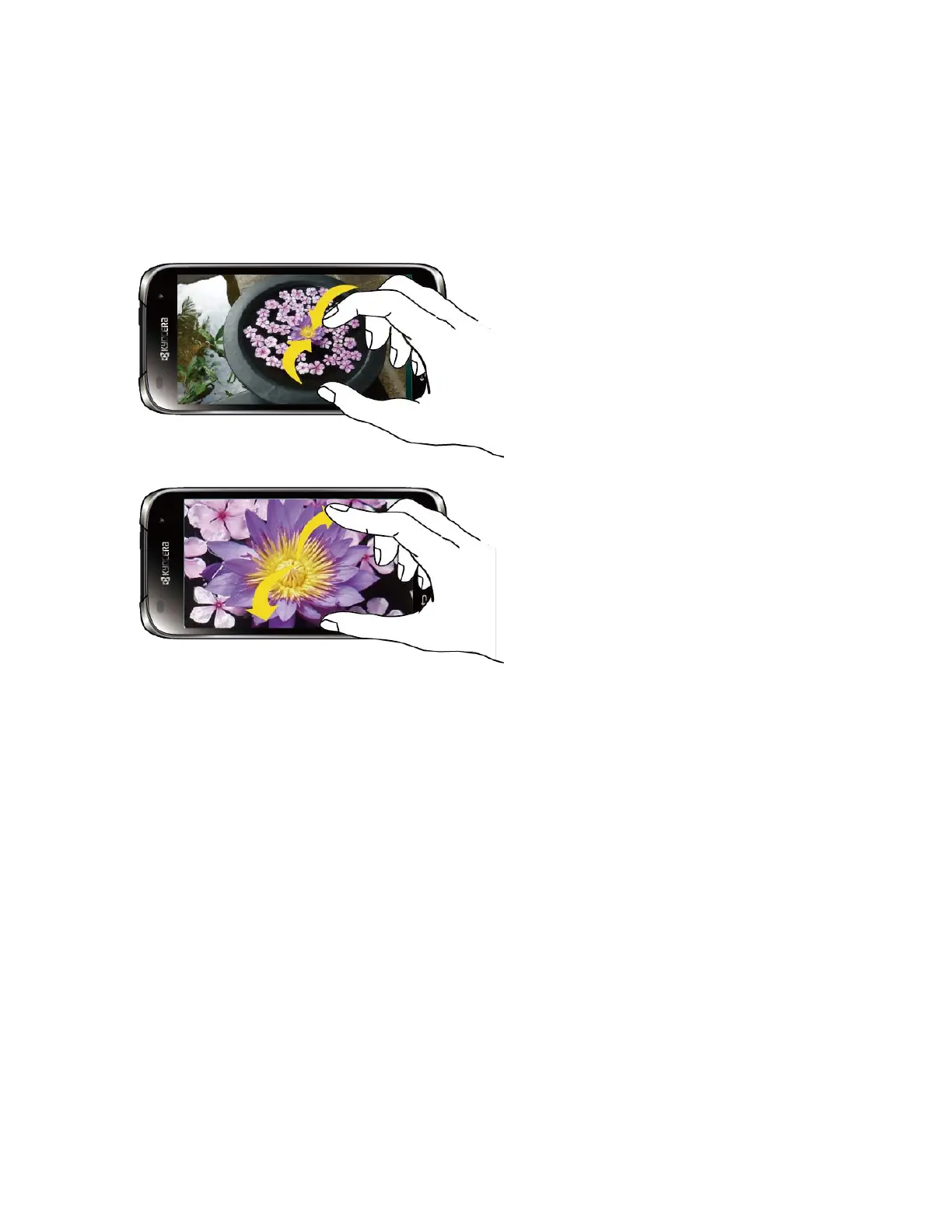
Pinch and Spread
“Pinch” the screen using your thumb and forefinger to zoom out or “spread” the screen to zoom
in when viewing a picture or a Web page. (Move fingers inward to zoom out and outward to
zoom in.)
Your Home Screen
The home screen is the starting point for your phone’s applications, functions, and menus. You
can customize your home screen by adding application icons, shortcuts, folders, widgets, and
more.
Home Screen Overview
There are two different options for the Home screen on your phone, Easy mode or Standard
mode. By default, your phone is set to Standard mode. You can change the Standard mode to
the Easy mode from the Settings menu. See Change the Home Screen Mode.
Note: Instructions to perform tasks in this guide are based on the Standard mode and may
change depending on the software version on your phone.
Standard Mode
Standard experience for users who are familiar with Android. Your home screen extends
beyond the initial screen. Swipe the screen left or right to display additional screens. There are
up to six extended screens available, in addition to the main Home screen. If selected, your
Home screen will show as follows:









 To Next Page