Phone Basics 30
3. Once you have completed entering your text, touch .
Tip: You can quickly assign Google voice typing from the keyboard. Touch the microphone icon
to turn on voice typing.
Google Voice Typing Settings
You can customize the Google voice typing settings as you like.
1. Touch > > Settings > Language & input, and then check the Google
voice typing check box.
2. Touch next to Google voice typing to configure its settings.
For more information about Google voice typing settings, see Google Voice Typing Settings.
Tips for Editing Text
Your phone gives you many options to make entering text easier, including copying, cutting, and
pasting text, using voice-to-text input, customizing the user dictionary, using predictive text, and
more.
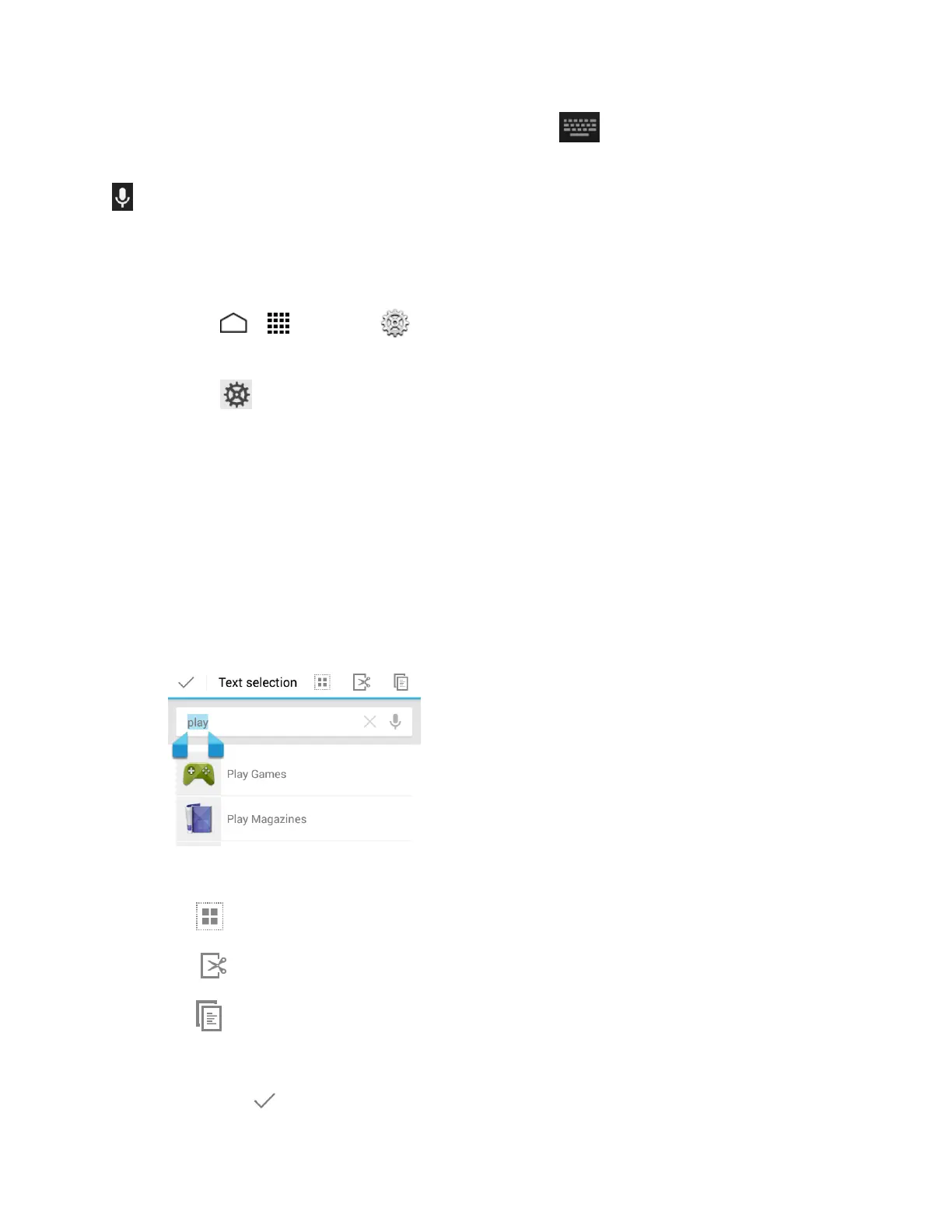
1. In a text entry field, touch and hold the text body.
2. Selection tabs appear and the currently selected words or characters are highlighted.
Drag the tabs to expand or reduce the range of the selected text.
3. Touch an onscreen option from the edit menu bar.
Select all: Highlights all the text in the field.
Cut: Removes the selected text and saves it to the clipboard.
Copy: Copies the selected text to the clipboard.
PASTE: Inserts the last copied or cut text into the current field.
Touch to close the edit menu bar.









 To Next Page