EasyManua.ls Logo

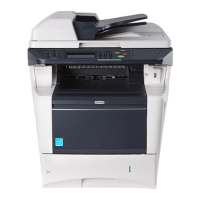
Kyocera FS-3040MFP - User Manual

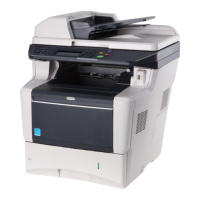
Kyocera FS-3040MFP
435 pages
Print Icon
To Next Page IconTo Next Page
Loading...
OPERATION GUIDE
FS-1100
FS-1300D
870CKGB20008
*870CKGB20008*
FS-3040MFP/FS-3140MFP
Downloaded From ManualsPrinter.com Manuals

Table of Contents

Other manuals for Kyocera FS-3040MFP

Questions and Answers

  • J
    Jeremiah ClarkSep 23, 2025
    What does 'Match the paper type and the envelope switch position' mean on Kyocera Printer?
    • B
      Brianna VargasSep 23, 2025
      If your Kyocera printer displays 'Match the paper type and the envelope switch position,' and you are printing envelopes using the envelope mode, press the two envelope buttons to change the paper feed mode to envelope mode.
  • C
    Christopher DoughertyAug 23, 2025
    How to fix frequent paper jams in my Kyocera Printer?
    • J
      jonathan52Aug 25, 2025
      If paper often jams in your Kyocera printer, ensure that: * The paper is loaded correctly. * The paper is of the supported type and in good condition; try removing the paper, turning it over, and reloading it. * The paper is not curled, folded, or wrinkled; replace it with new paper if it is. * There are no loose scraps or jammed paper in the machine; remove any jammed paper.
  • P
    Peter VasquezAug 25, 2025
    Why is my Kyocera Printer ejecting blank sheets?
    • A
      Anthony PerezAug 25, 2025
      If your Kyocera printer ejects blank sheets, ensure that the originals are loaded correctly. When using the platen, place originals face-down and align them with the original size indicator plates. When using the document processor, place originals face-up.
  • K
    Katherine HarrellAug 26, 2025
    Why won't the operation panel of my Kyocera Printer turn on?
    • W
      William LongAug 27, 2025
      If your Kyocera printer operation panel does not respond when the main power switch is turned on, ensure the power cord is plugged into an AC outlet.
  • P
    perkinssarahAug 27, 2025
    What to do if the Kyocera Printer waste toner box is full?
    • V
      valerie44Aug 27, 2025
      If your Kyocera printer displays 'Waste toner box is full,' you need to replace the waste toner box.
  • R
    Rebecca MendozaSep 17, 2025
    How to fix Kyocera Printer when duplex printing is not available for this paper?
    • B
      Brian LopezSep 17, 2025
      If you cannot duplex print on this paper with your Kyocera printer, select an available paper type. Press the OK key to print without using Duplex.
  • G
    gregorylopezSep 14, 2025
    What does 'Insufficient memory' mean on my Kyocera Printer and how to fix it?
    • C
      cgonzalesSep 14, 2025
      If your Kyocera printer displays 'Insufficient memory. Cannot start the job,' further scanning cannot be performed due to insufficient memory. Press the OK key to print the scanned pages, or press the Cancel key to cancel the printing job.
  • D
    douglasstewartSep 15, 2025
    Why can't my Kyocera Printer print from USB memory?
    • K
      Kristin AndradeSep 16, 2025
      If you cannot print with USB memory on your Kyocera printer, format the USB memory with this machine if it was formatted with another machine. Additionally, select Unblock in the USB host settings if the USB host is blocked.
  • H
    Hayley AlexanderSep 6, 2025
    Why are images skewed when printing from my Kyocera Printer?
    • E
      eric46Sep 6, 2025
      If your Kyocera printer images are skewed, when placing originals on the platen, align them with the original size indicator plates. When placing originals in the document processor, align the original width guides securely before placing the originals. Also, check the position of the paper width guides to ensure the paper is loaded correctly.
  • D
    Darlene ScottSep 3, 2025
    What to do if my Kyocera Printer doesn't copy when pressing Start?
    • D
      Dylan McdanielSep 3, 2025
      If pressing the Start key on your Kyocera printer does not produce copies, check if there is a message on the Message Display and respond accordingly. Also, check if the machine is in Sleep mode; if so, press the Power key to recover it, and it will be ready to copy within 15 seconds.

Kyocera FS-3040MFP Specifications

General IconGeneral
Duplex printingYes
Print technologyLaser
Maximum resolution1200 x 1200 DPI
Print speed (black, normal quality, A4/US Letter)40 ppm
Print speed (color, normal quality, A4/US Letter)23 ppm
Copier resize25 - 400 %
Maximum copy resolution600 x 600 DPI
Maximum number of copies999 copies
Total input capacity600 sheets
Total output capacity500 sheets
Maximum input capacity2100 sheets
Multi-Purpose tray input capacity100 sheets
DisplayLCD
Product colorBlack, Grey
Market positioningBusiness
Display number of lines5 lines
Internal memory256 MB
Maximum print size216 x 297 mm
Paper tray media typesBond paper, Envelopes, High resolution paper, Labels, Photo paper, Recycled paper
Non-ISO print media sizesLegal
ISO A-series sizes (A0...A9)A4, A5, A6
ISO B-series sizes (B0...B9)B5
Maximum ISO A-series paper sizeA4
Power requirements120 - 240V
Networking featuresFast Ethernet
All-in-one functionsCopy, Scan
Compatible operating systemsWindows 7/2000/XP/2003/Vista/2008\\r Mac OS 10.x\\r Sun OS4.1.x; Solaris 2.x
Mobile printing technologies-
Supported network protocols (IPv4)TCP/IP, IPX/SPX, AppleTalk, NetBEUI
Standard interfacesEthernet, USB 2.0
USB 2.0 ports quantity1
Power consumption (average operating)440 W
Scan toE-mail, FTP, USB
Grayscale levels256
Image formats supportedJPG, TIF
Document formats supportedPDF
Maximum duty cycle200000 pages per month
Fax memory256 pages
Modem speed33.6 Kbit/s
Fax transmission speed3 sec/page
Sustainability certificatesENERGY STAR
Weight and Dimensions IconWeight and Dimensions
Depth430 mm
Width494 mm
Height448 mm

Related product manuals