EasyManua.ls Logo

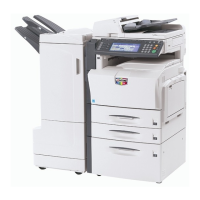
Kyocera KM-C3232E - User Manual

Kyocera KM-C3232E
473 pages
Print Icon
To Next Page IconTo Next Page
Loading...
SERVICE
MANUAL
Published in July 2007
842JL112
2JLSM062
Rev. 2
KM-C2525E
KM-C3225E
KM-C3232E
KM-C4035E

Questions and Answers

  • D
    dianacannonAug 21, 2025
    Why is Kyocera Software not discovering the printing system?
    • D
      Dennis FloydAug 21, 2025
      The printing system might be turned off, so turn it on and try again. It could also be removed from the network, so ensure it's connected. If the system is currently printing, wait until it's finished and then try searching again. It is also possible that the TCP/IP settings on your PC are not configured properly, in that case contact your network administrator. Depending on the network router configuration, a printing system may be undetectable. In some rare cases, heavy network traffic may prevent this application from detecting the printing systems, so try again later or contact your network administrator.
  • M
    martha96Aug 25, 2025
    What to do if Kyocera Software application does not start?
    • Z
      Zachary CummingsAug 25, 2025
      If the Kyocera Software application doesn't start, it could be due to several reasons. First, your PC might not meet the necessary system requirements; in this case, consider upgrading your PC. Another possibility is low memory; try closing any unnecessary applications. Also, ensure that you are not trying to run two instances of the application simultaneously, as this is not supported.
  • A
    Andrew RodgersAug 26, 2025
    Why does Kyocera Software fail to obtain account or printing system information?
    • K
      Katherine KochAug 26, 2025
      The application might fail to obtain account or printing system information if the printing system is turned off; in this case, turn it on. Another reason could be that the printing system has been removed from the network; connect it to the network. Also, if the printing system is currently printing a document, wait until the operation is complete before trying again.
  • I
    Ian SchroederAug 27, 2025
    How to fix Kyocera KM-C3232E Printer Accessories if ejected copies are not flat?
    • G
      Gregory PettyAug 28, 2025
      If ejected copies are not flat or stacked unevenly, turn over the paper in the cassette and reload it.
  • S
    Stacy StevensAug 29, 2025
    Why is my Kyocera Printer Accessories frequently jamming in the conveyor?
    • M
      mstewartAug 29, 2025
      If frequent jamming occurs in the conveyor or internal tray, the paper may be excessively curled. Also, you can adjust using the pressure roller bottom adjuster knob (E1) and pressure roller top adjuster knob (E2).
  • S
    Samantha StevensSep 1, 2025
    What to do if Kyocera Printer Accessories shows a paper jam in Tray A?
    • M
      Ms. Susan RamosSep 1, 2025
      If the illustration shown displays on the machine’s operation panel, indicating a paper jam in the conveyor section to Tray A, lift open Tray B and remove the jammed paper.
  • K
    Kari HoganSep 3, 2025
    What to do if Kyocera KM-C3232E shows a paper jam in Tray B?
    • K
      Kayla LambSep 3, 2025
      If the illustration shown displays on the machine’s operation panel, indicating a paper jam in the conveyor section to Tray B, remove any jammed paper from the ejection section.
  • A
    adamsmarySep 5, 2025
    How to fix curled copies from Kyocera KM-C3232E Printer Accessories?
    • J
      Julie YoungSep 5, 2025
      If the copies ejected are curled, adjust using the pressure roller bottom adjuster knob (E1) and pressure roller top adjuster knob (E2).
  • W
    William CastanedaSep 7, 2025
    What to do if Kyocera KM-C3232E Printer Accessories shows a paper jam in the Document Finisher?
    • J
      Justin SheltonSep 7, 2025
      If the illustration shown displays on the machine’s operation panel, indicating a paper jam in the coupling section between the Document Finisher and the machine, push the finisher release lever while pulling the finisher out from the machine.
  • M
    Michael AllenSep 9, 2025
    What to do if Kyocera KM-C3232E shows a paper jam in Tray C?
    • C
      Cole SmithSep 9, 2025
      If the illustration shown displays on the machine’s operation panel, indicating a paper jam in the conveyor section to Tray C, push the finisher release lever while pulling the finisher out from the machine.

Kyocera KM-C3232E Specifications

General IconGeneral
TechnologyLaser
Compatible PrintersKyocera KM-C3232E
Color OutputColor
Print Resolution600 x 600 dpi
Monthly Duty Cycle100, 000 pages
Duplex PrintingYes
TypeMultifunction
Print Speed32 ppm
ConnectivityUSB 2.0, Ethernet
Supported Media SizesA4, A5, Letter, Legal
FunctionPrint, Copy, Scan

Related product manuals