EasyManua.ls Logo

La Crosse Technology CA79103 - User Manual

La Crosse Technology CA79103
18 pages
Print Icon
To Next Page IconTo Next Page
Loading...
1 | Page
CA79103 FAQS
We are weather enthusiasts like you and know proper running equipment is important. These
FAQS provide valuable information on setup, positioning, and troubleshooting your station.
We recommend Adobe Reader version 10 or greater available at: http://get.adobe.com/reader
CONTENTS
CA79103 FAQS ................................................................................................................................................................. 1
CONTENTS ......................................................................................................................................................................... 1
GENERAL INFORMATION .................................................................................................................................................. 2
La Crosse View App: How do I connect? ......................................................................................................................... 2
BATTERIES: What do I need to know about batteries? ................................................................................................... 3
HARDWARE: Sensors and Station..................................................................................................................................... 3
What are the power requirements for this station? ......................................................................................................... 4
SETUP AND MOUNTING ................................................................................................................................................... 4
SETUP: How do I setup my station? .................................................................................................................................. 4
MOUNTING: Where do I mount/position my sensors? .................................................................................................... 4
Where to I place my station? ............................................................................................................................................. 5
What is Distance | Resistance | Interference? .................................................................................................................. 5
WEATHER STATION READINGS ....................................................................................................................................... 5
What is this EXTRA SENSOR Area? .................................................................................................................................. 5
How do I add extra sensors to my station? ...................................................................................................................... 6
How do I delete extra sensors from my station? ............................................................................................................. 6
How do I add extra sensors to my app? ........................................................................................................................... 6
How do I view my HI and LO Temperature/Humidity Readings? ................................................................................... 7
How do I reset the Temperature/Humidity Readings? .................................................................................................... 7
How Often does my Temp/Humidty Sensor Update? ..................................................................................................... 7
What is Feels Like and Dew Point Temperature? ............................................................................................................ 7
Does this station have Alerts? ........................................................................................................................................... 8
What are the lights on my Water Leak Sensor? ............................................................................................................... 9
TIME: Does this station have Atomic Time? ..................................................................................................................... 9
How do I manually set the time? ....................................................................................................................................... 9
OTHER WEATHER STATION FEATURES ....................................................................................................................... 10
BACKLIGHT: Does this station have a backlight? .......................................................................................................... 10

Table of Contents

Question and Answer IconNeed help?

Do you have a question about the La Crosse Technology CA79103 and is the answer not in the manual?

Summary

General Information and App Connectivity

La Crosse View App Connection

Explains how to connect the weather station to the La Crosse View mobile application.

Mobile Device Requirements

Details the necessary requirements for mobile devices to use the La Crosse View app.

App Download and Launch

Provides instructions for downloading and opening the La Crosse View mobile application.

Station Connection Readiness

Guides users on how to prepare the station for Wi-Fi connection and app pairing.

Connection Troubleshooting

Offers tips and solutions for common issues encountered during station connection.

Hardware and Power

Station Components

Lists the included hardware components of the CA79103 weather station.

Power Requirements

Details the power sources and requirements for the station and its sensors.

Battery Information

Provides essential information regarding batteries for the station and sensors.

Battery Icon Meanings

Explains the meaning of various battery icons displayed on the station.

Setup and Mounting

Station Setup Procedure

Step-by-step guide for setting up the weather station.

Sensor Mounting Guidelines

Instructions on how to properly mount the temperature/humidity and leak sensors.

Sensor Placement and Location

Recommendations for optimal placement of sensors for accurate readings.

Signal Range, Resistance, and Interference

Information on wireless signal transmission, obstacles, and interference.

Weather Station Readings

Extra Sensor Area Explained

Describes the function and display of the Extra Sensor area on the station.

Managing Extra Sensors

Instructions for adding and deleting extra sensors to the station.

Viewing HI;LO Temperature;Humidity

How to view the recorded high and low temperature and humidity readings.

Resetting Temperature;Humidity Readings

Procedure for resetting individual temperature and humidity readings.

Temp;Humidity Update Frequency

Information on how often the temperature and humidity sensors transmit data.

Feels Like and Dew Point Temperature

Explanation of 'Feels Like' and Dew Point temperature readings.

Station Alerts Configuration

How to set up and manage temperature and humidity alerts on the station.

Other Station Features

Water Leak Sensor Indicators

Explains the meaning of the LED light colors on the water leak sensor.

Time Settings (Atomic and Manual)

Information on atomic time synchronization and manual time setting.

Backlight Intensity Control

How to adjust the station's backlight intensity and turn it off.

Auto Dim Feature

Details on how to set the automatic dimming feature for the backlight.

Weekday Correction and Time Format

Instructions for correcting the day of the week and setting time format.

Firmware and Wi-Fi Version Check

How to check the station's firmware and Wi-Fi module version numbers.

Forecast Icons and Comfort Meter

Understanding Forecast Icons

Explains the meaning of the various weather forecast icons.

Outdoor Comfort Meter Explained

Describes the function of the Outdoor Comfort Meter based on humidity.

Weather Station Messages

Lost Wi-Fi and Connectivity Issues

Troubleshooting messages related to Wi-Fi connection and status.

No Weather Service Explanation

Explains messages indicating issues with weather data service connectivity.

Connected Forecast Features

Advanced Forecast Icons

Details the additional forecast icons available when connected to the app.

AccuWeather Daily Forecast

How to view the 7-day AccuWeather daily forecast.

AccuWeather Hourly Forecast

How to view the 12-hour AccuWeather hourly forecast.

AccuWeather HI;LO Temperatures

Explains the display of AccuWeather High/Low temperature predictions.

Custom Data Streams

Information on customizing data streams with text messages or AccuWeather data.

Troubleshooting Sensor Issues

Sensor Barcodes and ID Management

Understanding sensor barcodes and managing sensor IDs on the station.

Deleting and Replacing Sensors

Procedure for deleting old sensor IDs and adding new sensors.

Troubleshooting Station Issues

Factory Reset Procedure

Steps to perform a factory reset on the weather station.

Reading Discrepancies and HI;LO Explanations

Reasons for temperature/humidity reading differences and 'HI/LO' values.

Intermittent Reading Troubleshooting

Tips for resolving issues with intermittent temperature/humidity readings.

Setting Units and App Comparison

Changing Temperature Units

How to switch between Fahrenheit and Celsius temperature units.

Station vs. App Data Synchronization

Explains differences in readings between the station and the mobile app.

Summary

General Information and App Connectivity

La Crosse View App Connection

Explains how to connect the weather station to the La Crosse View mobile application.

Mobile Device Requirements

Details the necessary requirements for mobile devices to use the La Crosse View app.

App Download and Launch

Provides instructions for downloading and opening the La Crosse View mobile application.

Station Connection Readiness

Guides users on how to prepare the station for Wi-Fi connection and app pairing.

Connection Troubleshooting

Offers tips and solutions for common issues encountered during station connection.

Hardware and Power

Station Components

Lists the included hardware components of the CA79103 weather station.

Power Requirements

Details the power sources and requirements for the station and its sensors.

Battery Information

Provides essential information regarding batteries for the station and sensors.

Battery Icon Meanings

Explains the meaning of various battery icons displayed on the station.

Setup and Mounting

Station Setup Procedure

Step-by-step guide for setting up the weather station.

Sensor Mounting Guidelines

Instructions on how to properly mount the temperature/humidity and leak sensors.

Sensor Placement and Location

Recommendations for optimal placement of sensors for accurate readings.

Signal Range, Resistance, and Interference

Information on wireless signal transmission, obstacles, and interference.

Weather Station Readings

Extra Sensor Area Explained

Describes the function and display of the Extra Sensor area on the station.

Managing Extra Sensors

Instructions for adding and deleting extra sensors to the station.

Viewing HI;LO Temperature;Humidity

How to view the recorded high and low temperature and humidity readings.

Resetting Temperature;Humidity Readings

Procedure for resetting individual temperature and humidity readings.

Temp;Humidity Update Frequency

Information on how often the temperature and humidity sensors transmit data.

Feels Like and Dew Point Temperature

Explanation of 'Feels Like' and Dew Point temperature readings.

Station Alerts Configuration

How to set up and manage temperature and humidity alerts on the station.

Other Station Features

Water Leak Sensor Indicators

Explains the meaning of the LED light colors on the water leak sensor.

Time Settings (Atomic and Manual)

Information on atomic time synchronization and manual time setting.

Backlight Intensity Control

How to adjust the station's backlight intensity and turn it off.

Auto Dim Feature

Details on how to set the automatic dimming feature for the backlight.

Weekday Correction and Time Format

Instructions for correcting the day of the week and setting time format.

Firmware and Wi-Fi Version Check

How to check the station's firmware and Wi-Fi module version numbers.

Forecast Icons and Comfort Meter

Understanding Forecast Icons

Explains the meaning of the various weather forecast icons.

Outdoor Comfort Meter Explained

Describes the function of the Outdoor Comfort Meter based on humidity.

Weather Station Messages

Lost Wi-Fi and Connectivity Issues

Troubleshooting messages related to Wi-Fi connection and status.

No Weather Service Explanation

Explains messages indicating issues with weather data service connectivity.

Connected Forecast Features

Advanced Forecast Icons

Details the additional forecast icons available when connected to the app.

AccuWeather Daily Forecast

How to view the 7-day AccuWeather daily forecast.

AccuWeather Hourly Forecast

How to view the 12-hour AccuWeather hourly forecast.

AccuWeather HI;LO Temperatures

Explains the display of AccuWeather High/Low temperature predictions.

Custom Data Streams

Information on customizing data streams with text messages or AccuWeather data.

Troubleshooting Sensor Issues

Sensor Barcodes and ID Management

Understanding sensor barcodes and managing sensor IDs on the station.

Deleting and Replacing Sensors

Procedure for deleting old sensor IDs and adding new sensors.

Troubleshooting Station Issues

Factory Reset Procedure

Steps to perform a factory reset on the weather station.

Reading Discrepancies and HI;LO Explanations

Reasons for temperature/humidity reading differences and 'HI/LO' values.

Intermittent Reading Troubleshooting

Tips for resolving issues with intermittent temperature/humidity readings.

Setting Units and App Comparison

Changing Temperature Units

How to switch between Fahrenheit and Celsius temperature units.

Station vs. App Data Synchronization

Explains differences in readings between the station and the mobile app.

Overview

This document provides a comprehensive FAQ for the CA79103 weather station, designed for weather enthusiasts. It covers setup, positioning, troubleshooting, and various features of the station and its accompanying app.

Function Description

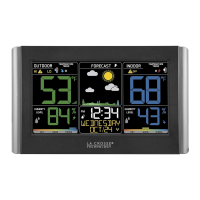
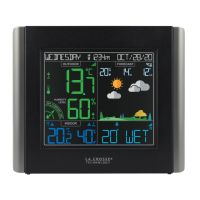
The CA79103 is a weather station that provides real-time temperature and humidity readings, along with weather forecasts. It can operate as a standalone unit or connect to the La Crosse View™ app for enhanced features and data streaming. The station supports additional sensors, including a Temperature and Humidity sensor (LTV-TH2i) and a Water Leak sensor (LTV-WL1), which are included with the station. When connected to the app, it offers advanced forecast icons, hourly and daily AccuWeather forecasts, and customizable data streams with text messages or AccuWeather information. The station also features alerts for high and low temperature and humidity, an auto-dimming backlight, and the ability to display various AccuWeather information such as wind speed, UV index, dew point, and moon phase.

Important Technical Specifications

  • Power Requirements:
    • CA79103 Station: Requires a 5-volt power cord for operation and sensor updates. A CR2032 battery is included for time and date backup during power failures. Battery-only operation will not update sensor or Wi-Fi data.
    • LTV-TH2i Temperature and Humidity Sensor: Requires 2 "AA" batteries.
    • LTV-WL1 Water Leak Sensor: Requires 2 "AA" batteries.
  • Wireless Transmission Range: Up to 400 feet (121 meters) in open air between sensors and the station. Obstacles like walls, windows, and metal objects can reduce this range.
  • Water Leak Detection: The LTV-WL1 sensor detects water at 0.031 inches (0.787mm) when placed flat. If hung vertically, it requires at least 0.25 inches (6.35mm) of water to trigger.
  • Temperature/Humidity Update Frequency: The LTV-TH2i sensor checks for changes every 50 seconds. A change of +/- 0.5°C or +/- 2% RH triggers a reading. If no change, it transmits every 3 minutes to conserve battery life.
  • Forecast Accuracy (Standalone): Approximately 70-75% accuracy for 12-hour forecasts, based on atmospheric pressure changes. Requires 7-10 days for barometer calibration.
  • App Data Update Frequency: The La Crosse View™ app updates data every 60-90 seconds.
  • Time Update (Connected): The station checks with the View Weather Server at least 4 times per day for time and date updates.
  • Backlight: 5 levels of intensity: 0% (OFF), 1.5%, 20%, 50%, 100%.
  • Extra Sensor Support: Up to 4 additional compatible sensors (Thermo-Hygro, Wind Speed, Water Leak, Pool, BBQ) can be displayed in the Extra Sensor area.
  • Mobile Device Requirements:
    • iOS: Mobile device with iOS with cellular or Wi-Fi service.
    • Android: Mobile device with Android OS with cellular or Wi-Fi service.

Usage Features

  • Setup:
    1. Insert batteries into LTV-TH2i and LTV-WL1 sensors.
    2. Connect the 5-volt power cord to the station and an outlet. Remove the insulation tab from the CR2032 battery.
    3. Place sensors and station within 10 feet of each other for several minutes to establish a signal.
    4. Optionally connect to the La Crosse View™ app.
  • Sensor Mounting (LTV-TH2i):
    • Hang using the top hole or a mounting screw.
    • Mount on a north-facing wall or shaded area, preferably under an eave or deck rail, to avoid inaccurate sun readings.
    • Mount vertically for proper moisture drainage.
  • Sensor Mounting (LTV-WL1):
    • Best when simply placed on a floor.
    • Avoid contact between metal contacts and other metal to prevent false WET readings.
  • Station Placement:
    • Flexible placement on a desk, countertop, or wall.
    • Position within reach of an always-active outlet.
    • Best reception with only one wall between the station and outdoor sensors.
    • Place six feet away from other electronics and wireless devices to avoid RF interference.
  • Adding Extra Sensors to Station:
    1. Hold the EXTRA SENSOR button for 3 seconds.
    2. Install batteries in the new sensor; press its TX button if available.
    3. Allow up to 3 minutes for the sensor and ID to appear.
  • Adding Extra Sensors to App:
    1. Open La Crosse View app, go to Main Menu > Devices > Add/Edit > ADD DEVICE.
    2. Scan the sensor's barcode ID or enter it manually.
    3. Confirm device image, enter device name and location.
  • Viewing HI/LO Readings: Press and release the TEMP button to cycle through Outdoor HI/LO Temperature/Humidity, Indoor HI/LO Temperature/Humidity, Feels Like HI/LO, and Dew Point.
  • Alerts: Set High and Low Temperature/Humidity alerts for indoor and outdoor readings. Alerts are OFF by default. When an alert value is reached, the station beeps 5 times per minute until out of range, and the alert icon flashes.
  • Auto Dim: Set the backlight to automatically dim to level 1 at a specified hour for sleeping and return to full brightness when you wake.
  • Time Setting:
    • Standalone: Manually set time, date, language, 12/24HR format, beep ON/OFF, temperature unit (°F/°C), and pressure units (InHg/hPa) via the SET button.
    • Connected: Time and date update automatically from the Internet.
  • Firmware/Wi-Fi Version Check: Hold EXTRA & TEMP buttons for 2 seconds to view firmware and Wi-Fi module versions.
  • Forecast Icons:
    • Standalone: Sunny, Partly Sunny, Cloudy, Rain, T-Storm, Snow (appears below 32°F/0°C with rain/storm forecast).
    • Connected: Additional icons for Windy, Light Rain, Severe T-Storm, Light Snow, Wintry Mix, Blizzard, Ice, Fog.
  • Outdoor Comfort Meter: An arrow indicates comfort level based on outdoor humidity (Dry, Comfort, Wet).
  • AccuWeather Forecasts (Connected):
    • Daily Forecast: Press DAILY button to scroll through 7 days of forecast icons, chance of precipitation, and HI/LO temperatures.
    • Hourly Forecast: Press HOURLY button to scroll through 12 hours of forecast icons, chance of precipitation, and hourly temperatures.
  • Custom Data Streams (Connected): Customize the data stream with text messages or AccuWeather information via the app.

Maintenance Features

  • Battery Replacement:
    • LTV-TH2i and LTV-WL1: Replace 2 "AA" batteries when the battery icon appears near the reading.
    • CA79103 Station: Replace CR2032 battery when the battery icon appears near the TIME reading.
  • Resetting Temperature/Humidity Readings:
    1. Press TEMP to view the reading to reset.
    2. Hold MINUS (-) for 5 seconds to reset to current values.
  • Deleting Extra Sensors from Station:
    1. Press EXTRA SENSOR until the desired sensor ID is shown.
    2. Hold MINUS (-) for 3 seconds to delete.
  • Deleting Old Sensor ID (for replacement):
    1. Remove batteries from the old sensor.
    2. Press SENSOR to view the sensor ID.
    3. Hold MINUS (-) for 5 seconds to delete the ID.
    4. Install batteries in the new sensor; the station will search for it.
  • Factory Reset:
    1. Hold LIGHT and DAILY FORECAST buttons together for 5 seconds.
    2. This deletes all sensor IDs, Wi-Fi connections, and history records. If connected, you will need to reconnect to Wi-Fi from the app.
  • Troubleshooting Connection Issues:
    • "LOST WIFI" message: Check power cord, ensure mobile device is on the same 2.4GHz Wi-Fi network, re-enter password, check network connection, or hold + and – buttons for 3 seconds to search for Wi-Fi.
    • "NO WEATHER SERVICE": Wait patiently; this indicates a server-side issue.
    • Intermittent readings: Ensure good batteries, check for RF interference (move sensor/station), and allow 2-4 hours for reconnection if a sensor goes out. The station searches for 5 minutes every hour to reconnect.
  • Sensor Readings Discrepancy: Station shows "real-time" readings, while the app updates every 60-90 seconds, leading to slight differences.

La Crosse Technology CA79103 Specifications

General IconGeneral
BrandLa Crosse Technology
ModelCA79103
CategoryWeather Station
LanguageEnglish

Related product manuals