EasyManua.ls Logo

LabStyle Dario - User Manual

LabStyle Dario
71 pages
Print Icon
To Next Page IconTo Next Page
Loading...
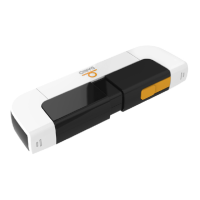
Dario® Blood Glucose Monitoring System
User Guide

Table of Contents

Questions and Answers

  • W
    William HarrisSep 1, 2025
    Why does my LabStyle Dario say “Strip is used and should be replaced”?
    • S
      Sandra DavidSep 2, 2025
      If you see the message “Strip is used and should be replaced” on your LabStyle Blood Glucose Meter, this can happen if you receive a phone call during blood testing. To prevent this, it is recommended to set your smart mobile device to flight mode before performing a test.
  • U
    uthomasSep 13, 2025
    What to do if the cartridge cover may be in the place of the lancing device cover of LabStyle Blood Glucose Meter?
    • Y
      Yolanda RangelSep 13, 2025
      If the cartridge cover may be in the place of the lancing device cover of your LabStyle Blood Glucose Meter, please be careful to return each cover to the correct end.
  • T
    Timothy HernandezAug 31, 2025
    What does Dario device failure (0x01) mean for LabStyle Blood Glucose Meter?
    • B
      Brianna GarciaAug 31, 2025
      If your LabStyle Blood Glucose Meter displays 'Dario device failure (0x01)', it indicates a firmware software failure. Try disconnecting and reconnecting the meter.
  • P
    Pamela SandersSep 16, 2025
    What to do if Lancing Device release button does not work properly of LabStyle Dario?
    • V
      virginiaswansonSep 16, 2025
      If the Lancing Device release button does not work properly of your LabStyle Blood Glucose Meter, replace the Dario™ housing. Contact customer support at www.mydario.com/support.
  • J
    James GlassSep 15, 2025
    What to do if Lancet Depth Indicator lever is stuck of LabStyle Dario Blood Glucose Meter?
    • C
      Chris MitchellSep 15, 2025
      If the Lancet Depth Indicator lever is stuck of your LabStyle Blood Glucose Meter, replace the Dario™ housing. Contact customer support at www.mydario.com/support.
  • N
    Nathan MontoyaSep 23, 2025
    Why does LabStyle Blood Glucose Meter say unknown device?
    • M
      Mario JohnsonSep 23, 2025
      If your LabStyle Blood Glucose Meter displays 'Unknown device, please connect Dario™', it could be due to another device being connected to the smart mobile device’s audio connector. If another device is connected to the earphone plug, disconnect it to connect Dario™. If you received this message while the Dario™ meter is connected, disconnect and reconnect the meter.
  • F
    foxmichealAug 27, 2025
    Why LabStyle Dario Blood Glucose Meter shows temperature out of range?
    • E
      Emily VasquezAug 27, 2025
      If your LabStyle Blood Glucose Meter displays 'Temperature out of range', it indicates that the meter was left in an environment with extreme temperatures. Move to an area between 50°-95°F (10-35°C), wait at least 30 minutes, and then repeat the measurement with a new test strip.
  • F
    flemingaprilAug 27, 2025
    What to do if LabStyle Blood Glucose Meter says insufficient blood?
    • M
      Megan HendersonAug 27, 2025
      If your LabStyle Blood Glucose Meter displays 'Insufficient blood detected', it means there was not enough blood on the test strip. Repeat the measurement using a new test strip.
  • K
    Kelly DavisAug 26, 2025
    What to do if LabStyle Dario Blood Glucose Meter shows 'Unknown device'?
    • D
      Dawn FernandezAug 26, 2025
      If your LabStyle Blood Glucose Meter displays 'Unknown device, please connect Dario', it means another device might be connected to your smart mobile device’s audio plug port. Disconnect any other device from the audio plug and connect the Dario Glucose Meter. If the message persists, disconnect and reconnect the meter.
  • W
    webbjamesAug 25, 2025
    How to reconnect LabStyle Dario Blood Glucose Meter?
    • A
      Angela ChristensenAug 26, 2025
      To reconnect your LabStyle Blood Glucose Meter, ensure that your smart device volume is appropriately set. Follow the instructions in the Dario App to adjust the settings on your mobile device: 1. Ensure that Mono Audio is set to OFF. 2. Adjust the audio balance to the middle of L and R. 3. Ensure that your ringer and alerts volume is set to the maximum level. 4. Allow Dario to use your microphone and ensure that your music volume is set to the maximum level.

Summary

INTRODUCTION AND IMPORTANT SAFETY INSTRUCTIONS

Intended Use

Specifies the purpose and usage of the Dario Blood Glucose Monitoring System.

Important Safety Instructions

Details critical safety guidelines for using the Dario System safely and effectively.

DARIO SYSTEM OVERVIEW AND FEATURES

Assembling the Dario System for the First Time

Step-by-step instructions for initial assembly of the Dario System.

CHECKING YOUR DARIO GLUCOSE METER

Dario Control Solution

Explains the purpose and use of Dario Control Solution for meter accuracy checks.

Performing a Control Solution Test

Guides the user through the process of conducting a control solution test.

TESTING YOUR BLOOD GLUCOSE LEVEL

Blood Glucose Testing Precautions

Outlines essential precautions to ensure accurate and safe blood glucose testing.

Test Strip Precautions

Details important guidelines for handling and using test strips to ensure accurate results.

CLEANING AND MAINTENANCE

TROUBLESHOOTING

Troubleshooting

Offers solutions for common issues and error messages encountered with the Dario System.

LabStyle Dario Specifications

General IconGeneral
Device TypeBlood Glucose Meter
NameDario
ConnectivityBluetooth
App CompatibilityiOS and Android
Test StripsDario Test Strips
Sample Size0.3 μL
Measurement Range20-600 mg/dL
Test Time5 seconds
Mobile AppDario App
ManufacturerLabStyle Innovation Ltd.