microSTAR®ii User Manual v1.3 85
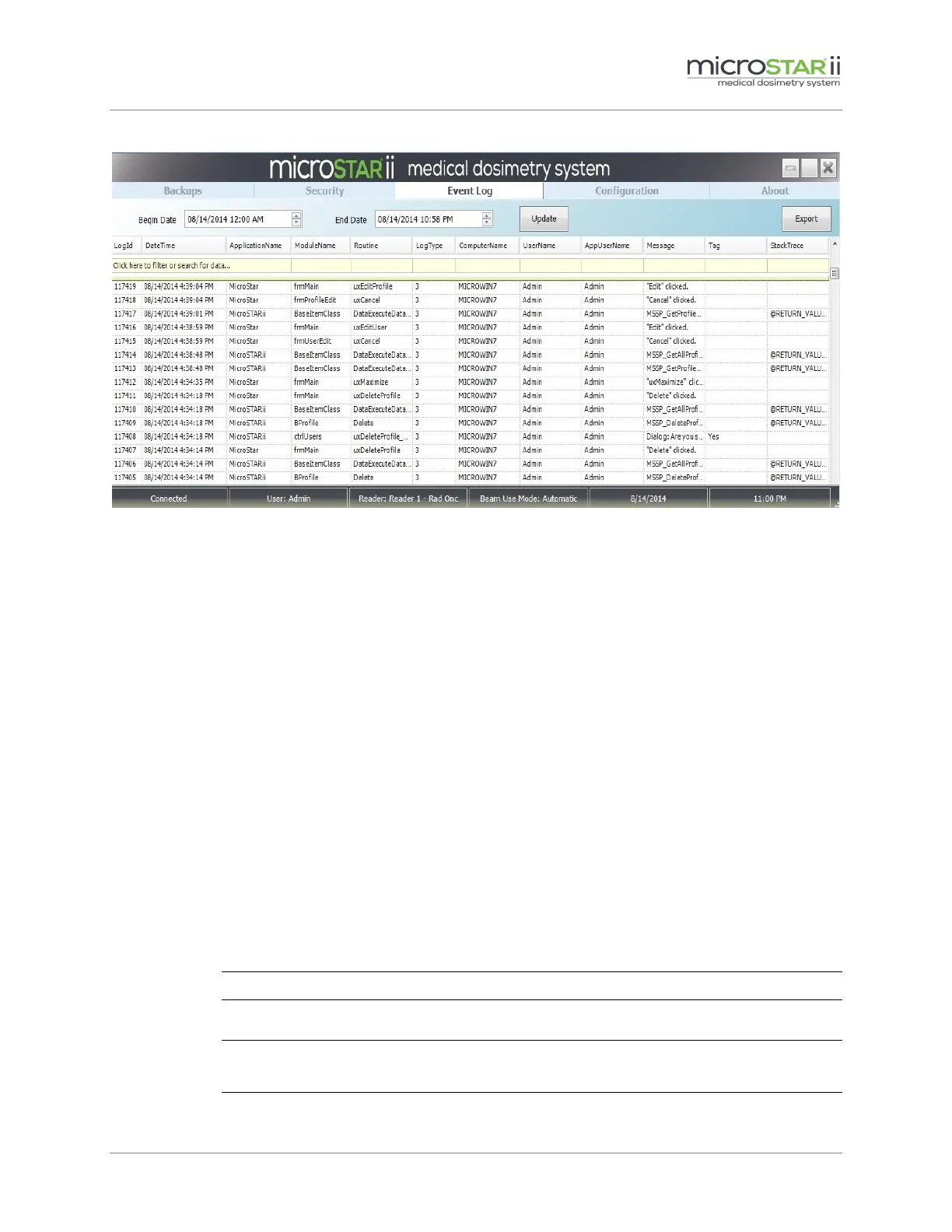
Figure 12-1: Event Log
12.2.1 Usage Information
•
Events are reported in a descending time sequence from most to least recent.
• The range of events displayed can be adjusted by specifying a start and end date for reporting
and clicking the Update button.
• Events can be sorted by clicking on the column name.
• Use the search field at the top of each column to filter for specific events. (For information
on advanced filtering, see section 8.2.)
12.2.2 Exporting the Event Log
The Event Log can be exported to an XML report for further troubleshooting or to gain point-in-
time information:
STEP 1: Log on to the microSTARii application as an Administrator or Advanced User.
STEP 2: Navigate to the Event Log tab, and click the Update button to ensure you have the most
current data set.
NOTE: Enter in a date range if you want to narrow the export to a specific event set.
STEP 3: Click the Export button.
NOTE: All data for the date range set will be exported, regardless of search/filter
criteria.


 To Next Page