Manual radarTOUCH Version 3.4
T. Schwirten LANG AG
14.10.10
Page 14
The smoothing value and the setting for active area can be done for each area separately.
The next parameters in the settings GUI (Rotation angle, Flip horizontal / vertical, Scale
PreViz) work in a global way: they have effect on each active area.
By varying the parameter “Rotation angle” you can virtually rotate the measurement device.
With the use of the check box “Flip horizontal” and “Flip vertical” you can flip the horizontal
and vertical orientation of the device. With this you can define how the device is installed
The Slider “Scale PreViz” scales the Pre-Visualization.
Creating a new active Area
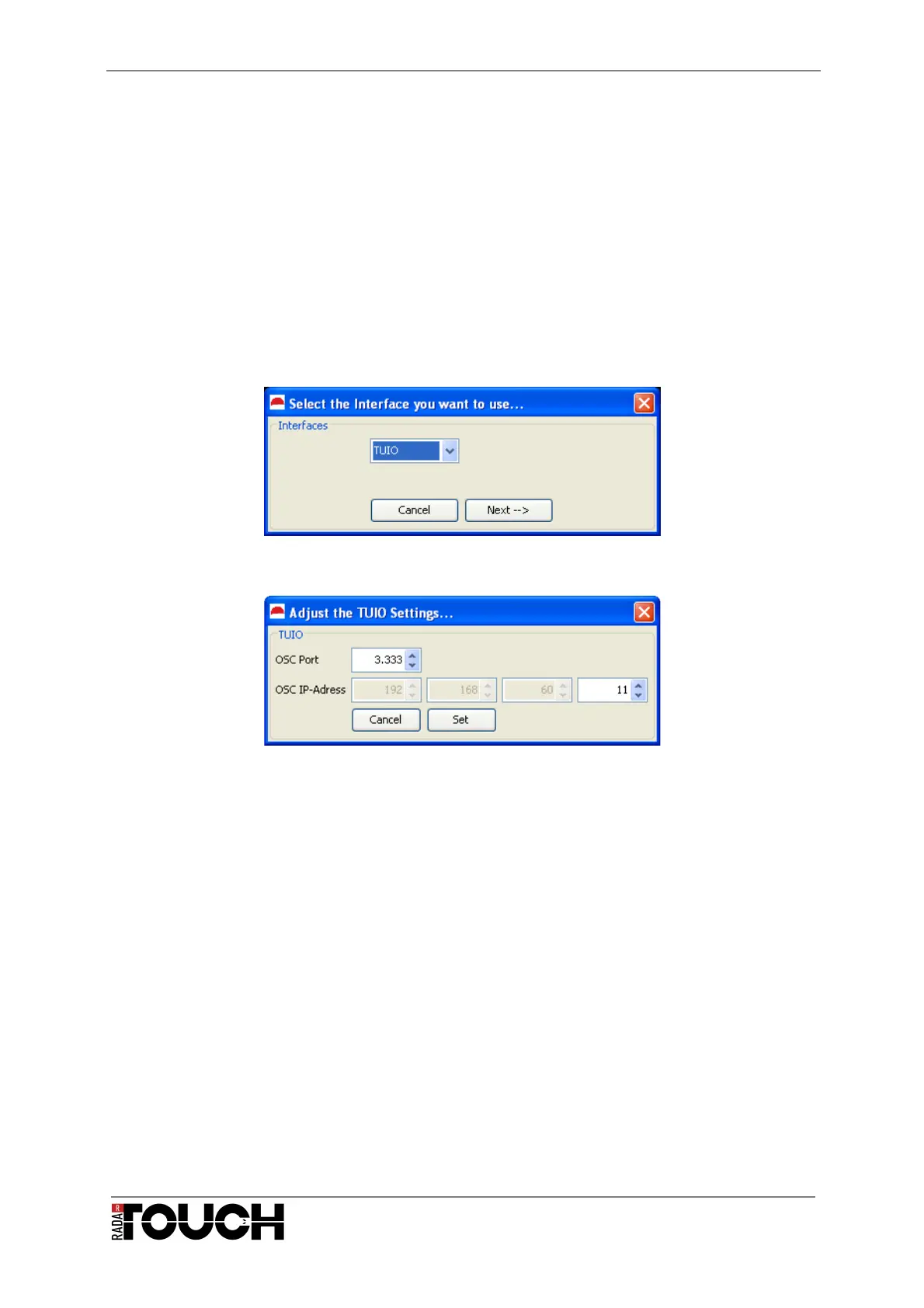
By clicking the “New Area” button a window (Figure 20) will appear, asking you to select an
interface. Right now there is only TUIO available. Press next and you can adjust the settings
of your chosen interface like OSC Port and the IP address of the receiver (Figure 21).
Figure 20 Creating a new active Area: Select Interface
Figure 21 Basic settings for the new active area
Local Mouse Control
By clicking the “Available” check box, the active area that controls the local mouse will
appear in the PreViz and in the drop down box. The ID is always -1. You can adjust all
parameters like the way it is done with all the other active areas. If you check the “Enable”
box, the mouse will be controlled.


 To Next Page