05. ProTuner - CS1, CS2RS Series
179
5.4 런 테스트
Click the icon or double click Run → Trial Run menu item for running test.
This Run Testing window of “Motion Studio” software can be used to make motor run, but cannot
monitor the motion wave. The steps are as follows:
• Step 1: to set Jog Speed (running test speed) and Acceleration, then click “Download” to take
effective;
• Step 2 to click “Servo Enable” to make the icon change from to .
• Step 3 to click or to make motor run in JOG Speed.
Or set first “current position” value to position 1, then make motor runs to achieve
second “current position” as position 2.
At last to click to make motor runs back and forth.
5.5 상태 화면 모니터링
The Monitor Window includes 3sub-menu:
“Waveform Curve”, “Alarm”, and “State Monitor” in Figure 7.
< Figure 7: Monitor Window >
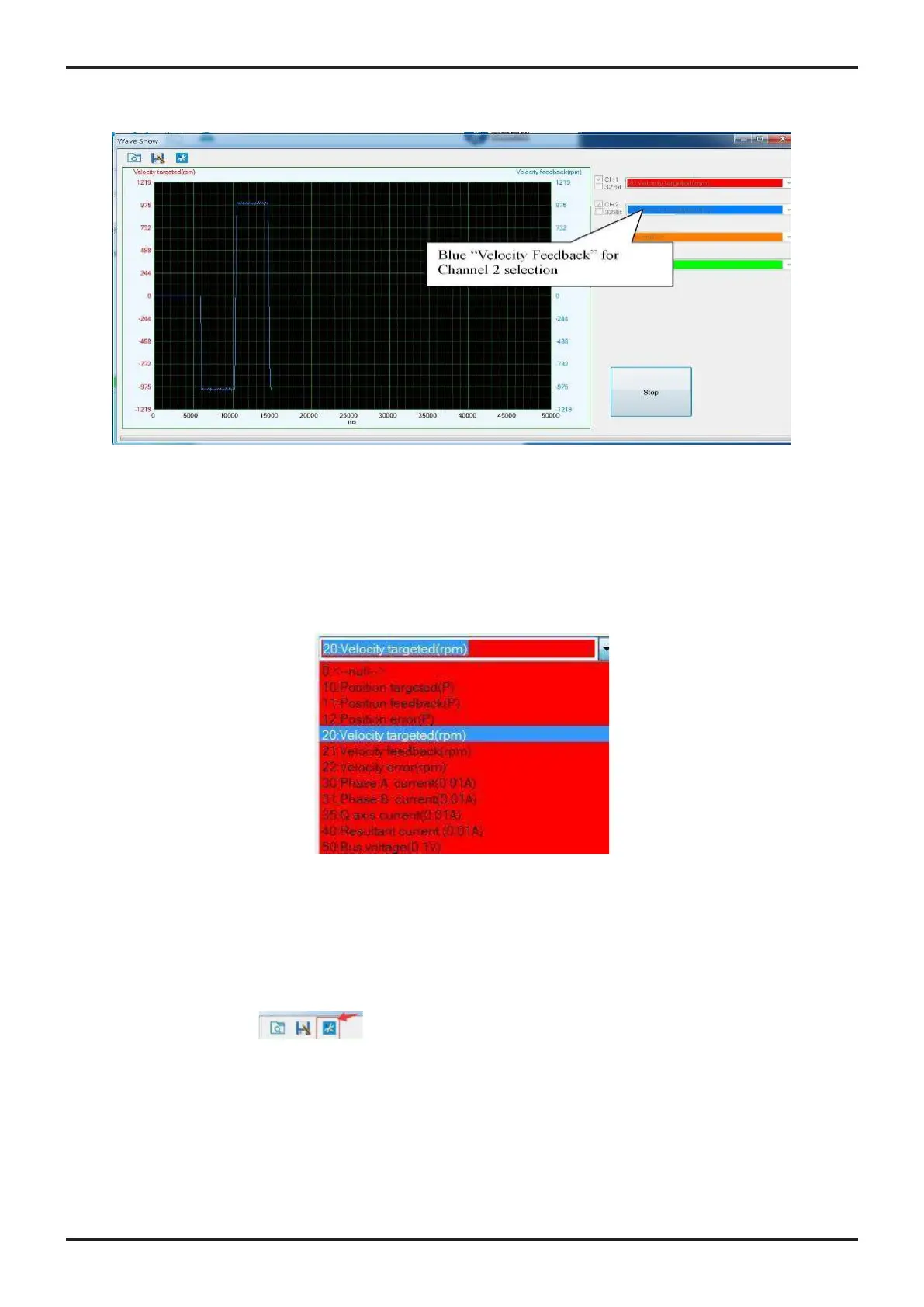
The most useful sub-menu “Waveform Curve” as Figure 8, is a scope used to display colored
curves based on what have been chosen on Channel 1 and Channel 2 dropdown lists during the
test. It can be used to:
• Perform motion performance test for current drive parameter setting.
• Monitor motion performance when the CS1-D drive takes control signals from a connected
motion controller/PLC/pulse generator…etc
< Figure 8: Scope portion of Motion test window >
.
Available options for Channel 1 add 2 dropdown list controls include “Position Error”, “Velocity
Feedback”, “Position Feedback”, “Velocity Targeted”, “Position Targeted”, “Resultant Current”, “Bus
Voltage”, “Phase A Current”, and “Phase B Current”. See Figure 9
< Figure 9: Curve type options >
When click the icon , it will have a setup window as shown in Figure 10.
The “Capture Trigger” on the left is used for monitoring motion performance when the CS1-D
drive controlled by exterior controller or PLC. The “Sampling Frame and Precision” on the right is
used to perform motion performance test for current drive parameter settings.



 To Next Page