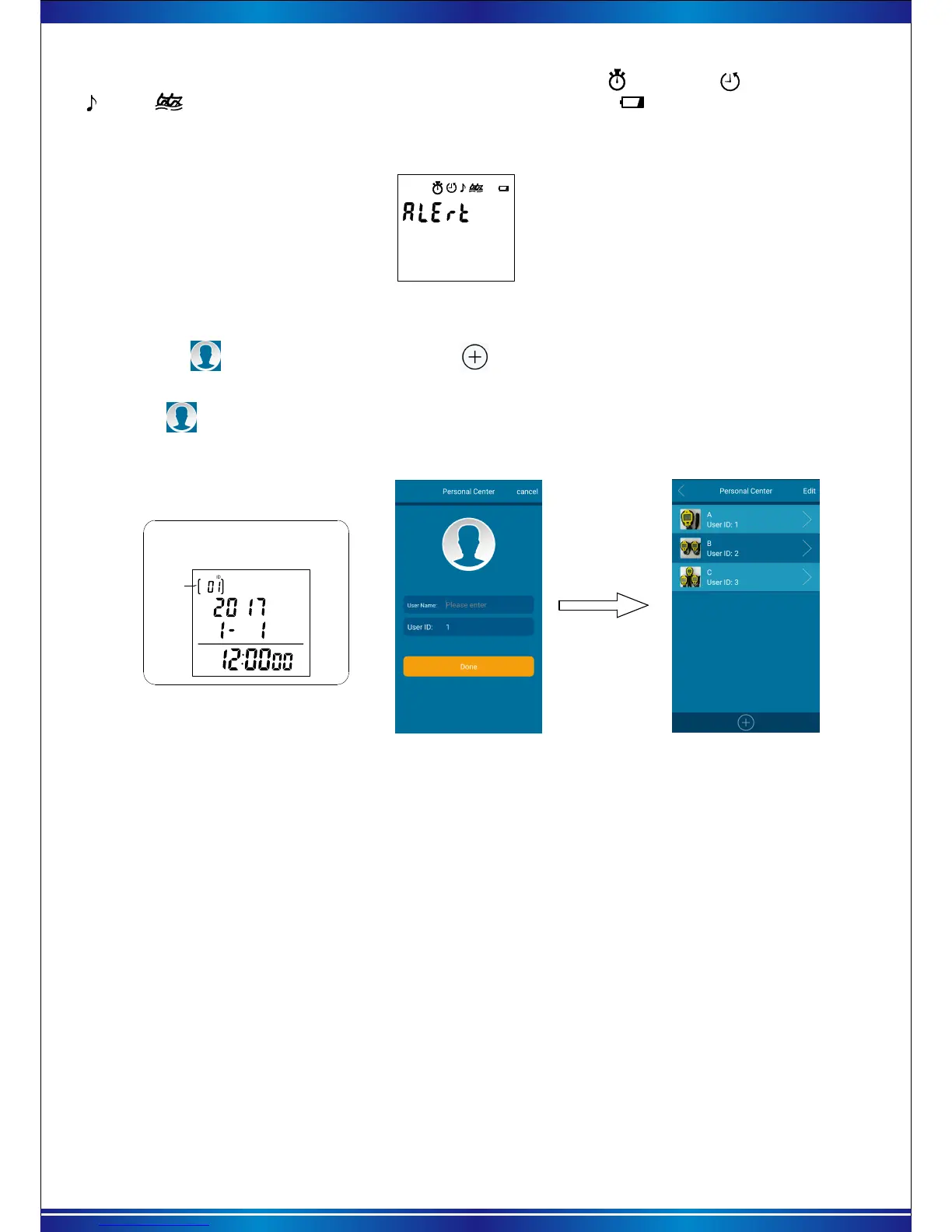
d. Long press the 【Mode】key 3 secs to turn on Bluetooth, if the stopwatch/ count down/
pacer/ stroke function is not turned off. or low battery indicator “ “ lights up, The stopwatch will
not be able to turn on the Bluetooth function. The image shows” Alert (warning) and non-close function
icon or low battery symbol will continuous flashing as picture7 as below:
Picture 7 Warning interace
3).Personal center
a. Tap the “ ” (personal center) and tag the icon to add new players. Enter the personal
information setting, Can edit user avatar .user name. User ID as picture 8.
Picture 8 Personal info setting
b.Click “ ”avatar icon, Avatar image will be obtained by “Camera”or “phone”.
Click “user name”can input user name, Click “user ID”can distribute the ID to the user.
* The user ID in the personal
information setting corresponds
to the ID on the stopwatch
User ID
* User ID: When use one stopwatch to test more than 1 person or more than one projects, it can
distinguish respective timing data by setting different ID.
For example: Use one stopwatch test timing data individually for A.B.C users’. Then transmit 3 users
data to phone apps from the stopwatch. can automatically load the three users data into A.B.C user.
Operation as below:
Second step: Use the stopwatch to test the timing for A/B/C user. Before testing A, Set stopwatch ID
to“01”. Then test the timer or stroke of A. After a test finished, set the ID to “02” then test the stopwatch
or stroke rate of B. And so on, When “C” (ID“03”) test completed, Reset the stopwatch to zero.
Third step: Connecting stopwatch and APP, Send the stopwatch data to phone app. APP automatically
according to the test ID and the time data. Respectively load into the corresponding A / B / C users.
After sending data succeed, Can view the “timer records” or “stroke record” on the APP.
Picture 9 User created
8
First step: Add 3 users on the app personal center, (as picture 9 ) they are :User name “A”/ user ID“1”,
User name “B”/User ID“2”, User name “C”/user ID“3”.


 To Next Page