9
4).Stopwatch(Timer) record
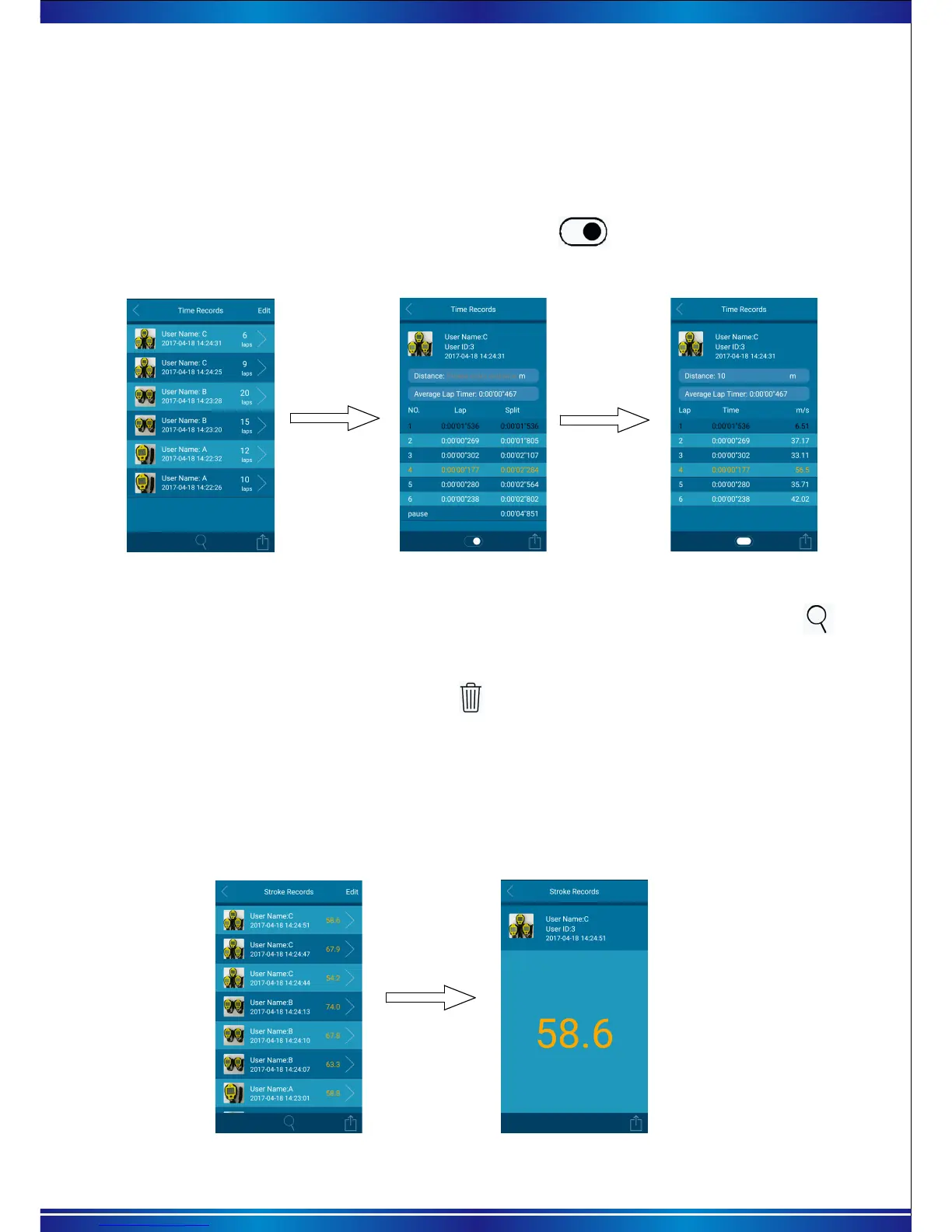
a. Click apps home page “timer record”, enter stopwatch record list, can view all stopwatch memory
data.(as picture10 ).
* Before checking record, please ensure the data has been synchronized to the app.
Picture 10 Stopwatch record list
b. Then click some catalog you want, after entering, you can view each row lap/split time , average lap
time, fastest lap time (figures shows “orange color”), Lowest lap time(figure shows “black”) as picture11.
Picture 11 Each row Lap/split time
Picture12. Speed interface
5).Stroke record
a. Click “stroke record” on APP home page , enter stroke record lists. You can review all stroke
memory data as picture13.
* Before reviewing the record, please ensure the data has been synchronized to the APP.
Picture 13 Stroke records lists
b. Then click the entry you want to check, just can review the stroke data as picture 14.
Picture 14 Stroke data
e. If need delete some stopwatch record, can click the “edit” button at right corner of “timer record list”,
then choose the record you want to delete, Click to delete.
d. When save many stopwatch record on the app, in order to easy to find, can click the button
at the bottom of stopwatch record list scene.
c. Input the distance number on “distance ”column, click the “ ” button on bottom, Switch to
speed interface then calculate automatically each row speed according to distance as picture12.


 To Next Page