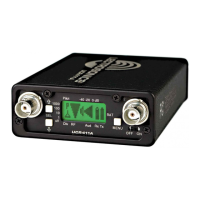
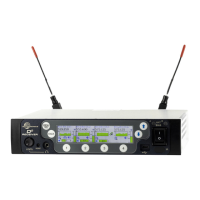
Digital Receiver
Rio Rancho, NM
15
Specifications and Features
Operating Spectrum: 470.100 - 614.375 MHz
Frequency Adjustment Range: 25 kHz steps
Sampling Size and Rate: 24-bit, 48 kHz
Digital Modulation: 8PSK with Forward Error Correction
Data Encoding: Proprietary ADPCM
Encryption: AES 256-CTR
(per FIPS 197 and FIPS 140-2)
Latency:
Digital Source: 1.0 ms plus Dante network
Analog Source: <1.4 ms
Audio Performance:
Frequency Response: 20 Hz - 20 KHz, +\-1 dB
THD+N: 0.05% (1 KHz @ -10 dBFS)
Dynamic Range: 108 dB A-wtd, NR=NORMAL
Adjacent Channel Isolation: >85 dB
Diversity Technique: Noiseless antenna switching
Sensitivity: -98 dBm for 10
-5
BER
Antenna Inputs/Outputs: Dual BNC female, 50 ohm impedance
Audio Outputs:
XLR: Balanced, -35 to +8 dBu
Headphone: 1/4 inch phone jack
Dante: RJ45 Gigabit Ethernet
External DC Power: 7 to 18 VDC; 2.5A (max)
Weight: 2.04 lbs.; 926 grams
Dimensions: 8.375 x 1.75 x 7.375 in.
213 x 44.5 x 187 mm.
Specifications subject to change without notice.
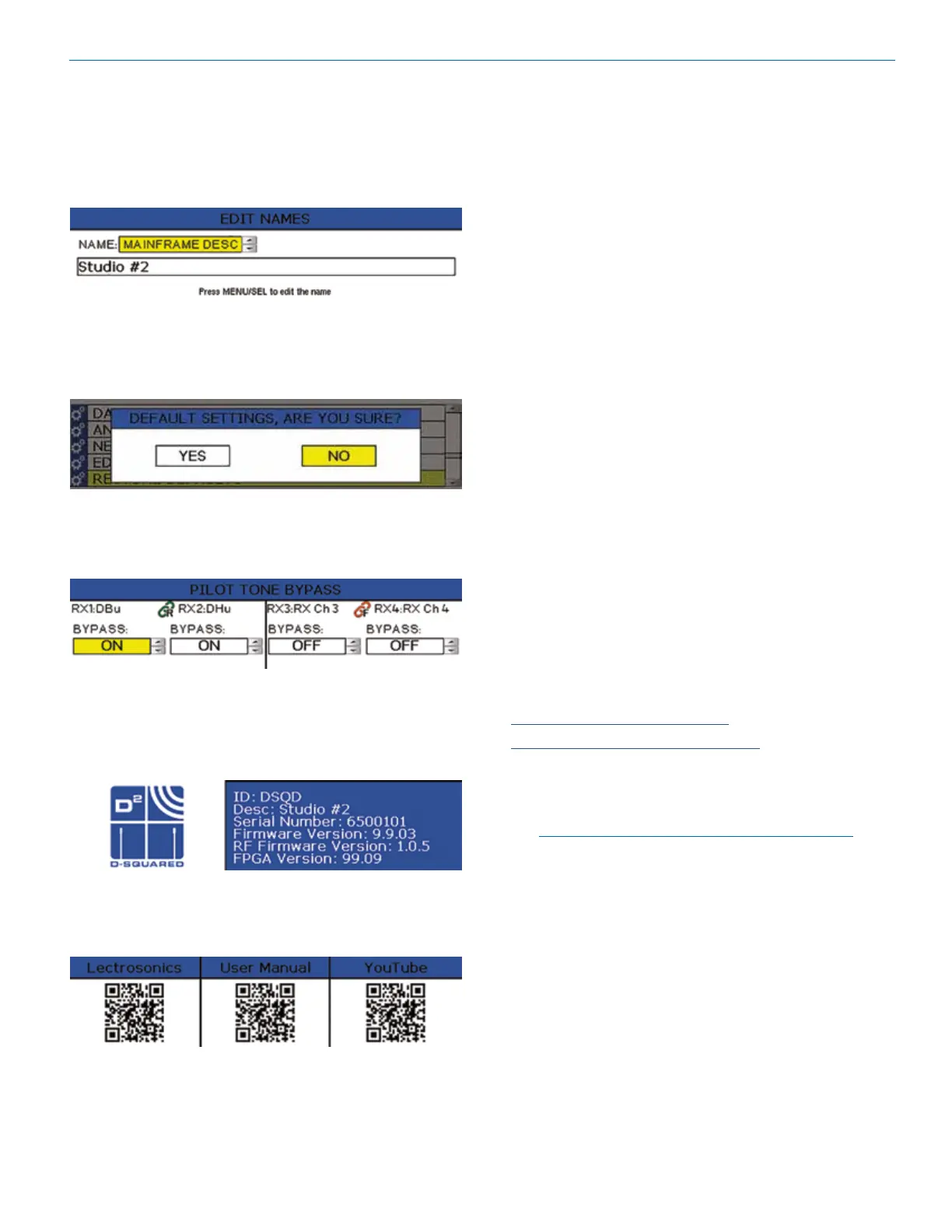
Edit Names
Edit channel names to easily identify talent or easily
identify multiple DSQD receivers in a rack (1 name per
frame). Use UP and DOWN Arrows to select letters and
bottom buttons to set and move cursor. Press MENU/
SEL when finished to save.
Restore Defaults
Returns all settings to the factory defaults. If YES is
chosen, message will appear and DSQD will reboot.
Pilot Tone Bypass
In Digital Hybrid compatibility mode ONLY, Turn Pilot
Tone Bypass on/off.
About
Displays general information about the DSQD,
including serial number and hardware, firmware and
FPGA versions.
Links
QR codes with links to the Lectrosonics website, the
DSQD User Manual online and YouTube video tutorials.
Wireless Designer Software
Download the Wireless Designer software installer from
the web sites under the SUPPORT tab at:
http://www.lectrosonics.com/US
http://www.lectrosonics.com/europe/
Wireless Designer only needs to be installed the first
time the software is used. Once the software is installed,
updates are available by simply clicking on an item in the
Help Menu.
Note: If Wireless Designer is already installed, you
must uninstall it before attempting to install a new
copy.
Firmware Update
Instructions
Firmware updates are made with a file downloaded from
the web site and the DSQD connected via USB.
Refer to Help in Wireless Designer software for the proce-
dure.


 To Next Page