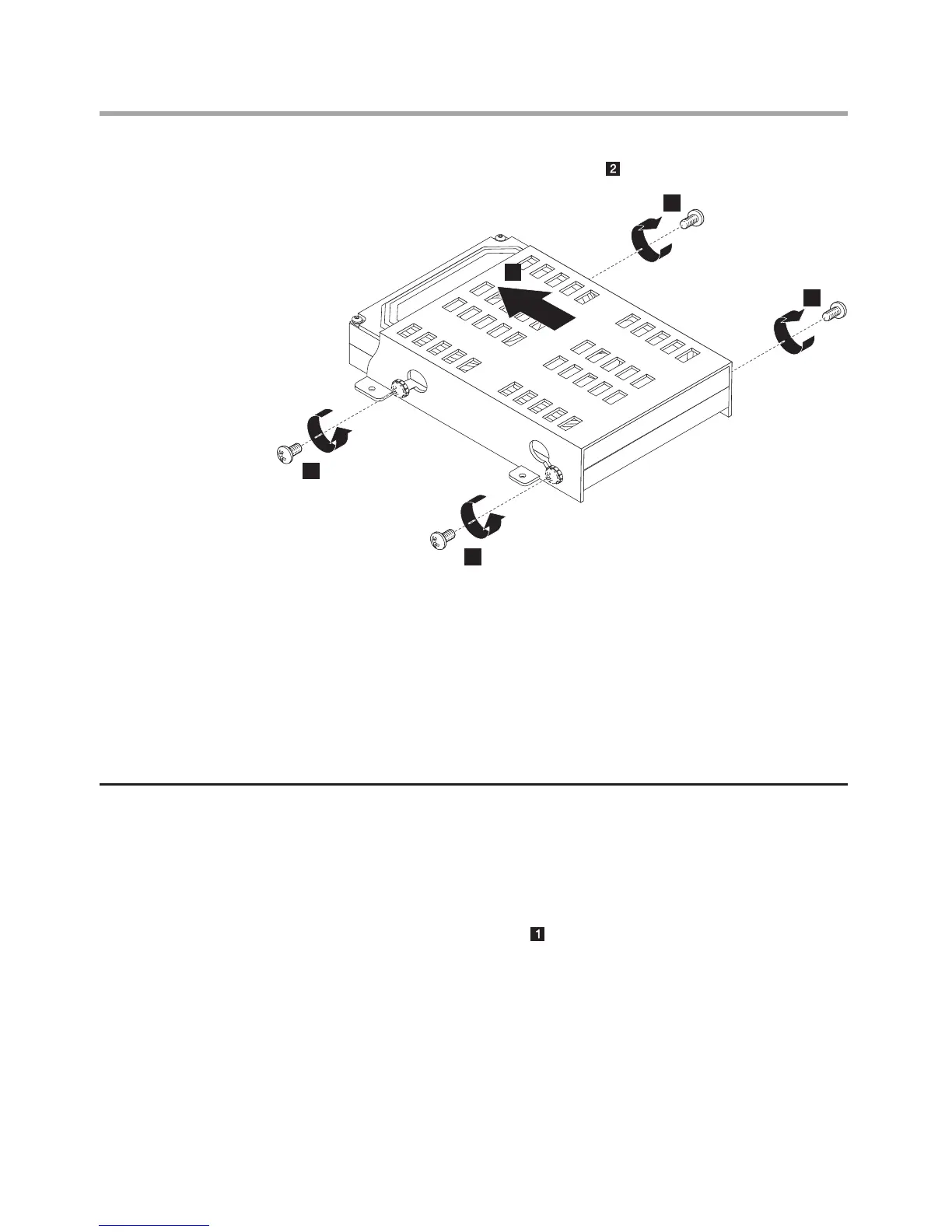
7. Install the new hard disk drive.
(1) Slide the new hard disk drive into the drive bay.
(2) Screw back the 4 screws on the drive bay.
8. Connect the data and power cables back to the hard disk drive.
9. Align the 4 screw holes in the hard disk drive bay with the mounting
holes in the chassis, then screw it back.
10. Install the computer cover and stand.
Replacing the bluetooth module
To replace the bluetooth module:
1. Remove the computer stand. Refer to “Removing the computer stand”.
2. Remove the computer cover. Refer to “Removing the computer cover”.
3. Lift up the bluetooth mudule.



 To Next Page