Generalcheckout
21
Toverifyasymptom,followthestepsbelow:
1. Turnoffthecomputer.
2. Removethebatterypack.
3. ConnecttheACadapter.
4. Makesurethatpowerissuppliedwhenyouturnonthecomputer.
5. Turnoffthecomputer.
6. DisconnecttheACadapterandinstallthechargedbatterypack.
7. Makesurethatthebatterypacksuppliespowerwhenyouturnonthe
computer.
Ifyoususpectapowerproblem,seetheappropriateoneofthefollowingpower
supplycheckouts:
• “CheckingtheTabACCharger”onpage 21
• “Checkingtheinternalbatterystatus”onpage 21
Checking the Tab AC Charger
WhenyouusetheIdeaTabACChargertochargethetabletbutnopoweris
charged,seetheinstructionsinthistopictochecktheIdeaTabACCharger.
TochecktheIdeaTabACCharger,dothefollowing:
1. Disconnectthemicro‐USBcablefromthetablet.
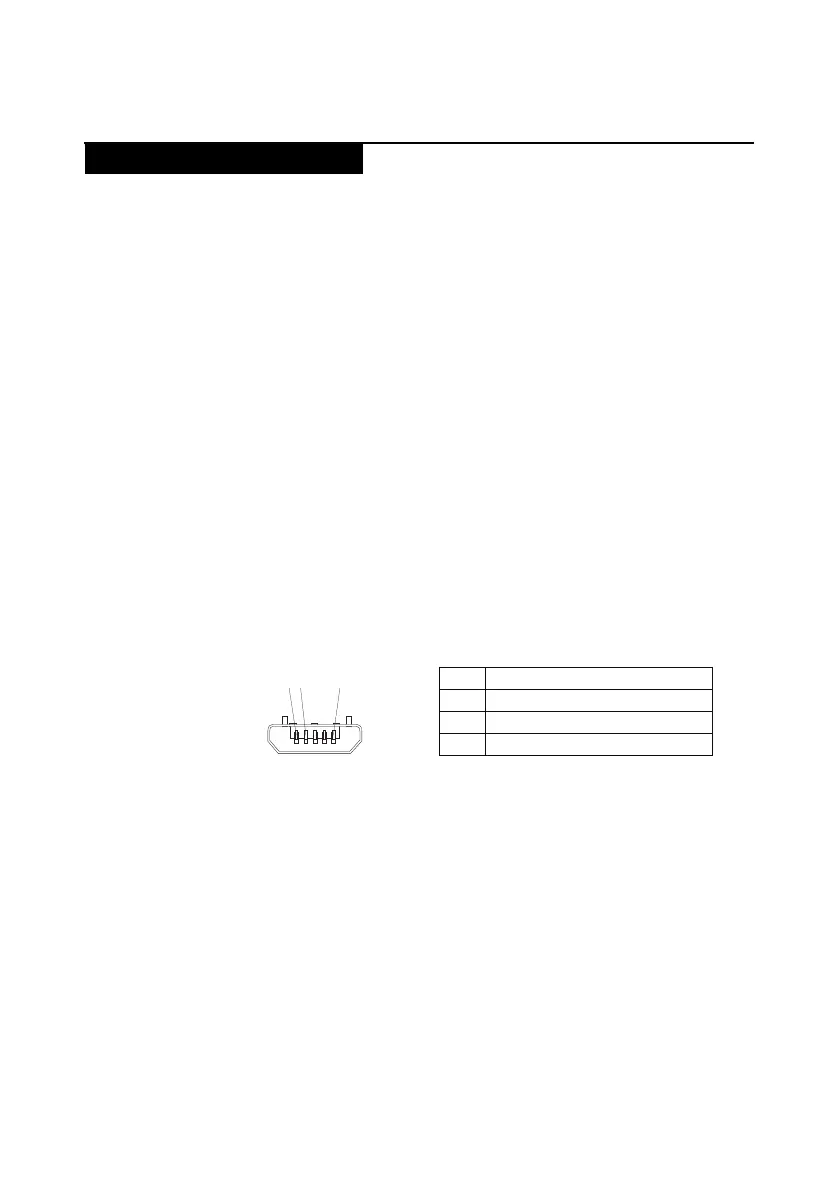
2. MeasuretheoutputvoltageacrosstheconnectormarkedBofthemicro‐USB
cable.Refertothefollowingfigure:
Note:Theoutputvoltageacrosspin3ofthemicro‐Bconnectormightbe
differentfromtheoneyouareservicing.
3. Ifthevoltageisnotcorrect,replacethemicro‐USBcable.
4. Ifthevoltageisacceptable,replacethemainboard.
Checking the internal battery status
Tocheckthebatterystatusofthetablet,doeitherofthefollowing:
• Approximate information about the battery status
Gettheapproximatestatusofthebatteryatanytimebycheckingthebattery
statusicononthesystembarintheupper‐rightcornerofthescreen.The
shorterthegreenbaris,thelessthebatterypowerremains.
• Accurate information about the battery status
Togettheaccurateinformationaboutthebatterystatusofthetablet,dothe
following:
Power system checkout
Pin
Voltage (V dc)
1
Ground
20
3
+5
1
2 3 (5V)




 To Next Page