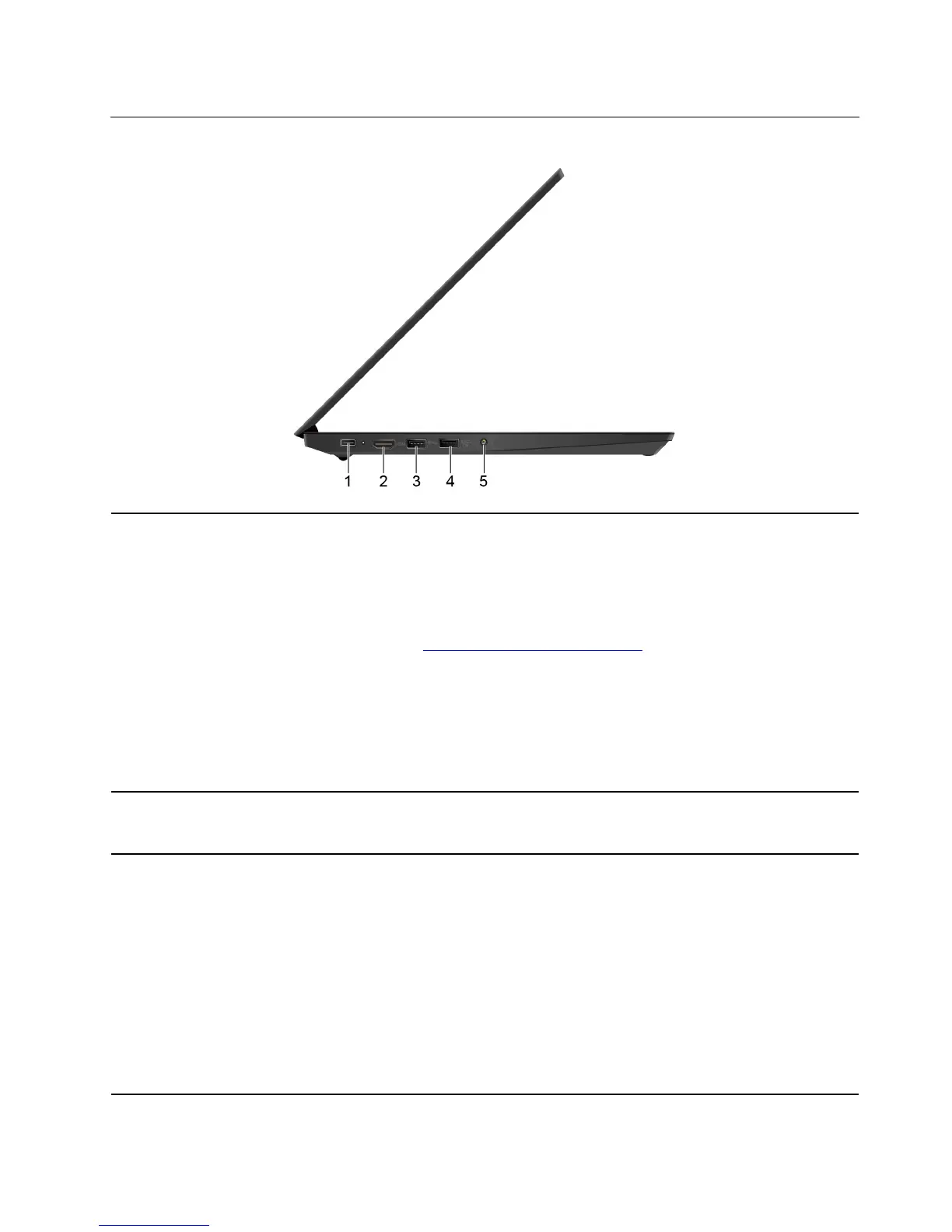
Left
1. USB-C™ connector The USB-C connector supports the USB Type-C standard. With an appropriate USB-C
cable connected, you can use the connector to transfer data (USB 3.1 Gen 1, 5 Gbps),
charge your device (5 V / 3 A), connect your computer to an external display (USB-C to
VGA: 1900 X 1200 pixels /60 Hz; USB-C to DP: 3840 x 2160 pixels / 30 Hz), or connect
to USB-C accessories to help expand your computer functionality.
Lenovo provides various USB-C accessories to help you expand your computer
functionality. See
https://www.lenovo.com/accessories.
Notes:
• When transferring data to or from a smart phone through a USB-C to USB-C cable,
do not put your computer to hibernation mode before the data transfer is
completed. Otherwise, data transfer could get interrupted.
• When the battery power is below 10%, the USB-C accessories connected to the
USB-C connector might not work correctly.
2. HDMI™ connector
The High-Definition Multimedia Interface (HDMI) connector is a digital audio and video
interface. It enables you to connect your computer to a compatible digital audio device
or video monitor, such as a DVD player or an HDTV.
3. Always On USB 3.1
connector Gen 1
With the Always On USB feature enabled, the Always On USB 3.1 connector Gen 1 can
charge a USB-compatible device when the computer is on, off, in sleep mode, or in
hibernation mode.
Notes:
• By default, Always On USB is enabled and Charge in Battery Mode is disabled in
UEFI BIOS.
• When the computer is off or in hibernation mode, and Charge in Battery Mode is
disabled in UEFI BIOS, ensure that you have connected the computer to ac power.
To enable the Always On USB feature, do the following:
1. Enter the BIOS menu. See “Enter the BIOS menu” on page 33.
2. Click Config ➙ USB ➙ Always On USB to enable the Always On USB feature.
Chapter 1. Meet your computer 5











 To Next Page