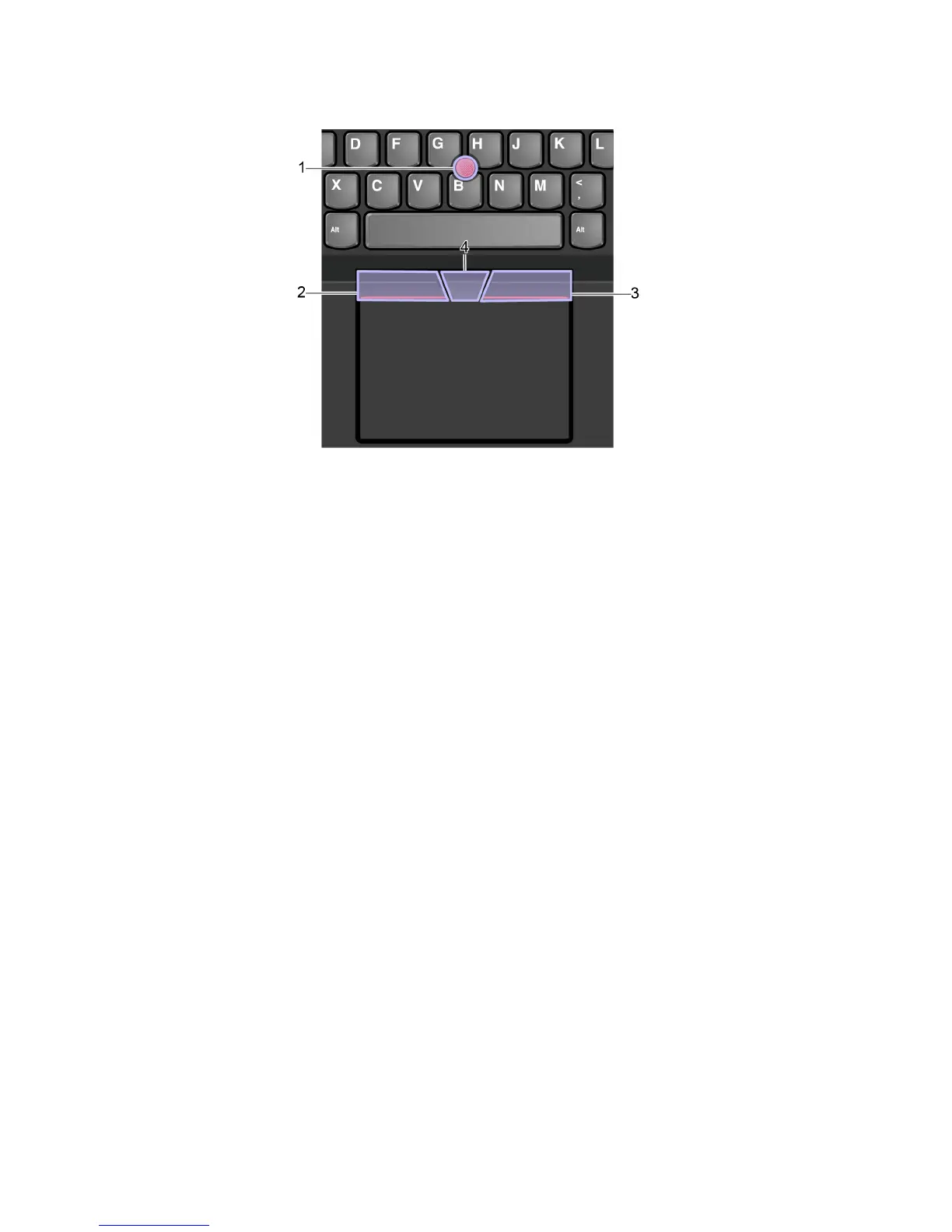
Use the TrackPoint pointing device
1. Pointing stick
Use your index finger or middle finger to apply pressure to the pointing-stick nonslip cap in any direction
parallel to the keyboard. The pointer on the screen moves accordingly but the pointing stick itself does not
move. The higher the pressure applied, the faster the pointer moves.
2. Left-click button
Press to select or open an item.
3. Right-click button
Press to display a shortcut menu.
4. Scroll bar
Press and hold the dotted scroll bar while applying pressure to the pointing stick in the vertical or horizontal
direction. Then, you can scroll through the document, Web site, or apps.
Disable the TrackPoint pointing device
The TrackPoint pointing device is active by default. To disable the device:
1. Go to Control Panel and view by Large icons or Small icons.
2. Click Mouse. Then, follow the on-screen instructions to complete the setting.
18
E490/E490s/R490 User Guide











 To Next Page