•“Computerstopsresponding”onpage127
•“Powerproblems”onpage141
Usingthemulti-touchscreen
Thistopicprovidesinstructionsonhowtousethemulti-touchscreenthatisavailableonsomemodels.
Tap
Taponthescreenwithyourngertiptolaunchanapplication,selectanitem,oropenamenu.
Pressandhold
Pressandholdanitemorablankareaonthescreenforafewsecondsuntilanactionoccurs.
Drag
Tapandholdyourngeronanitem,suchasanimageoranicononthescreen,thenpullitalongwithyour
ngertothedesiredlocation.
Swipeorslide
MoveyourngerhorizontallyonthescreentoscrollthroughWebpages,lists,picturethumbnails,andsoon.
Zoominorzoomout
Movetwongersclosertogetheronthescreentozoomout,ormovetwongersapartonthescreen
tozoomin.
Rotate
Puttwoormorengersonanitem,andthenrotateyourngers.Thisoperationenablesyoutorotatethe
selecteditemsinadirectionyoumoveyourngers.
Doubletap
Forsomeapplications,quicklytaptwiceonthescreentozoomin.Double-tapagaintozoomout.
Windows8touchgesturesandmouseactions
ThefollowingtableliststhetouchgesturesandmouseactionssupportedbytheWindow8operatingsystem.
Tasks
Touchgestures(touchmodelsonly)
Mouseactions
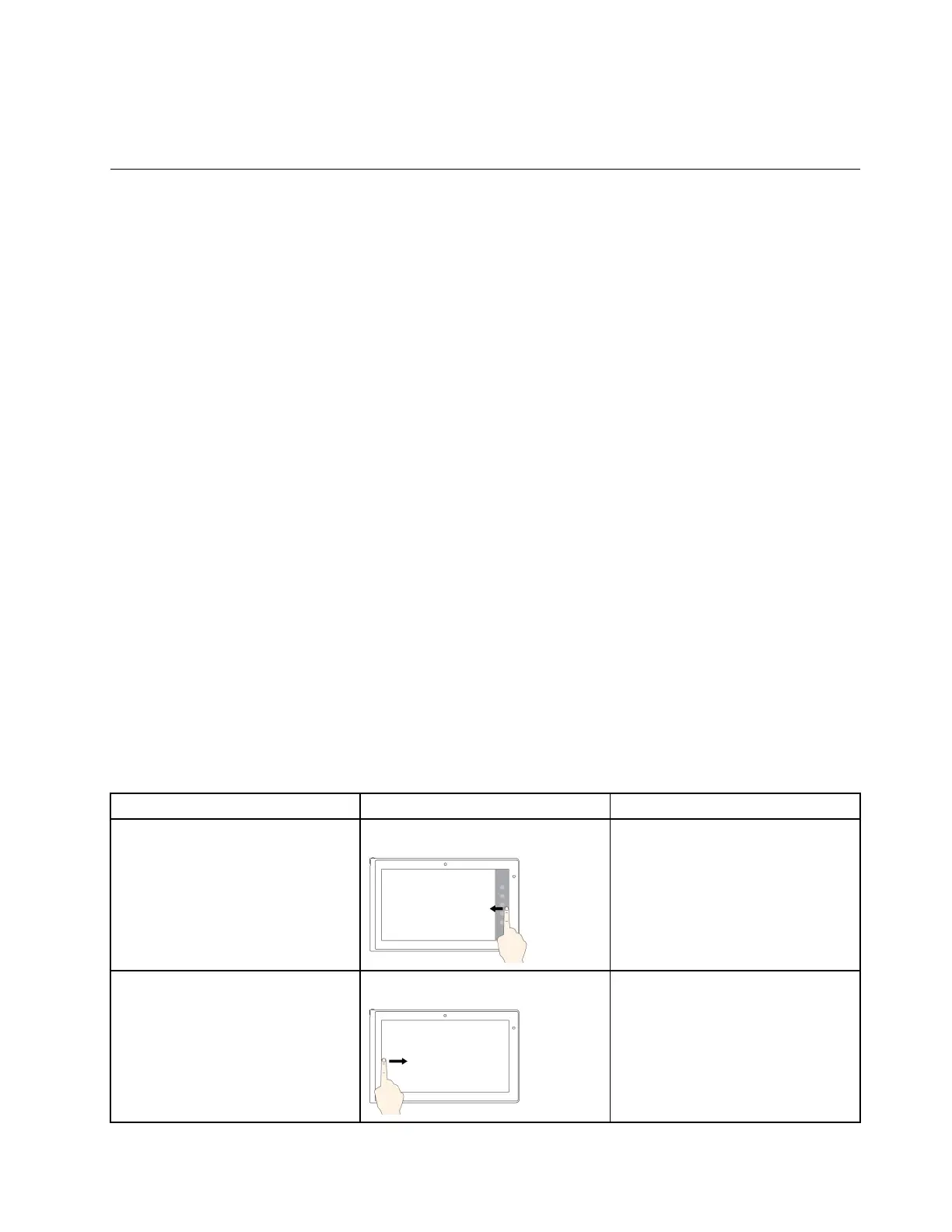
Todisplaythecharmsthatcontain
systemcommands,suchasStart,
Settings,Search,Share,and
Devices
Swipeinfromtherightedge.
Movethepointertothelower-rightor
upper-rightcornerofyourscreen.
Todisplaytheopenapplicationsand
switchapplications
Swipeinfromtheleftedge.
Movethepointertotheupper-left
cornerofyourscreen,andthenclick.
Chapter2.Usingyourcomputer25












 To Next Page