Chapter 2. 2-3
Adjusting your monitor image
This section describes the control features to adjust your monitor image.
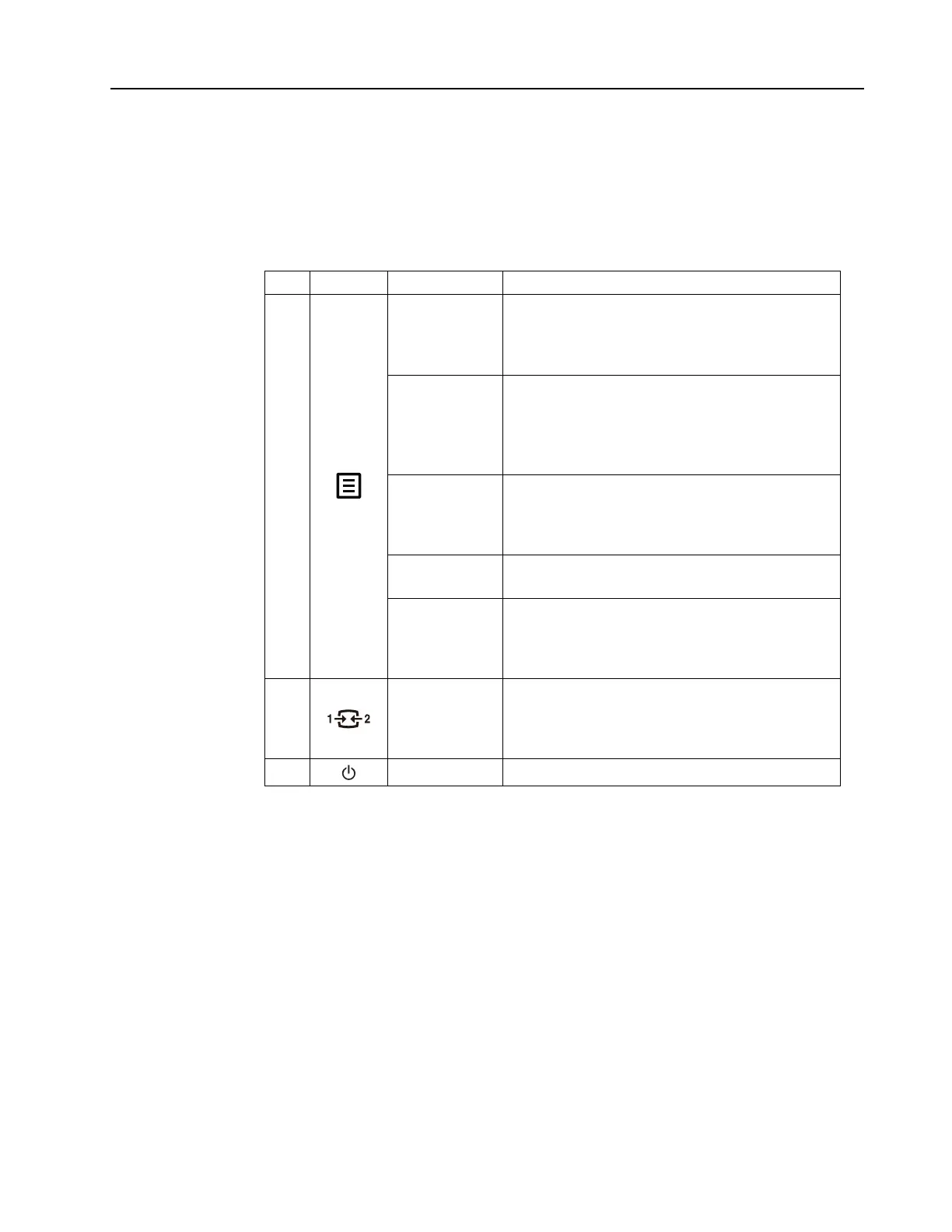
Using the direct access controls
The direct access controls can be used when the On Screen Display (OSD) is not
displayed.
Table 2-1. Direct access controls
Icon Control Description
1
Center
To access OSD menu.
Press to confirm selection.
Press and hold for 10 seconds will lock menu/
unlock menu.
UP
Press to move to last item on menu. Press to
Increase current value on adjustment bar.
It is a shortcut key for directly opening speaker
volume adjustment(HDMI/DP connected)./Press to
Automatic function(VGA connected).
Down
It is a shortcut key for directly opening color mode
menu while there is no any OSD on the screen.
Press to move to next item on menu. Press to
decrease current value on adjustment bar
Left
Return to the previous menu page or exit from the
previous function.
Right
Press to enter next level on main menu or sub menu.
It is a shortcut key for directly opening brightness
adjustment bar while there is no any OSD on the
screen.
2
Input Change
Press to switch the video input source while there is
no any OSD on the screen.
Press and hold for 10 seconds to Enable/Disable the
“DDC/CI” .
3
Power Off/On Press to turn the monitor power on/off.




 To Next Page